- DATE:
- AUTHOR:
- Cvent Product News Team

SPOTLIGHT: AI-Powered Session Snapshots – The Easiest Way to Capture Every Session Moment
In-person conferences move fast. By midmorning on day one, most attendees are already juggling half-typed notes, phone photos of slides, and the nagging feeling that they’ll forget the most important details.
Session Snapshots, a new capability in the Attendee Hub Event App, changes that with a single tap. Instead of scrambling to capture content, attendees can stay focused on the speaker while CventIQ takes notes for them.
What Session Snapshots Is
Session Snapshots is an AI-powered notetaking feature for in-person sessions in the Attendee Hub Event App.
With a single tap, each Snapshot saves:
A timestamped transcript clip around the moment
An AI-generated title and brief summary
(Optionally) A slide image from that exact point in the presentation
Attendees can return to these saved moments after the event via the My Snapshots tab, where they can review, copy, and share what they captured.
Snapshots is part of CventIQ, Cvent’s suite of intelligence capabilities that layers AI on top of rich event data to make experiences more personalized, more accessible, and easier to measure.
Benefits
Simpler, smarter notetaking
Attendees tap once and get structured, AI-enhanced notes they can actually use after the event, instead of scattered screenshots and half-written bullets.More accessible sessions
Live transcripts, along with saved Snapshots, make session content easier to follow and revisit, supporting a wider range of learning and accessibility needs.Stronger proof of event value
Combined with My Event – Daily Sessions and Daily Highlights, Snapshots help attendees clearly show what they learned and why the event was worth the time and investment.
Let's follow an attendee through a typical session and see how planners can turn it on for maximum adoption.
A Day in the Life: Capturing the Moments That Matter
When Maya walks into a packed keynote, she opens the Attendee Hub Event App and pulls up the session details. Just beneath the description, she notices a new option: “Take snapshot.”
During the session: One tap instead of frantic note-taking.
As the keynote gets underway, Maya taps “Take snapshot” whenever she hears something worth remembering—a dense roadmap slide, a powerful quote, or a framework she wants to share with her team.
Behind the scenes, Session Snapshots:
Captures an 80-second transcript excerpt – 60 seconds before and 20 seconds after taking the snapshot, so she gets the full thought.
Uses AI to generate a short title and summary, making each saved moment easy to skim.
(Where enabled) Grabs a screenshot of the slide that was on stage at exactly that time, so she no longer needs a separate phone photo.
Maya never has to switch apps or look away from the stage. Session Snapshots is purpose-built for in-person sessions and isn’t included in the virtual Attendee Hub experience, so it stays focused on what’s happening in the in-person session room.
After the session: Everything organized in My Event
That evening, Maya opens My Event → Daily Sessions (can be accessed in the session details as well) for any session where she took snapshots; she now sees a clear “View your X snapshot(s)” to action on the Daily Sessions card.
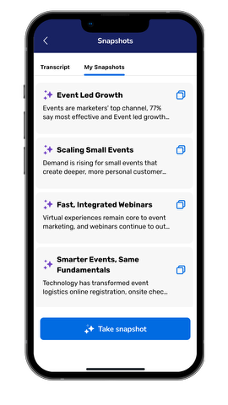
Tapping it takes her directly to the Session Snapshots view on the “My Snapshots” tab for that session, where all her captured moments are collected in one place. From there, she can:
Skim AI titles and summaries to quickly remember what each moment was about.
Read the transcript excerpt for the exact wording.
Reference the slide image without hunting through her camera roll.
Copy text into follow-up emails, internal recaps, or trip reports.
On the same Daily Sessions card, Session Takeaways give her a concise, AI-generated summary of the entire session. Even for sessions she didn’t attend, she gets a quick, digestible recap of the key points and a summary of the entire session. Even for sessions where she didn’t take a snapshot, she gets a quick, digestible recap of the key points.
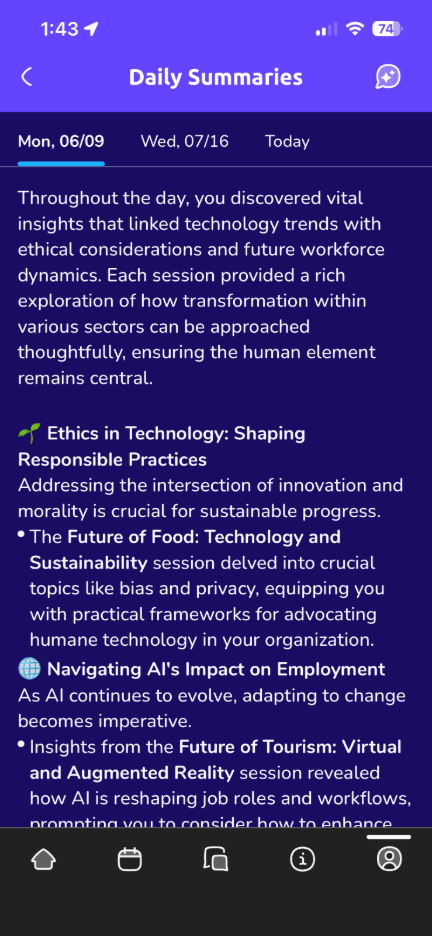
Taken together, Snapshots and Takeaways close the loop between “sessions attended” and the content that actually stuck with each attendee.
Availability & Access
Session Snapshots is available for eligible events using the Attendee Hub Event App and Cvent live transcripts.
Planners enable it on a per-session basis via:
Web & App Builder → Features → Sessions → Snapshots
With Event App v1.131, Session Snapshots and Session Takeaways move into general availability and become deeply integrated into My Event – Daily Sessions, including:
“View your X snapshot(s)” on Daily Sessions cards for sessions where attendees captured snapshots
Direct navigation from those cards to the Session Snapshots screen on the “My Snapshots” tab
AI-powered Session Takeaways are surfacing on the cards instead of the full session description when available
Use Cases
High-value keynotes and roadmaps
Support fast-moving strategy and product sessions where attendees struggle to capture everything in real time.
Technical deep dives and training
Help audiences revisit dense, detail-heavy content, including specific terminology and complex diagrams.
Executive and stakeholder reporting
Give attendees clean, AI-framed notes they can easily turn into trip reports, internal summaries, and follow-up action plans.
How to Get Started
You can unlock the value of Session Snapshots without changing your entire event design. At a high level, planners and AV teams will:
Enable Snapshots & Takeaways for selected sessions
In your event, go to Attendee Hub → Website and App → Manage website and app.
Under Session content / Snapshots & Takeaways, toggle on Snapshots (and Takeaways, if desired).
Choose which sessions allow Snapshots, and leave it off for under NDA or highly confidential content.
Connect Attendee Hub’s Live Display with room audio and visuals
Provide your AV partner with the Live Display URL and either:
A location access code for that room (with optional auto progression), or
A single session access code.
Feed a clean speech-only audio mix from the room mixer into a capture device connected to the Live Display laptop.
Optionally add a video feed or use browser screen sharing to capture slides—no need to upload decks separately.
Once the configuration is complete, all that’s left is to promote the feature in the session room. A single line in the speaker script is usually enough:
“If you hear something you want to remember, tap ‘Take snapshot’ in your Event App, and we’ll save the moment for you.”
Bottom Line: Never Lose a Great Event Moment
Session Snapshots helps attendees stay present in the room while capturing the content that matters most—and gives planners a new CventIQ-powered window into which ideas and moments truly resonated.
Turn it on for your next in-person program, start with your most content-dense sessions, and let your attendees retire blurry slide photos for good.
Resources
Attendee Hub Session Snapshots One-pager
Community Blog: How Attendee Hub is Retiring Traditional Note Taking