- DATE:
- AUTHOR:
- Cvent Product News Team

Actionable Insights Releases for August 19, 2026
Integrations
Event Sync and Registrant Capture for LinkedIn (BETA)
BETA Status: LIVE NOW
Cvent's Event Sync and Registrant Capture for LinkedIn lets planners promote events on LinkedIn without duplicating work — by creating and maintaining a LinkedIn Event directly from Cvent. For Cvent Webinar and Cvent Essentials events, it also captures registrations completed on LinkedIn and syncs them back into Cvent, keeping attendee data centralized for follow-up, reporting, and attribution.
This is part of a broader Cvent + LinkedIn integration story. Learn more about the full partnership at cvent.com/linkedin.
Qualifications: Cvent Event Registration, Cvent Webinar, and Cvent Essentials customers.
This release is a Closed BETA available to opt-in customers.
What do you need to know?
This BETA delivers two tightly connected capabilities released together as a single end-to-end solution:
Event Sync for LinkedIn — Create a LinkedIn Event from your Cvent event and keep core details automatically in sync.
Registrant Capture for LinkedIn — For Cvent Webinar and Cvent Essentials events, registrations submitted on LinkedIn are automatically synced back into Cvent as attendee records.
Together, they close the loop: publish once in Cvent, promote on LinkedIn, and watch registrations flow back — no manual exports, no re-keying, no attribution gaps.
What's included
Event Sync for LinkedIn (Any event type)
One-click LinkedIn Event creation from within your Cvent event (Event > Integrations > LinkedIn). Cvent automatically creates a LinkedIn Event using your existing event details — no duplicate data entry.
Supported event types: Cvent Event Registration (Standard Events), Cvent Webinar, and Cvent Essentials.
Automatic field sync: Event name, date/time, timezone, description, event image, format (in-person/virtual/hybrid), venue/address, and registration URL are mapped from Cvent to LinkedIn. Cvent is the source of truth.
Ongoing sync: When supported fields are updated in Cvent, the LinkedIn Event is updated automatically — no manual maintenance needed.
Boost Your Event: After your LinkedIn Event is created, a "Boost Your Event" button appears in Cvent, taking you directly into LinkedIn's paid event promotion workflow.
Reference ID tracking: Cvent automatically appends a Reference ID to the registration or event website URL that is synced to LinkedIn, enabling attribution reporting for traffic and registrations driven by the LinkedIn Event page.
Delete/reset: If a LinkedIn Event was created in error, planners can delete it from Cvent, removing it from LinkedIn and resetting the integration.
Registrant Capture for LinkedIn (Cvent Webinar and Essentials only)
Automatic registration sync: When a LinkedIn member registers through the LinkedIn Event registration form, their record is created or updated in Cvent in near real time — no manual import needed.
Deduplication: Incoming registrations are matched to existing Cvent contacts by email. Matches update the existing record; no match creates a new contact.
Attribution tagging: LinkedIn-sourced registrations are tagged with Responded Through = LinkedIn Registration Form, making attribution quick and easy via the Registrants report.
REST API Account Level Endpoints: Orders and Transactions
REST API users can retrieve orders and transactions across an entire Cvent account without iterating event by event. New account-level REST endpoints for orders and transactions make it practical to run daily, weekly, or monthly financial syncs to data warehouses and internal systems at scale, thereby increasing operational efficiency through financial reconciliation workflows.
The following endpoints will be available in the developer portal:
GET /transactions
GET /transactions/{transactionId}
GET /transactions/{transactionId}/items
GET /transaction/{transactionId}/items/{transactionItemId}GET /orders
GET /orders/{orderId}
GET /orders/{orderId}/items
GET /orders/{orderId}/items/{orderItemId}
Why It Matters
Until now, retrieving orders and transactions across an account required calling the event-scoped endpoints once per event. For accounts with hundreds of events, that means thousands of API calls just to get a single day's worth of changes. Now, a single paginated call can return all orders or transactions that have changed across the entire account since that timestamp. Integrations that previously required complex fan-out logic are now straightforward delta queries.
This is especially valuable for teams running recurring data pipelines — daily warehouse syncs, hourly CRM updates (e.g., Salesforce opportunity reconciliation), and invoice/accounting integrations that need a reliable stream of financial activity without event-by-event enumeration.
Things to Note
Eventual consistency lag: Data flows through a change-data-capture pipeline before it is queryable. There may be a few minutes' lag between when an order or transaction is created or updated and when it appears in the endpoint response. Integrations that use lastModified as a sync cursor should include an overlap window to avoid silently missing records written just before the poll window opens.
These are read-only endpoints
The existing event-level endpoints for orders and transactions remain available and are unaffected by this release
Additional detailed documentation for the endpoint can be found on the Cvent Developer Portal.
HubSpot Expanded Mappable Fields
More HubSpot property types supported: Cvent previously limited which HubSpot property types admins could map — only basic types like text and number were supported. Admins couldn't map Cvent data to HubSpot Single Checkbox, Multiple Checkboxes, Dropdown Select, or Radio Select properties, which forced workarounds or left HubSpot fields unmapped.
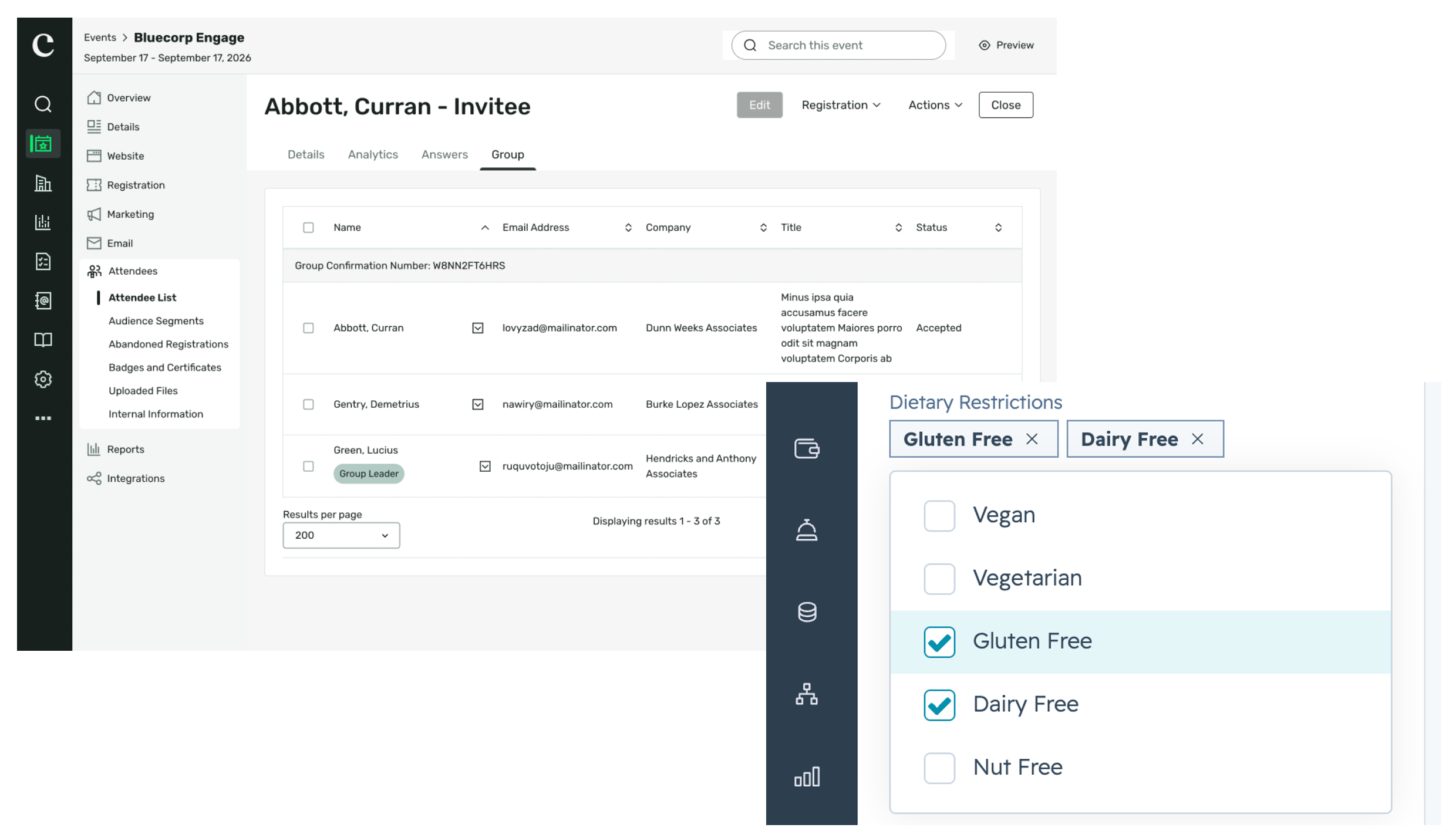
Group registration data in HubSpot: Cvent already captured group registration context — whether a registrant was a Group Leader or Group Member and their Group Confirmation Number — but none of that data could be sent to HubSpot. Marketers had no way in HubSpot to segment or score group registrants differently from individual registrants.
What are the most important things to know about this release?
New HubSpot property types supported: Admins can now map Cvent fields to HubSpot Single Checkbox (boolean), Multiple Checkboxes, Dropdown Select, and Radio Select properties — for both Contact and Marketing Event objects.
Case-sensitive matching for enumerated types: HubSpot validates option values against internal option names. Matching is case-sensitive for Dropdown, Radio Select, and Multiple Checkboxes. Non-matching values will fail the sync and surface an error in Sync History — they will not silently drop.
Boolean behavior: Only the literal strings "true" or "false" (lowercase) will sync to a HubSpot Single Checkbox field. Variants like Yes/No, 1/0, True/False will result in a sync failure.
Blank values are a no-op: A blank Cvent field value will not overwrite an existing HubSpot property value.
New Group Registration fields: Group Leader, Group Member (boolean), and Group Confirmation Number are now available as mappable Cvent fields under the Registration object.
Reporting
Build Your Own Reports: Hotel Request Report
The Hotel Request report is now available in Build Your Own Reports (BYOR). Planners can build custom reports of attendee hotel request data within an event. They can select the fields they need, apply filters, and save specific report configurations for reuse and copying. Planners can tailor hotel request reporting to their unique needs without the limitations of a templated structure.
Planners can now:
Pick from fields across hotel information, travel questions, registration details, contact and address details, credit card data, audit information, invitee counts, and question responses.
Filter by request date range, canceled request status, or advanced criteria on any field in the report to always see the right breakdown of data.
Set their own column order, groupings, and sorting — by hotel, room type, check-in date, or whatever works best for how the team reviews rooming data.
Save report configurations so housing managers, event planners, and onsite staff can all use a consistent shared view.
How to access this report?
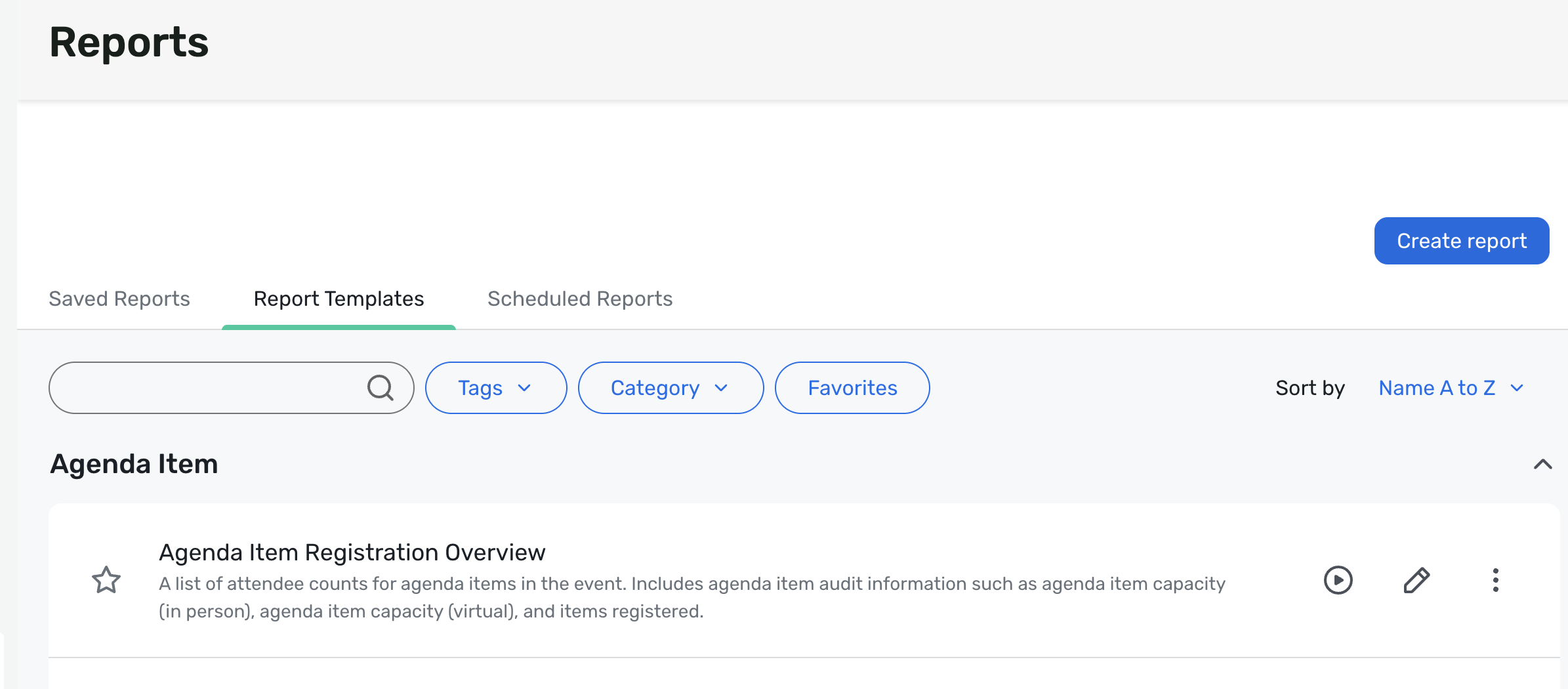
Navigate to Event > Reports, then click Create Report in the top right of the screen:
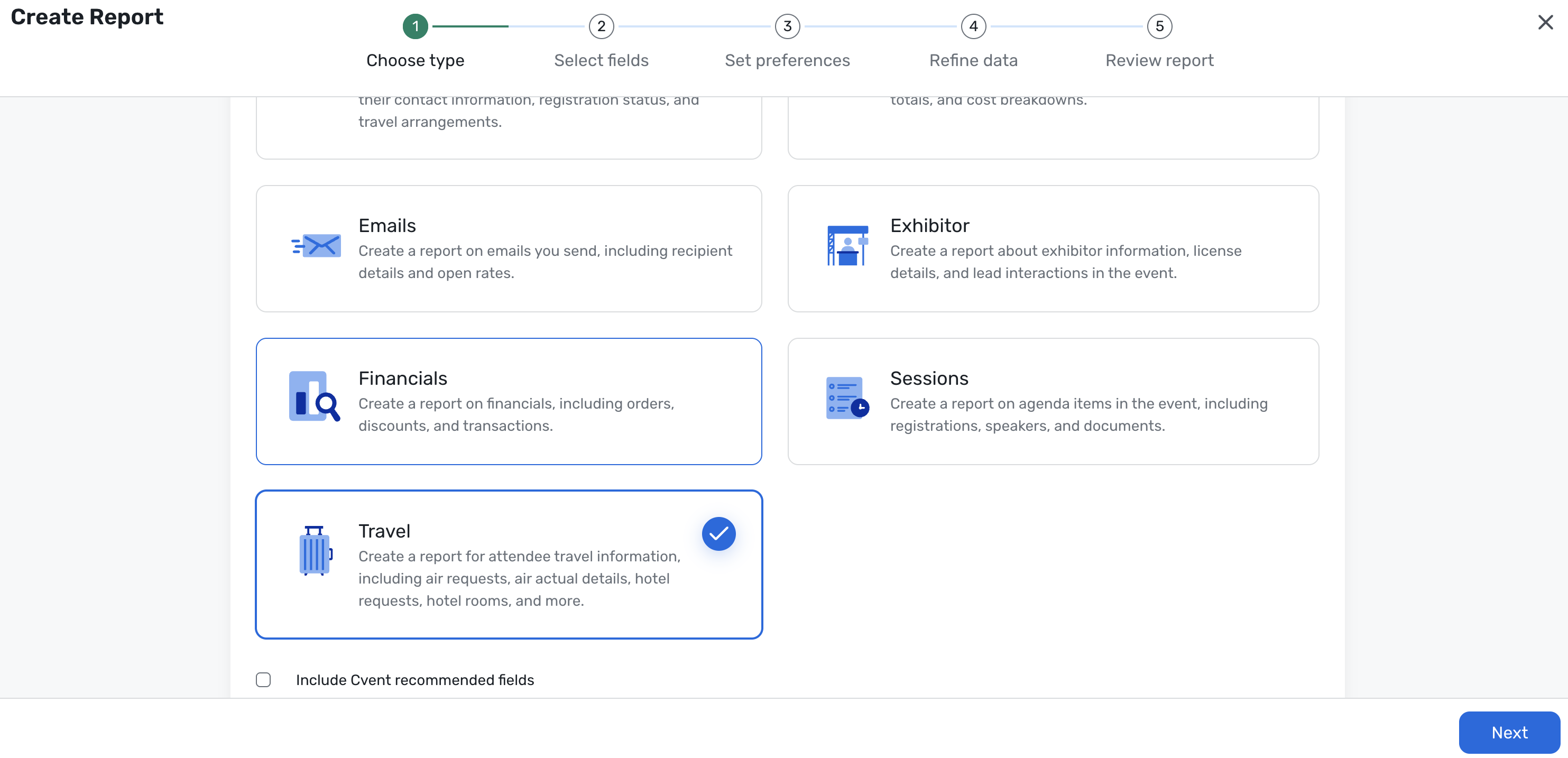
Select Travel as the Report Type:
Walk through the steps in the Report Builder for selecting fields, setting display preferences, applying filters, and running or exporting the report:
Note: The Travel report type currently supports Hotel Requests only. Flight Requests, Air Actuals, and other travel types are on the roadmap and will be added over the coming months.
Additional Resources
Cvent Community: Questions about the above updates? As always, get answers in the Community via the Open Forum.
Beta Opportunities Page: Try new features and products out before full launch availability. Join Beta Programs.