- DATE:
- AUTHOR:
- Cvent Product News Team

Actionable Insights Releases for May 6, 2026
Integrations
Cvent Salesforce App — Financial Data Sync (App v8.8)
Customers using the Cvent Salesforce App have been unable to access financial data — orders, payments, taxes, discounts, and more — directly in Salesforce. This has forced teams to resort to manual workarounds: downloading attendee lists from Cvent and sharing them across departments, stitching together the Salesforce App and the API just to generate invoices, and manually calculating tax-deductible amounts from donations for fundraising reconciliation. This release eliminates those manual processes.
Who is this for? Cvent customers using the Cvent Salesforce App (package version 8.8) who need attendee financial data available in Salesforce for reporting, reconciliation, invoicing, or analytics.
What's new? Financial data from Cvent will now automatically sync to Salesforce as part of the existing attendee sync process. Whenever the attendee sync runs — manually or on a scheduled frequency — the financial data sync will queue and run alongside it. The following data will sync:
Orders — Including order items (with taxes), order discounts, and order item discounts
Transactions — Including transaction items and transaction orders
Discounts — Discount code, value, type, and owner
General Ledgers — Including general ledger items
Several new Salesforce custom objects will be created in your org to store this data, all linked to the Attendee object: Cvent Order, Cvent Order Items, Discounts, Order Discounts, Order Item Discounts, Transactions, Transaction Items, and Transaction Orders.
Setting up Financial Data Sync requires the Salesforce App package version 8.8 and is disabled by default. To enable it, a Salesforce admin should navigate to Visualforce Pages → App Configuration Page → Cvent App Configuration and toggle on "Sync Financial Data."
Note: Fresh installs must complete the External Client App setup before enabling Financial Data Sync.
A few things to know:
Upon the first sync after setup, all historical financial data will sync — this initial sync may take some time depending on data volume. Subsequent syncs will be much faster because they pull only data updated since the last sync date.
Sensitive payment credentials (e.g., credit card numbers, CVV codes, and expiration dates) are intentionally excluded from the sync.
Consolidated HubSpot Solutions
A Single, Unified HubSpot Integration
Cvent is consolidating its two existing HubSpot integration options into one streamlined, out-of-the-box (OOTB) solution. Previously, customers who wanted to integrate Cvent with HubSpot faced two separate offerings, leading to significant confusion about which to choose, mismatched expectations, and, in some cases, the wrong solution being purchased or configured. This release eliminates that confusion by delivering a single, unified HubSpot integration.
Who Is This For?
This update is intended for Event Planners and Marketing Operations teams who use Cvent alongside HubSpot to manage event data, contacts, and marketing engagement. It is also highly relevant to Cvent Sales and Customer Success teams who have fielded ongoing questions about which HubSpot integration to recommend.
What's Changing
The Two Solutions Today
Prior to this release, customers could choose from two separate HubSpot integrations, each with distinct capabilities:
The OOTB HubSpot Connector wrote data to HubSpot's Marketing Events object, supported real-time push syncing triggered by registration and attendance activity, and offered a self-service setup experience. However, it did not support session-level syncing, writing to HubSpot Segments (Lists), or configurable trigger points.
The Integration Hub (Integration Hub) HubSpot solution wrote data to HubSpot Segments (Lists) and supported session-level data syncing, but required Sales Engineering involvement to set up, used polling rather than real-time push, and supported only a single admin-level configuration.
Neither solution covered all customer needs on its own, and having two options created confusion for customers and internal teams alike.
What the Integration Hub Solution Brings to the New Connector
The consolidated OOTB connector now incorporates the key capabilities that previously only existed in the Integration Hub version:
Sync Cvent Events to HubSpot Segments (Lists) — Attendees are automatically added to or moved between event-level Segments (Lists) based on their registration status.
Sync Cvent Sessions to HubSpot Segments (Lists) — Session-level Segments (Lists) are created and updated based on registration status (Registered, Canceled, Attended), providing marketers with granular session engagement data in HubSpot.
What's Brand New — Not Supported by Either Previous Solution
New Home for the HubSpot Integration — The consolidated integration now lives under Admin > Integrations > Integration Apps. Customers who previously configured the OOTB Connector under Push API Integrations will find their existing configuration in the new unified integration location.
Declined Status for Segments (Lists) — Attendees who decline an event invitation are now attributed to a "Declined" Segment (List), a status that neither the OOTB Connector nor the Integration Hub solution previously supported.
Configurable Trigger Bundles — Admins can now enable or disable triggers and trigger actions across Event and Session bundles. Previously, the OOTB Connector had no configurable trigger points, and the Integration Hub solution operated on a fixed polling schedule rather than event-driven triggers.
Multi-Configuration Support — Admins can create and manage multiple named HubSpot configurations, each with its own Details, Field Mapping, and Trigger Points settings. This now enables third-party planners (TPPs) and agencies managing multiple customers within a single Cvent account to create a dedicated configuration for each client, ensuring clean data separation and tailored workflows. The appropriate configuration can then be selected at the event level. Neither of the previous solutions supported multiple configurations per account.
Session Sync History in the Sync History Report — The Sync History Report now includes session-level sync data alongside event-level data, offering a complete view of all sync activity in one place.
Manual Sync will use configured triggers to determine which data syncs — this better aligns with customer expectations that the data points they configure will work the same for automated syncs or user-initiated manual syncs. This reduces confusion and improves their overall experience.
Migration Notice for Existing Integration Hub (Integration Hub) Users
With this release, the productized Integration Hub version of the HubSpot integration will no longer be available to customers without an existing configuration. Customers currently using the Integration Hub version will not be disrupted at release — a separate, controlled migration process will be managed post-release by CS and migration owners. Customers will be contacted, given the opportunity to transition to the new unified solution, and supported through the process. Specific migration details and timelines will be communicated directly to impacted customers and teams through appropriate channels.
Reporting
Build Your Own Reports - Email Reports
We're excited to announce the addition of Email Reports in Build Your Own Reports. This enhancement lets you create customized reports focused on event email performance and engagement. With these new options, planners can easily access and analyze key email communication metrics for their events using Build Your Own Reports.
What’s new
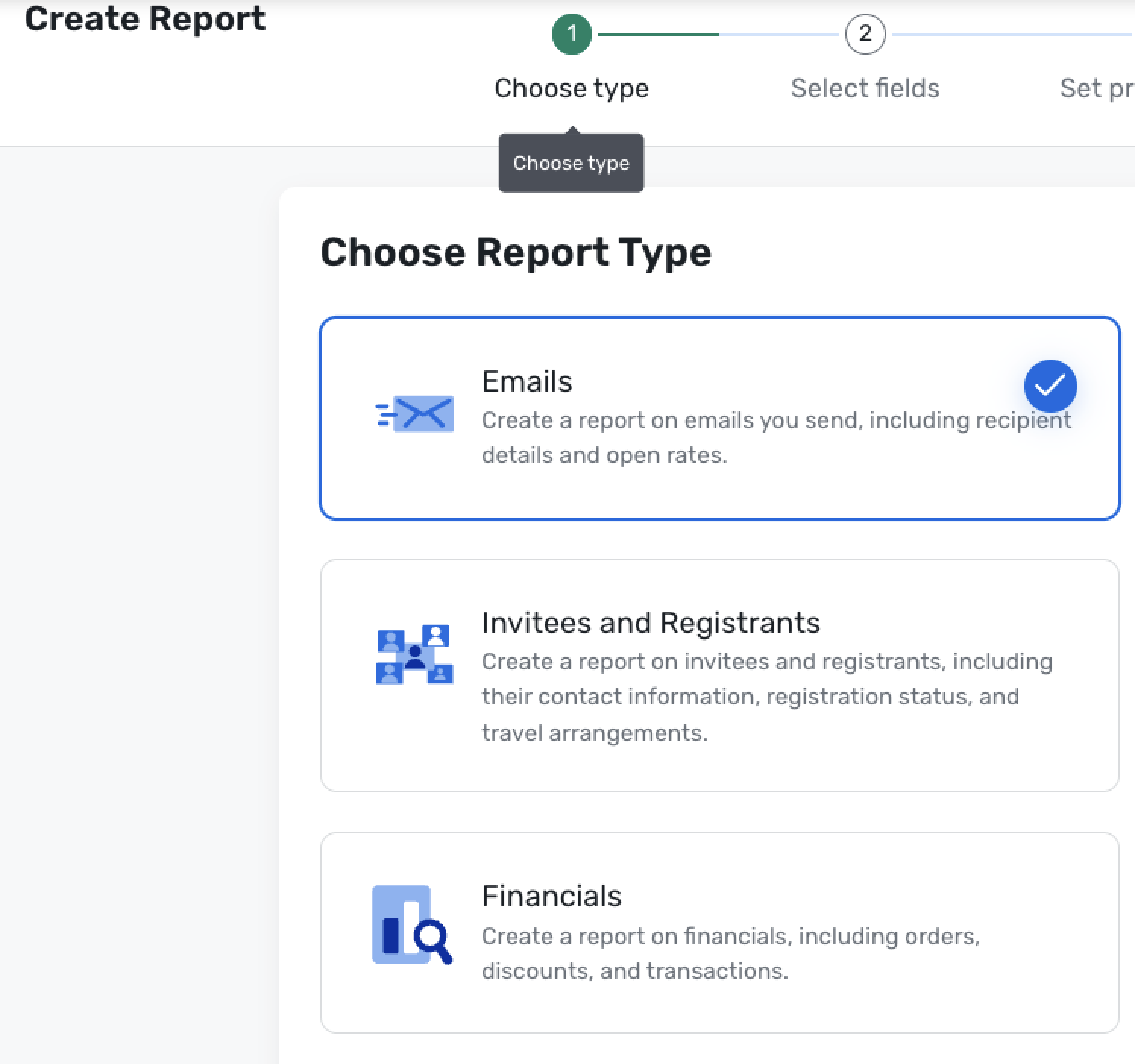
The new BYOR – Email category introduces a set of sub-reports designed to answer common questions about email effectiveness across your events. You can mix and match fields, apply filters, and save tailored views to track performance over time, just like other BYOR report types.
Access to the Email category follows your existing event reporting and email permissions, ensuring only authorized users can view and build these reports.
Sub-reports
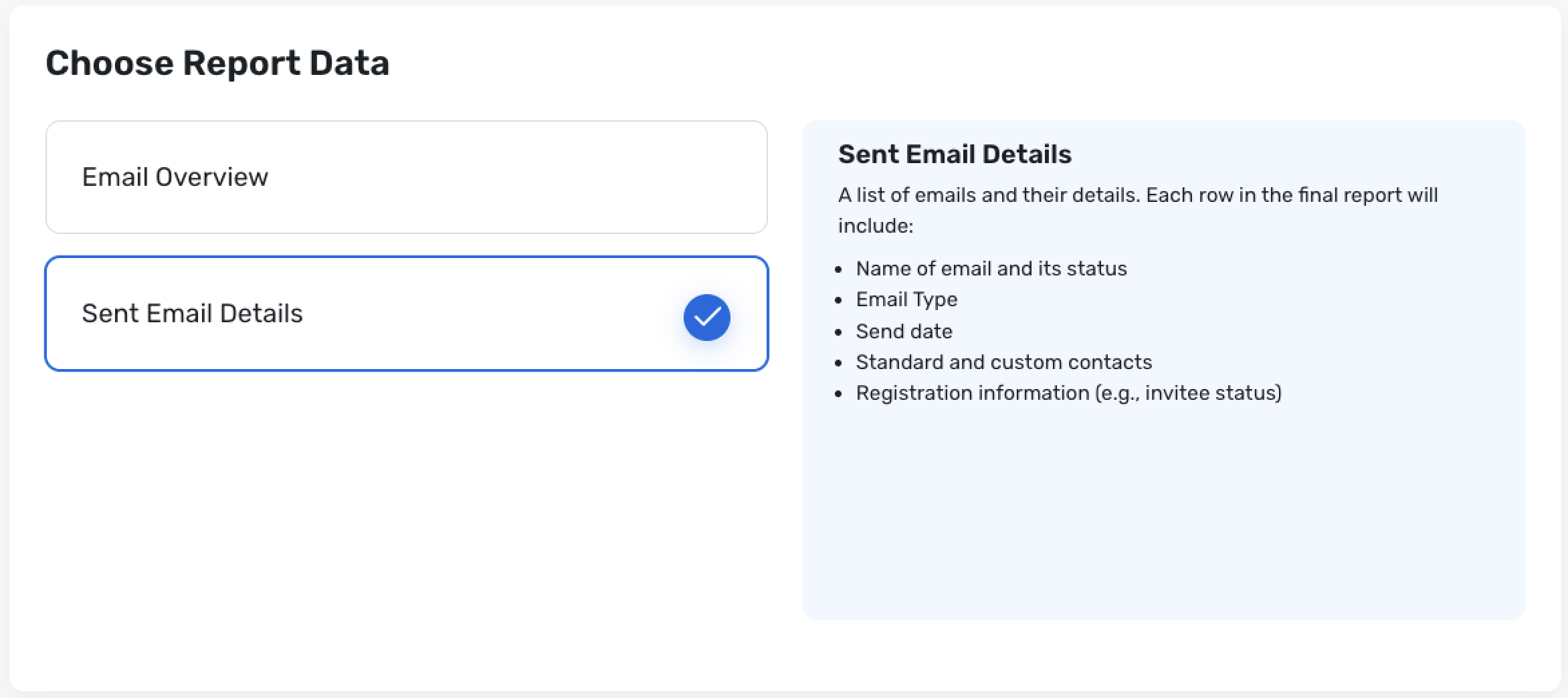
Email Overview
Run this report when you need a quick snapshot of how each email is performing—for example, before or after a major send, when comparing invitations vs reminders, or when monitoring open and delivery rates. Use this sub-report to see a list of emails and their overall performance. Each row in the report represents an email and includes key details such as the email name, email type, send and delivery information (such as send date and delivery rate), and open rate.Sent Email Details
Run this report when you want to drill down to exactly who received a specific email and how it relates to their registration status—for example, to follow up with non-responders or troubleshoot issues for specific contacts. Use this sub-report to analyze detailed information about each sent email. Each row in the report represents an email send instance and includes the email name and status, email type, send date, associated standard and custom contacts, and registration information such as invitee status.
How do I access these reports?
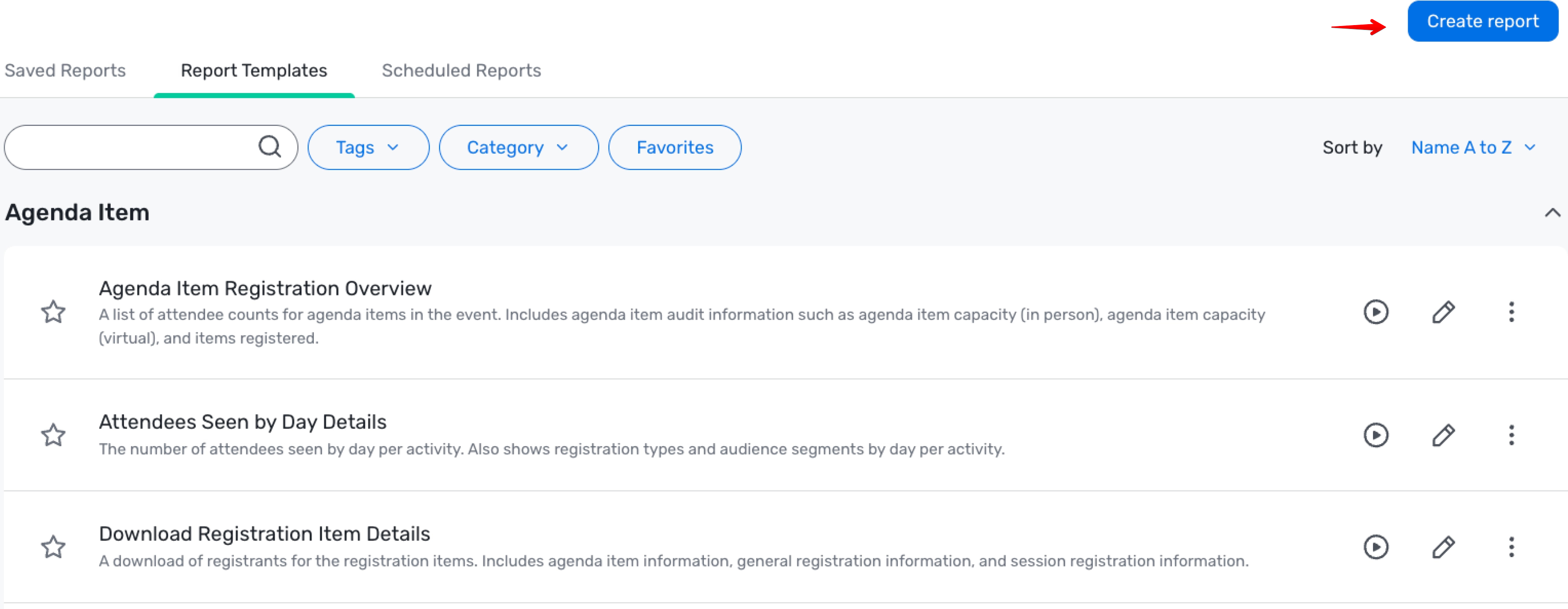
Navigate to the Event >> Reports and click on "Create Report" on the top right of the screen.
Choose the Emails report Type
Pick the Report Sub Type depending on the data you want to look at
Additional Resources
Cvent Community: Do you have questions about the updates we've rolled out this window? As always, get questions answered in the Community via the Open Forum.
Beta Opportunities Page: Help us make Cvent Products better by being the first to test products before they're widely available. Join Beta Programs.
UX Research Panel: Be part of a select group of users who will help guide the future of Cvent's products. Join the UX Panel.