- DATE:
- AUTHOR:
- Cvent Product News Team

Exchange Solutions Releases for January 14, 2026
Happy New Year!
We’re excited to kick off the year with new feature releases coming to Exchange solutions. Here are a few highlights to start the year strong.
Event Diagramming
Event Integration Seating Import
What’s changed:
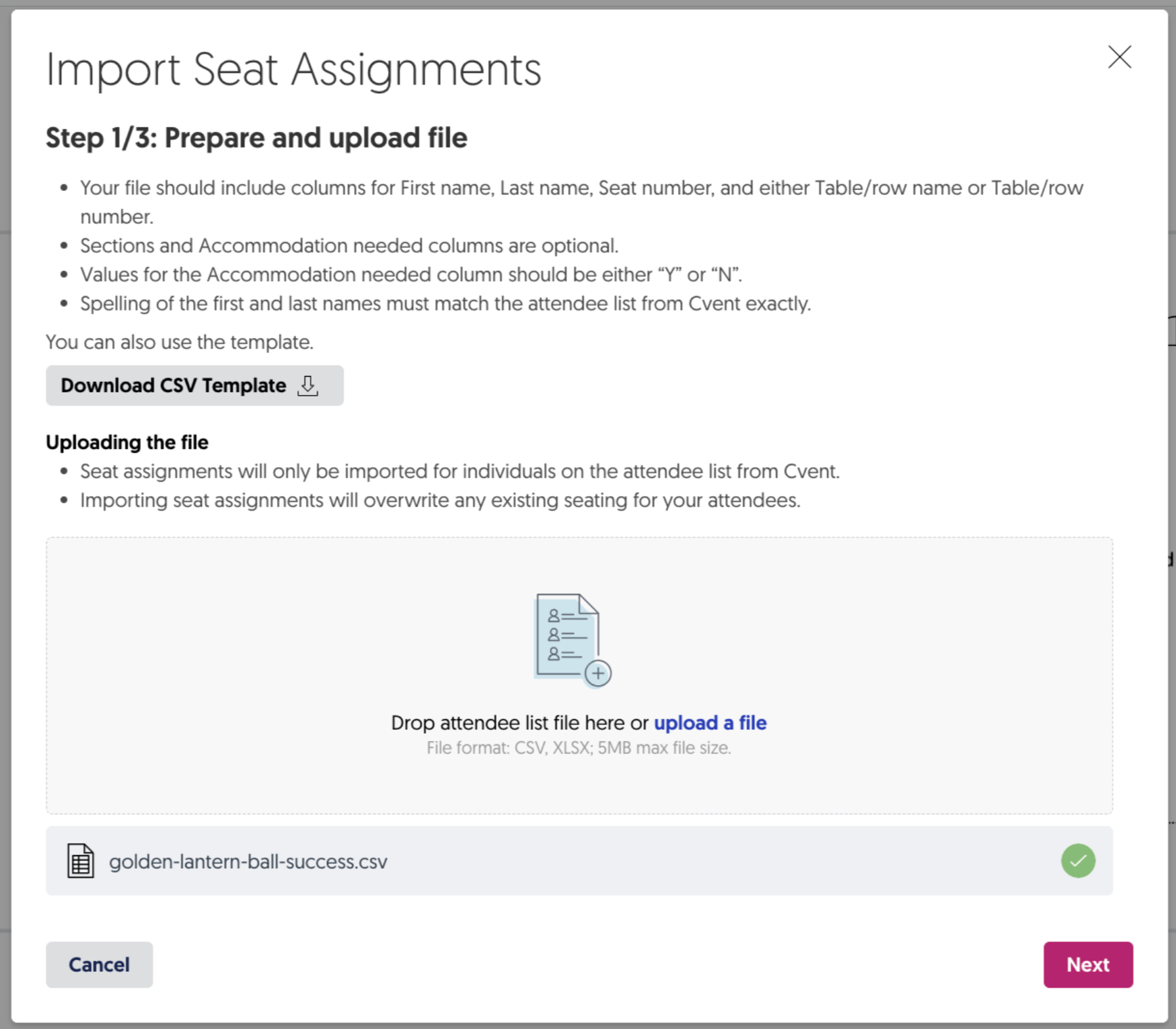
If you use the Cvent Event Registration integration with Social Tables, you can now upload seat assignments for attendees in bulk using a CSV template.
Previously, seating assignments had to be added one attendee at a time—either through the attendee grid or by dragging attendees onto the diagram. With this enhancement, you can import a CSV file to populate seating information for all attendees brought in through Event Registration.
To use this feature, an attendee list must first be imported from Cvent Event Registration. Once imported, Import Seat Assignments is available from the three-dot menu in the attendee panel.
Benefits:
Save time by assigning seats to many attendees at once instead of manually updating each registrant
Reduce errors with a structured CSV upload rather than repetitive manual entry
Maintain data integrity by keeping Cvent Event Registration as the source of truth for attendee data, while Social Tables continues to manage seating
Streamline workflows for larger events with complex seating needs
More Details:
To use this functionality, you must first import an attendee list from Cvent Event Registration. Once the attendee list is available, Import Seat Assignments will appear in the three-dot menu within the attendee panel.
Mapping Fields within the Uploaded File
After uploading your CSV file, you’ll be prompted to map fields from the file to the corresponding seating fields in Social Tables. This ensures each attendee’s seating information—such as table number or seat assignment—is accurately applied before import.
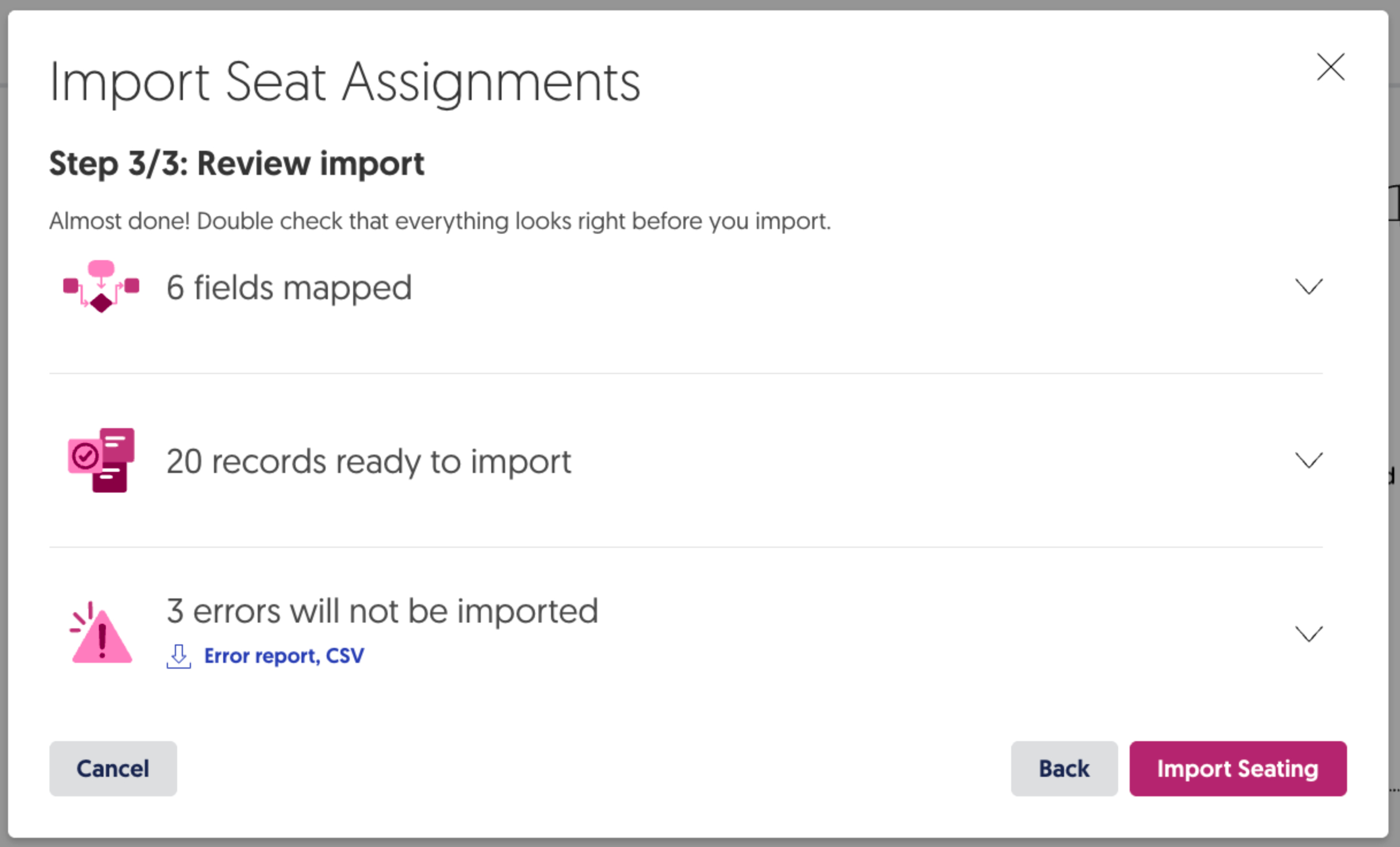
Review Imported Data
Before finalizing the import, you’ll have the opportunity to review the mapped seating data. This step enables you to confirm accuracy, identify any errors, and make necessary adjustments to ensure that seating assignments are applied correctly.
Cvent Passkey
Redesigned the Event List and Event Overview pages in the Planner Portal
What’s changed:
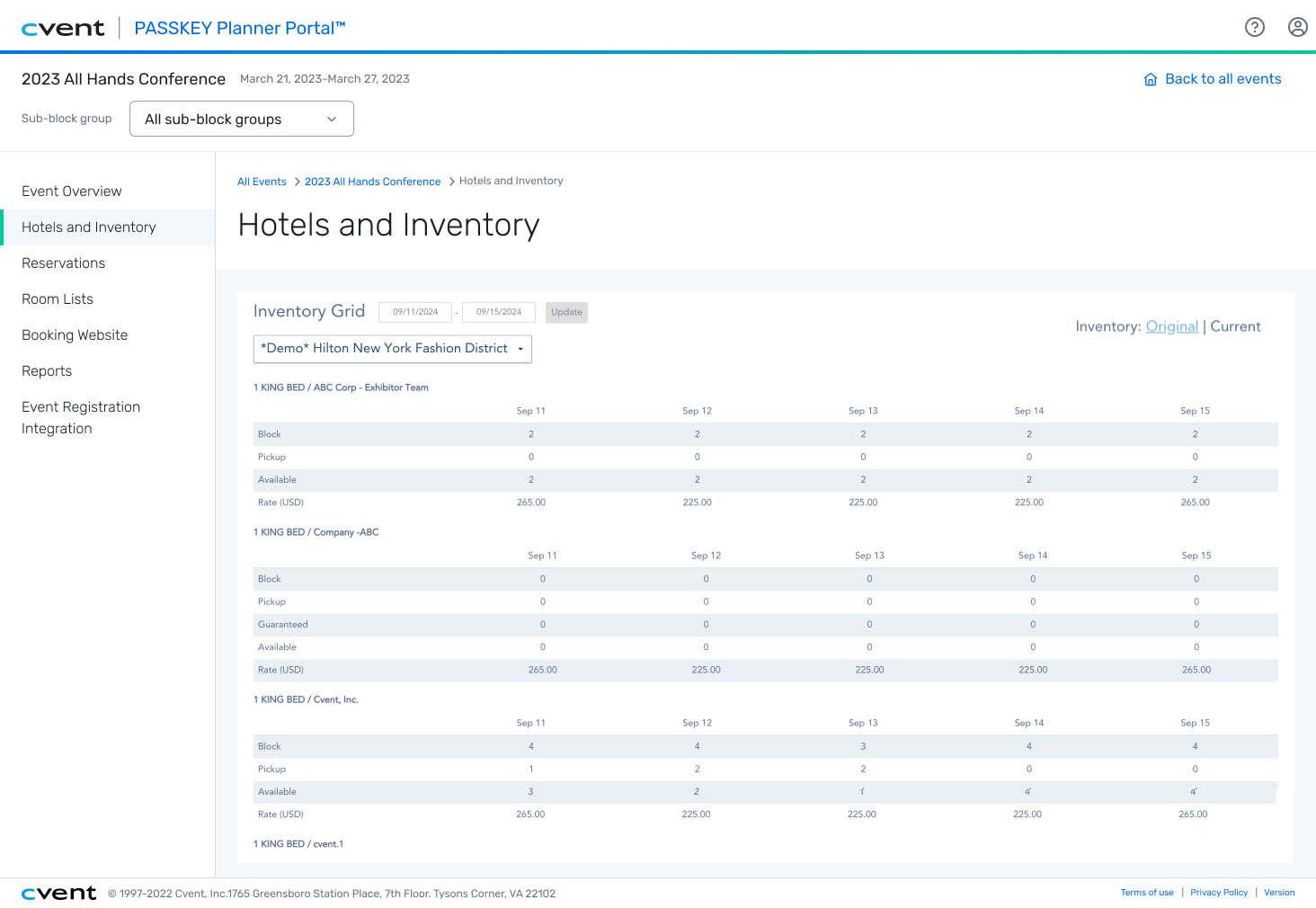
You’ll see a rebuilt, modernized Passkey Planner Portal designed to make your workflows clearer and easier to navigate. In this initial release, key tasks are organized into dedicated pages, and two new pages—Event List and Event Overview—help you locate information more efficiently.
Benefits:
You can quickly understand event performance at a glance, track room block metrics more easily, and complete common planning tasks with less friction. The updated experience helps you stay organized and in control, no matter your role in the event.
Overview:
The Passkey Planner Portal is built for event stakeholders—anyone who needs to track room block performance, submit rooming lists, or manage reservations for an event. Your level of access depends on how you’re involved in the event:
Event-level planners
You have full access to an event’s inventory and performance metrics.
Examples:
– You’re a meeting planner granted access by a hotel
– You’re an end client given access by a Passkey Event OrganizerSub-block group contacts
You manage one or more sub-block groups and can view only your group’s inventory and metrics.
Example:
– You’re a sports team travel manager responsible for your team’s sub-block and reservations
This release focuses on delivering a refreshed user experience and improved navigation, setting the foundation for future enhancements.
Scope of this release
In this initial release, you’ll get a redesigned Planner Portal experience along with two new pages—Event List and Event Overview—that make it easier to navigate your events and understand performance.
Event List
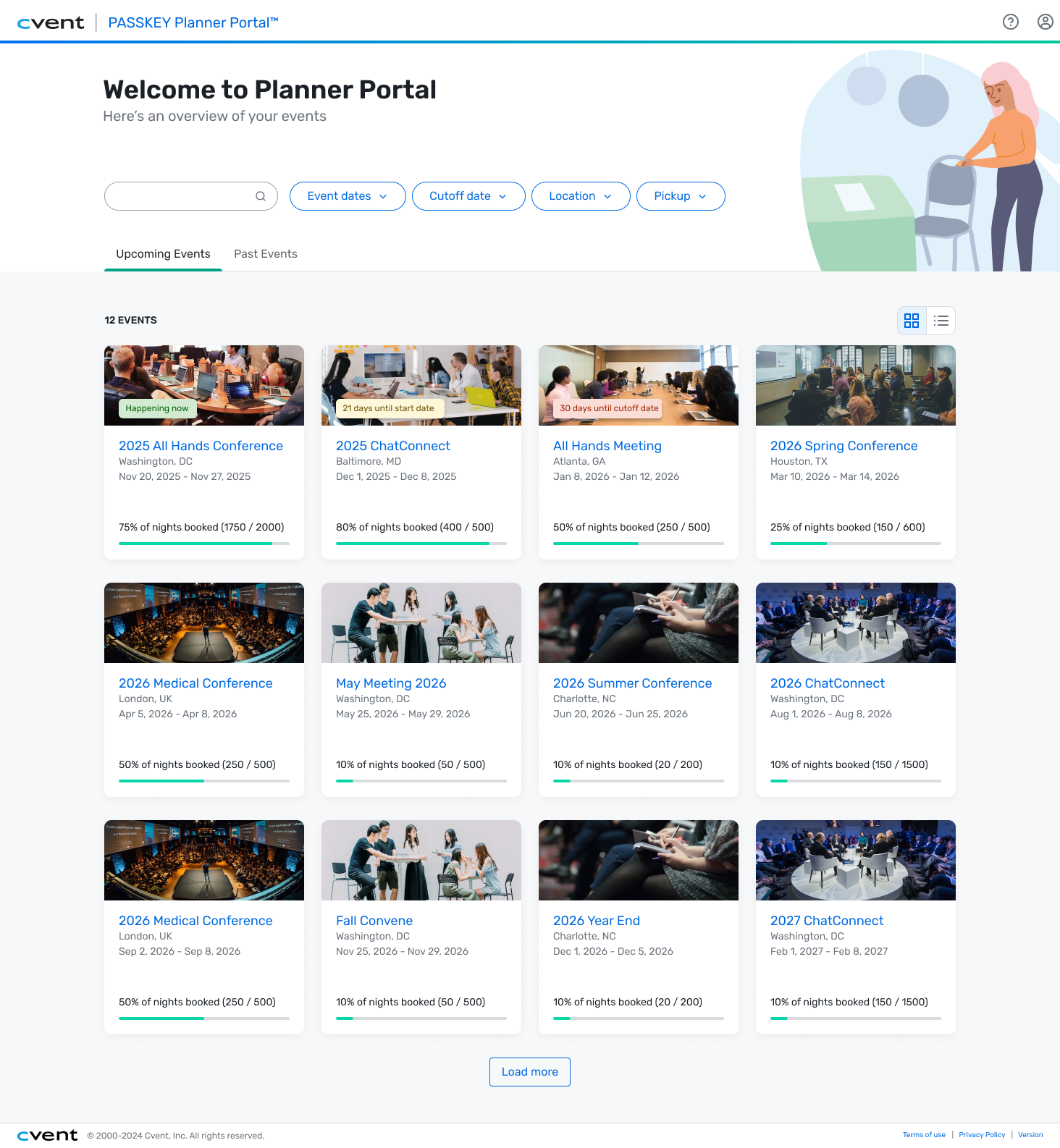
After signing in at planners.passkey.com, you can view all upcoming and past events you’re assigned to—whether you’re an event-level planner or a sub-block group contact. Events are displayed in either a tile or list view and highlight key details like event dates and room-night pickup. You can also quickly find a specific event using built-in search and filters.
Event Overview
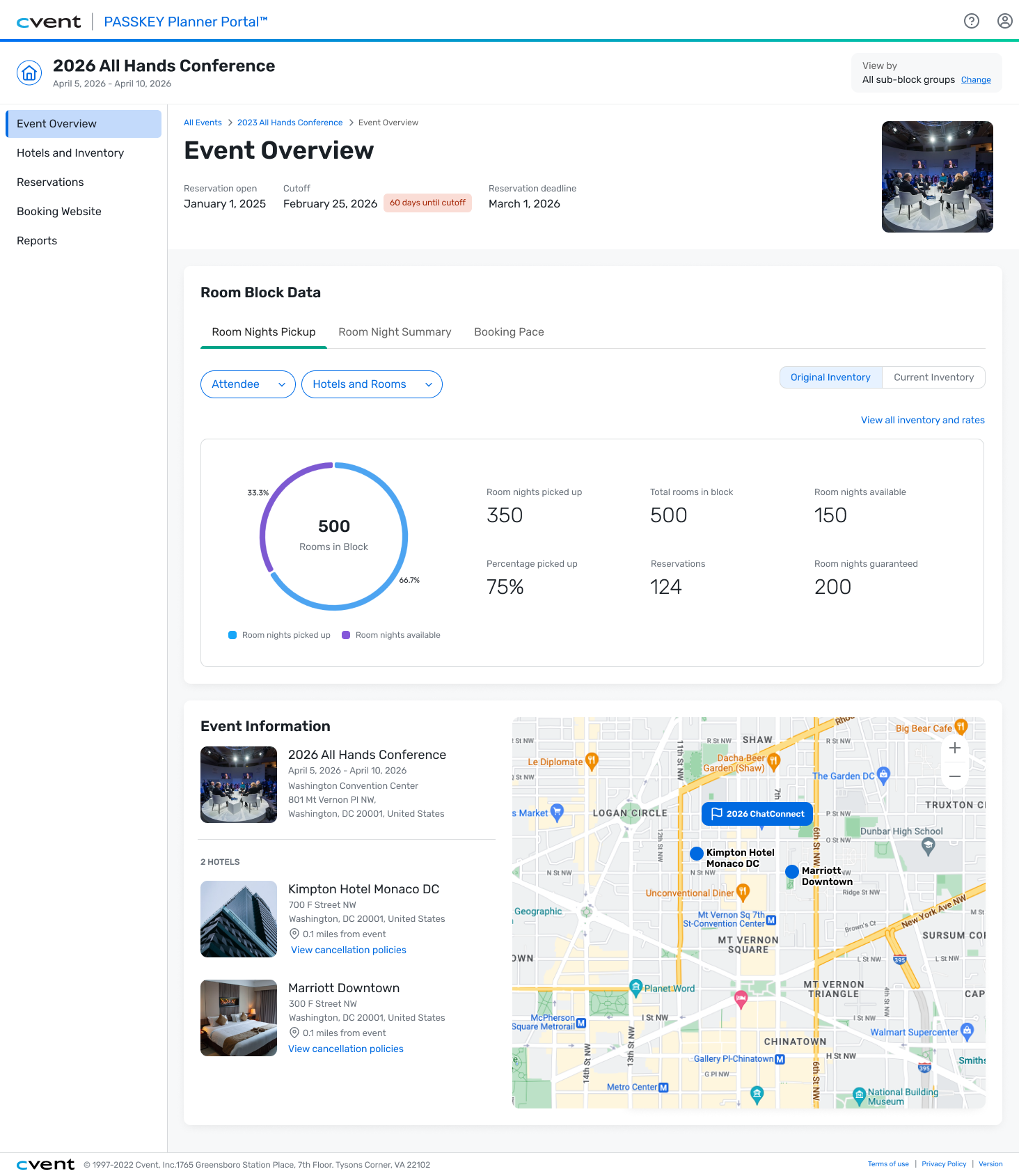
When you select an event, you’ll land on the Event Overview page, where you can quickly review key metrics and visualizations such as room-night pickup, room-night summaries, and booking pace. You’ll also see core event details, along with a list of participating hotels displayed on an interactive map—giving you a clear, at-a-glance view of event performance.
Additional Functionality
You’ll continue to have access to all other functionality from the previous Planner Portal experience. These areas will be rebuilt and enhanced incrementally in future releases, with improvements rolled out over time.
New Sustainability Feature Added to Passkey (COMING SOON)!
What’s changed
Passkey now provides enhanced visibility into verified sustainability credentials for participating hotels. Through a new integration with BeCause, sustainability certification data is automatically surfaced within the hotel experience—no additional setup required.
When event organizers add hotels to an event, hotels with verified certifications are clearly labeled as Sustainability Certified. These credentials are also displayed on the attendee booking site, giving guests direct visibility into a hotel’s sustainability practices.
Benefits
Support sustainability goals by easily identifying hotels with verified eco-conscious credentials
Make informed decisions using standardized, trustworthy, and comparable sustainability data
Increase transparency by sharing sustainability certifications directly with attendees during booking
Save time with automatic certification data retrieval and no additional configuration
Event
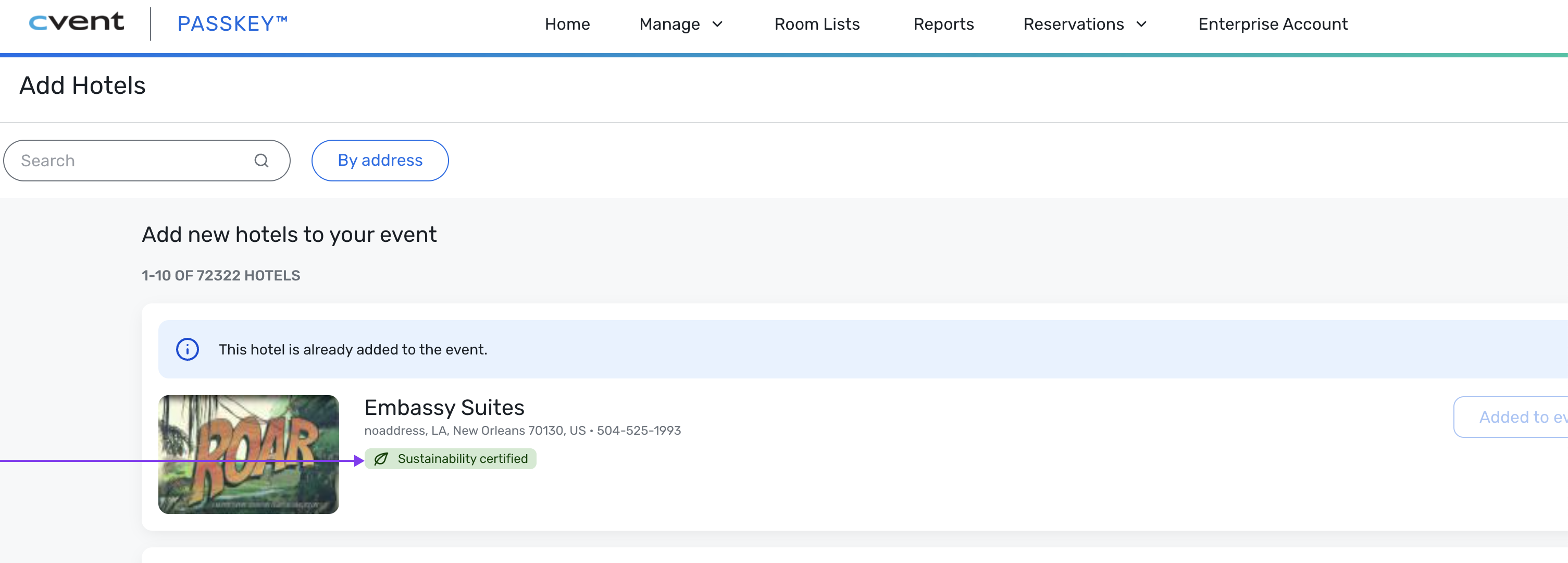
When you add a hotel to your event, any hotel with a verified sustainability certification will display a “Sustainability Certified” label. This makes it easy for you—and your attendees—to quickly identify eco-conscious hotels.
Attendee Booking Site
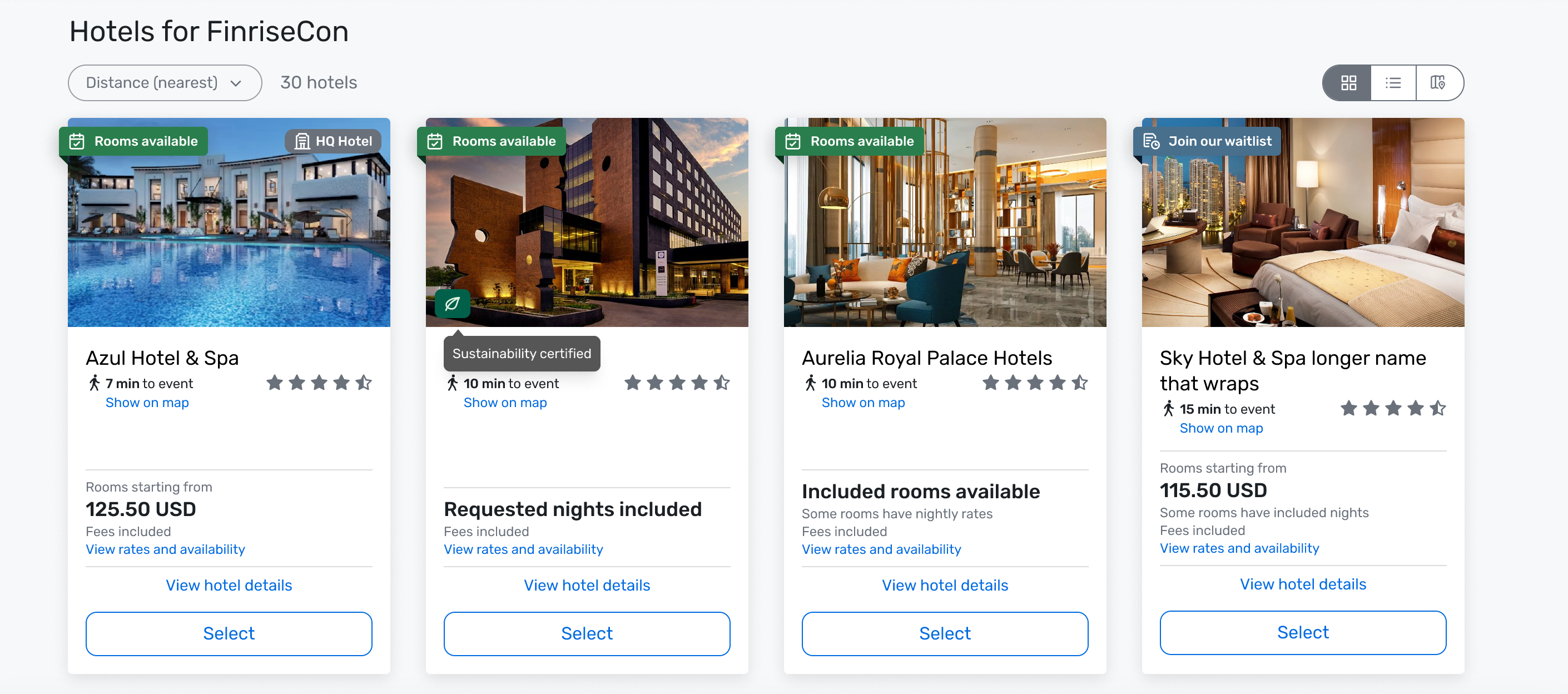
On the attendee booking site, hotels with verified sustainability certifications display a Sustainability Certified icon. Hovering over the icon shows a tooltip, giving attendees clear and immediate visibility into the hotel’s eco-friendly practices.
View Hotel Details
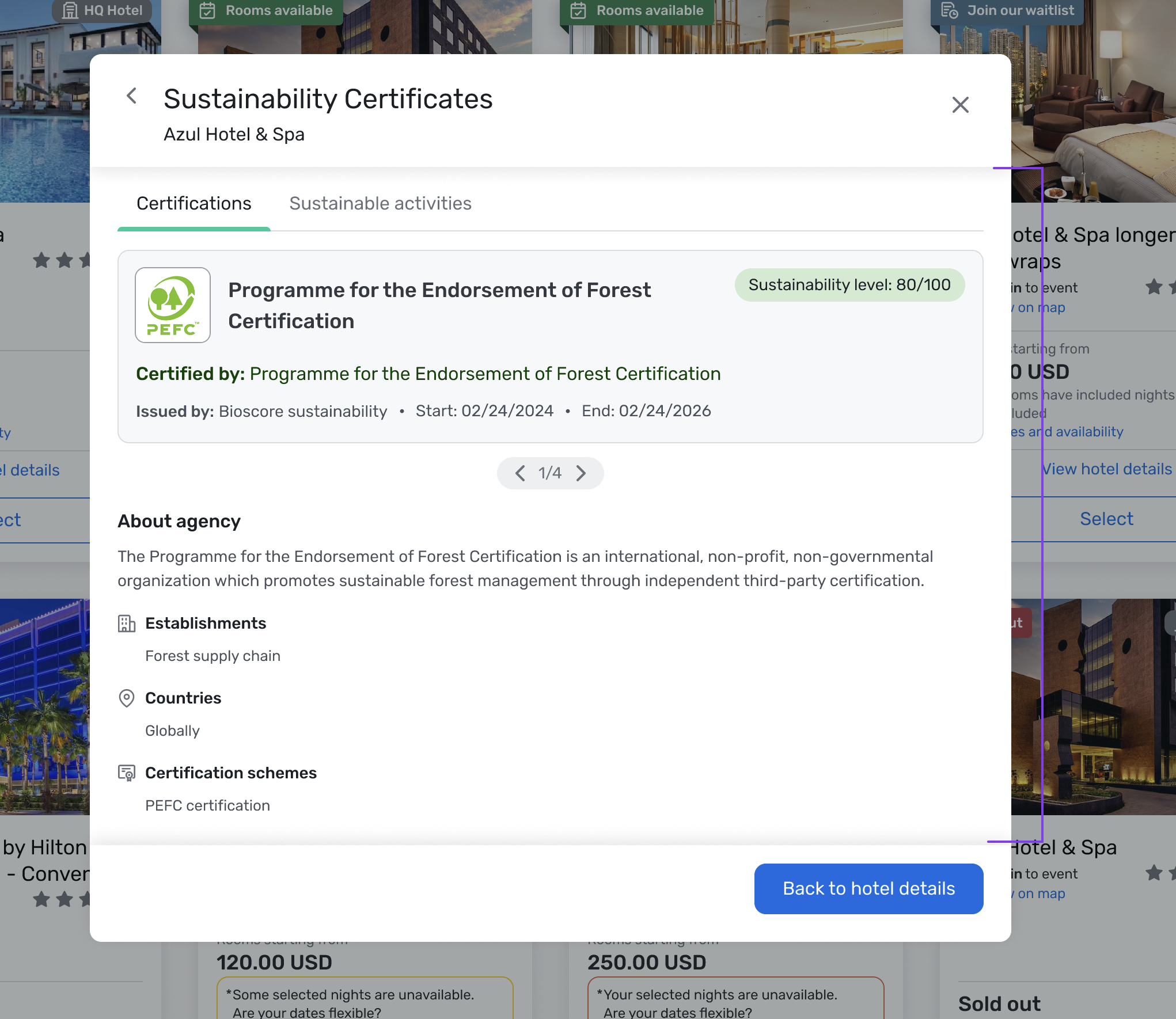
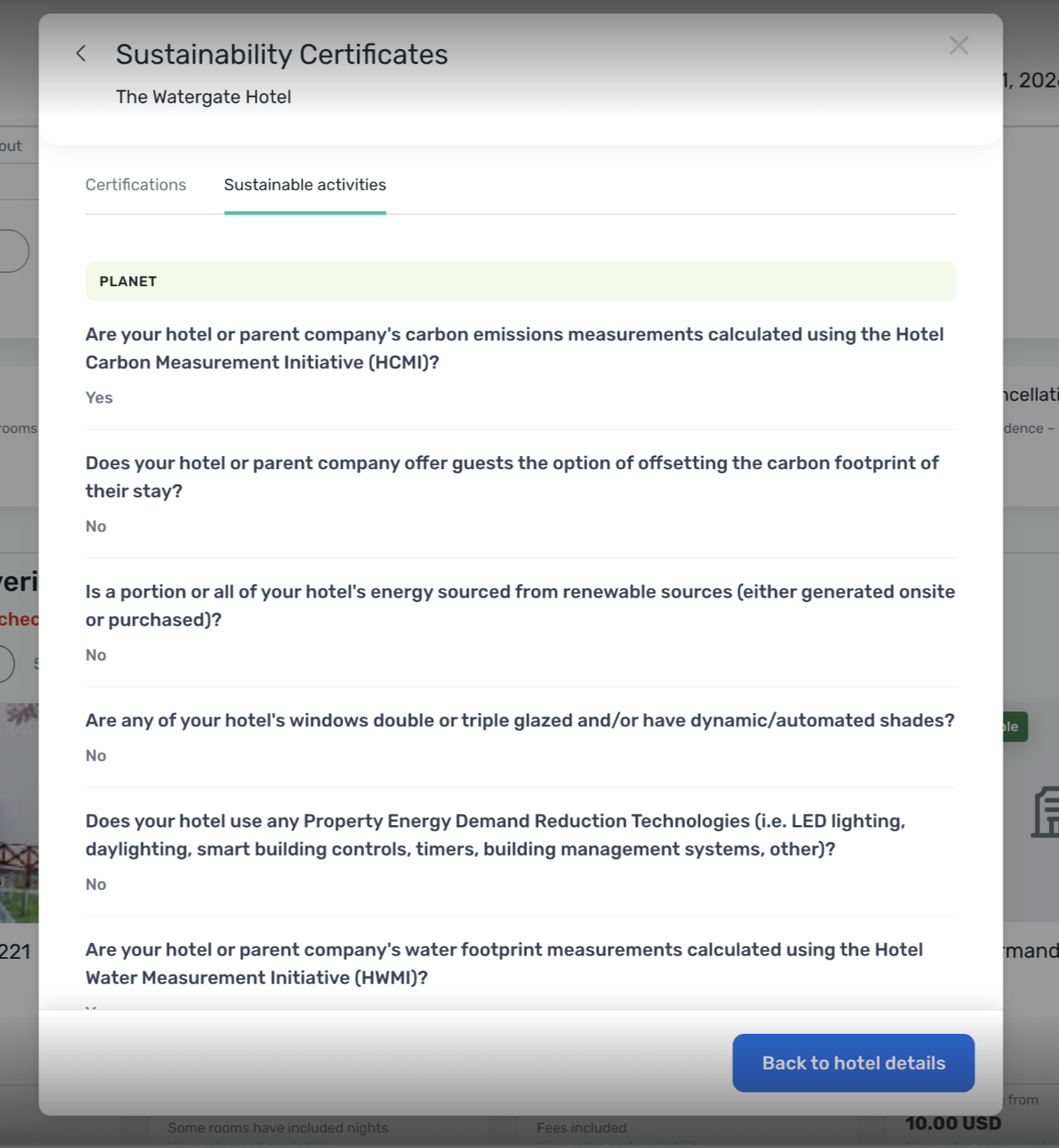
When attendees click “View Hotel Details” on the booking site, a redesigned modal now appears with two dedicated tabs.
Certification Tab
The Certification Tab displays all verified sustainability certification details for the hotel, including:
Certified By – the organization issuing the certification
Sustainability Level – the hotel’s level or rating within the certification
Establishment Type – type of hotel or property certified
Countries/Regions Covered – regions recognized by the certification
Sustainable Activities
The Sustainable Activities tab provides descriptive information about the eco-friendly practices followed by the property, giving attendees a clear understanding of the hotel’s approach to sustainability.
Additional Resources
Cvent Community: Do you have any questions about the updates we've rolled out this window? As always, get questions answered in the Community via the Open Forum.
Beta Program Opportunities: Help us make Cvent Products better by being the first to test products before they're widely available. Join Beta Programs.
Q4 Quarterly Product News Webinar: If you missed our Q4 Product News Update webinar, catch up on all things product via the recording. Watch On-Demand Here.