- DATE:
- AUTHOR:
- Cvent Product News Team

Exchange Solutions Releases for July 22, 2026
Cvent Passkey
Hotel Guarantee Rules
What’s Changed: Passkey now gives event organizers a new way to configure guarantee types by hotel instead of only by attendee type. This helps you align guarantee requirements to each hotel’s individual policies and agreements, regardless of who is booking. For each event, you can enable hotel-based guarantee rules, review a default rule, and assign guarantee types to one or more hotels. This is an event-level setting, and each event can use either attendee-type-based guarantee assignments or hotel-based guarantee assignments.
Benefit: You can now manage guarantee requirements in a way that better reflects how your hotel policies are set up. For multi-hotel events, this can make configuration simpler and help reduce manual setup effort.
Better align guarantee settings with each hotel’s specific policies and agreements.
Simplify setup for events with multiple hotels and different guarantee requirements.
Reduce the need for workarounds like creating duplicate attendee types for different hotel policies.
For each event, organizers can choose to assign guarantee types by attendee type or by hotel.
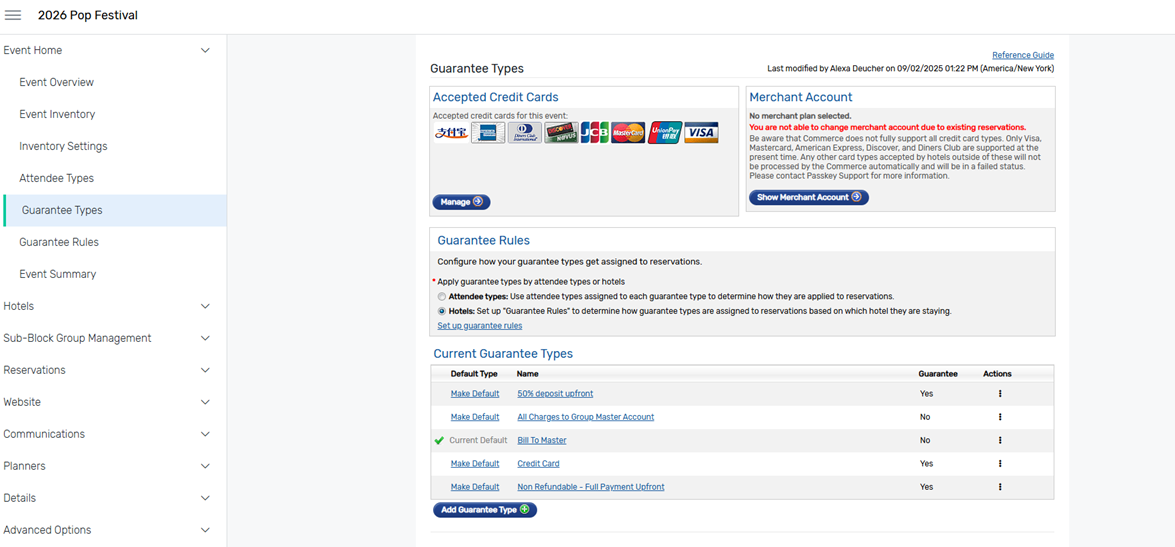
The Guarantee Rules page shows the default rule and any hotel-based rules assigned to selected hotels.
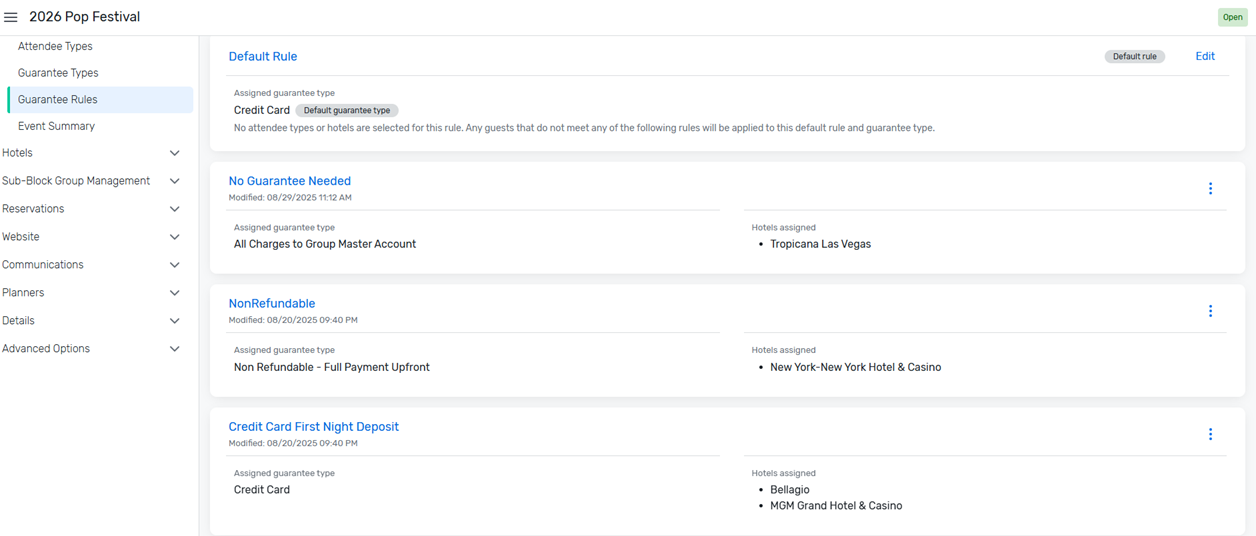
Planner Portal View as Planners or Contacts
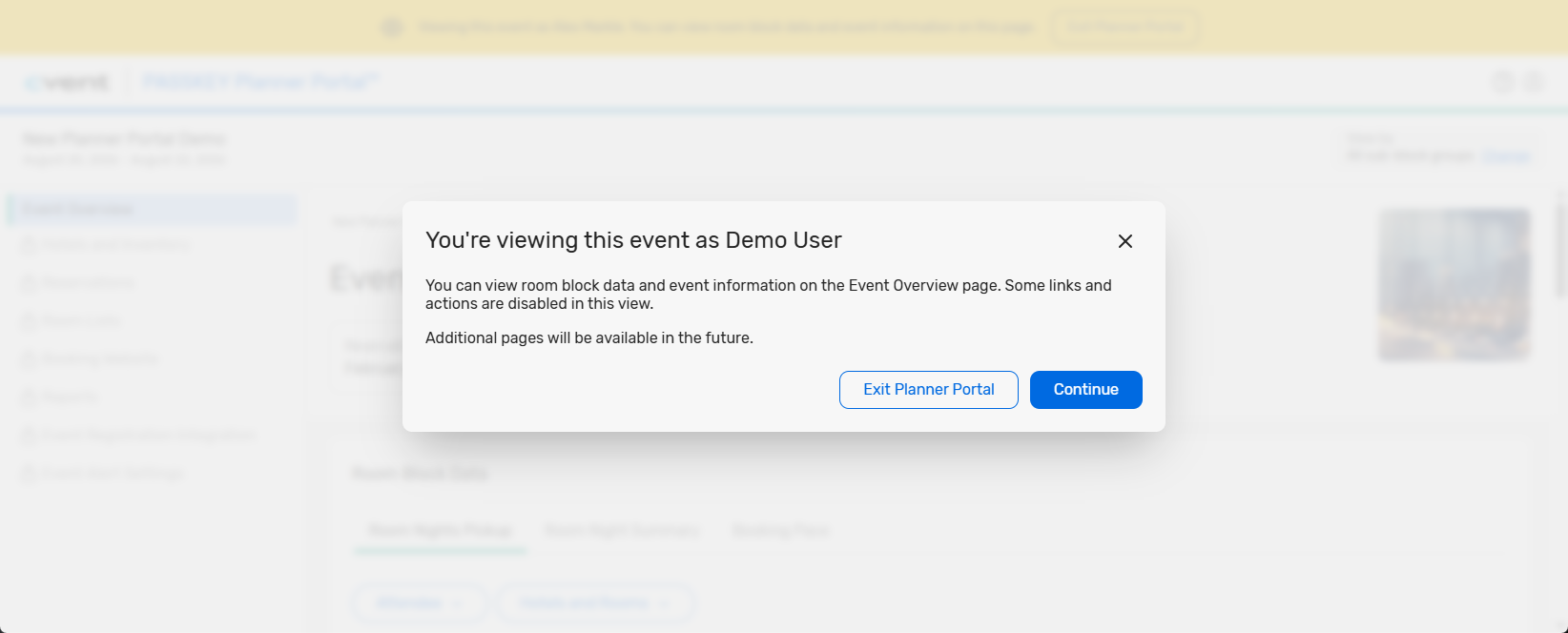
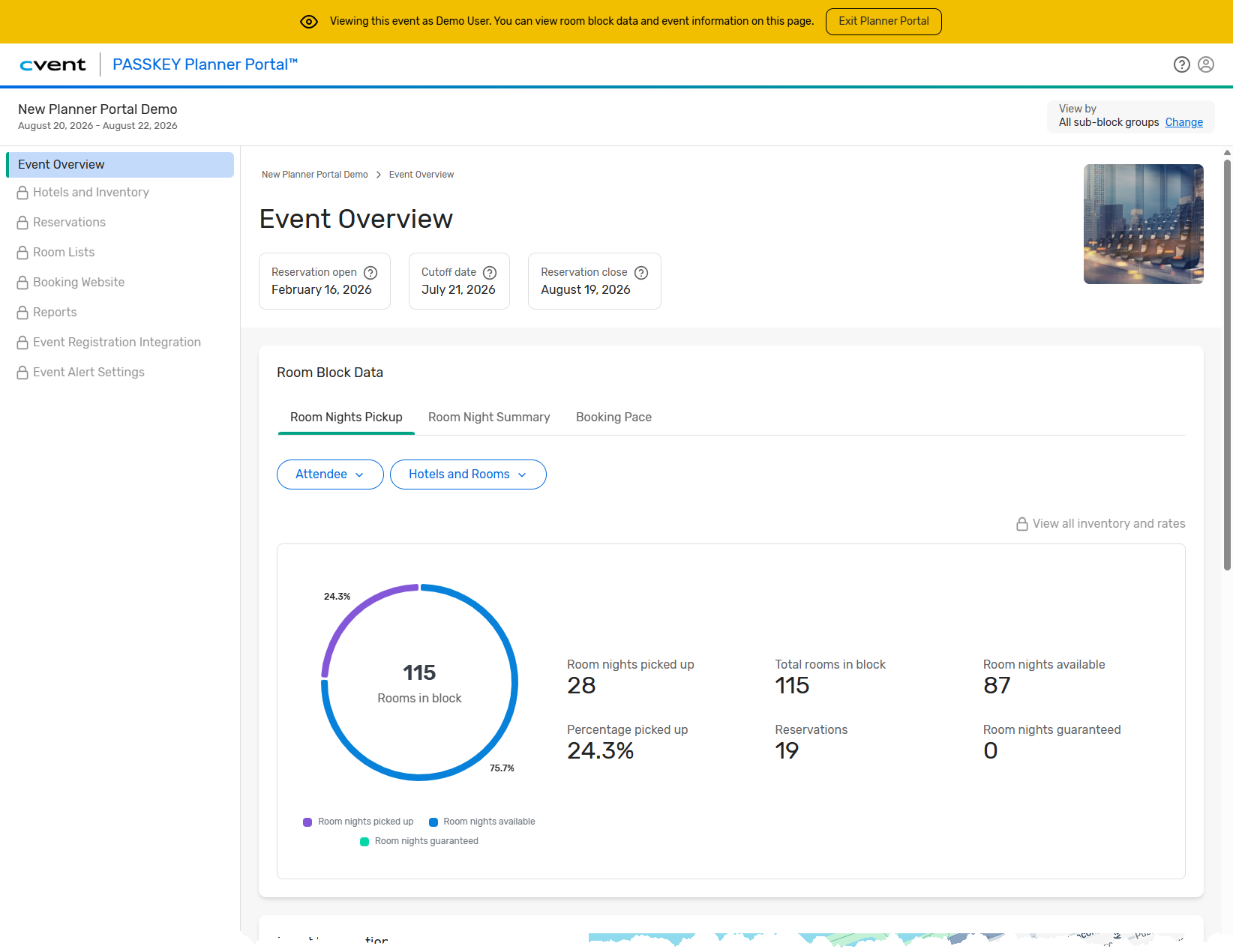
What’s Changed: Passkey event owners can now view Planner Portal from the perspective of an event-level planner or a Sub-Block Group (SBG) contact. This lets you see the experience exactly as those users see it, without sharing login credentials or switching accounts.
This update is designed for Passkey event owners who manage events and need to confirm Planner Portal settings, review visibility, or support planners and SBG contacts more directly. While using this view, access is limited to Event Overview, and some navigation and actions remain unavailable during the session.
Benefit: You can now troubleshoot and validate the Planner Portal experience faster, with less back-and-forth. Instead of asking someone else to confirm what they see, you can check it yourself and provide support in real time.
Reduce setup guesswork by confirming Planner Portal settings from the user’s point of view.
Support planners and SBG contacts more confidently during setup and collaboration.
Keep the experience clear and secure with a persistent banner and a simple exit option while you’re viewing as another user.
How It Works:
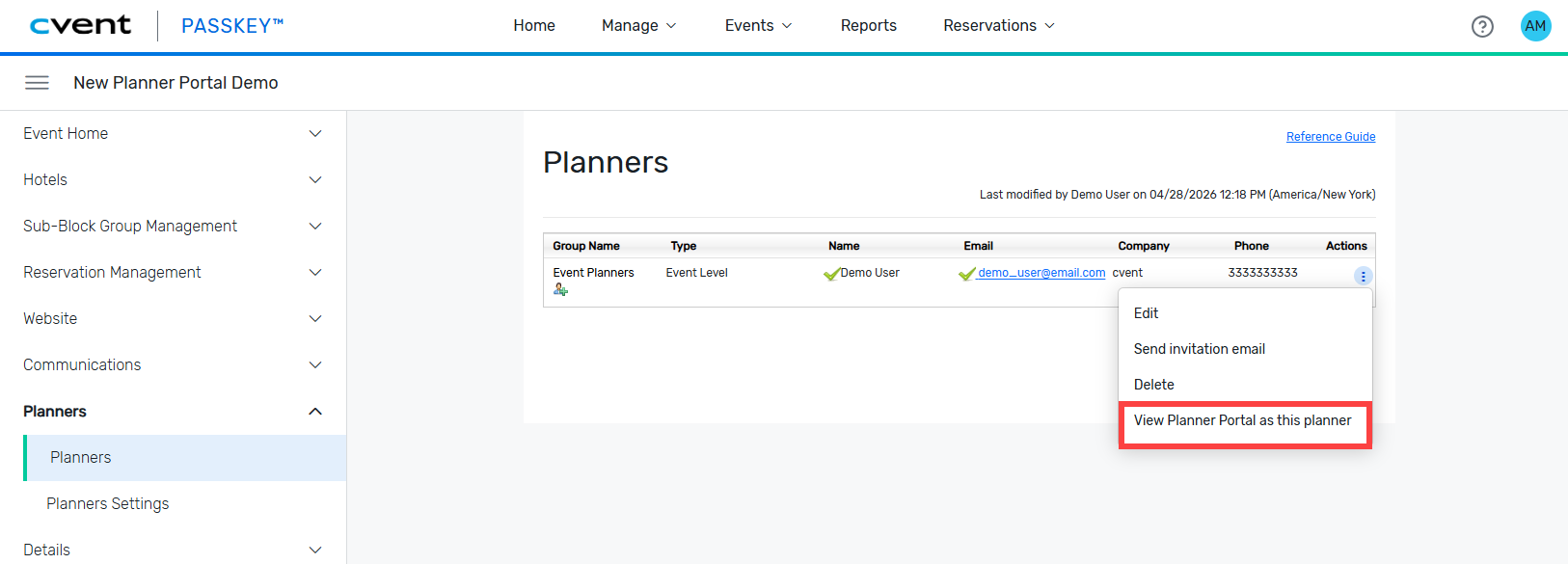
To view Planner Portal as an event-level planner, go to the Planners / Planners page in Passkey, open the menu next to that planner’s name, and choose View Planner Portal as this planner.
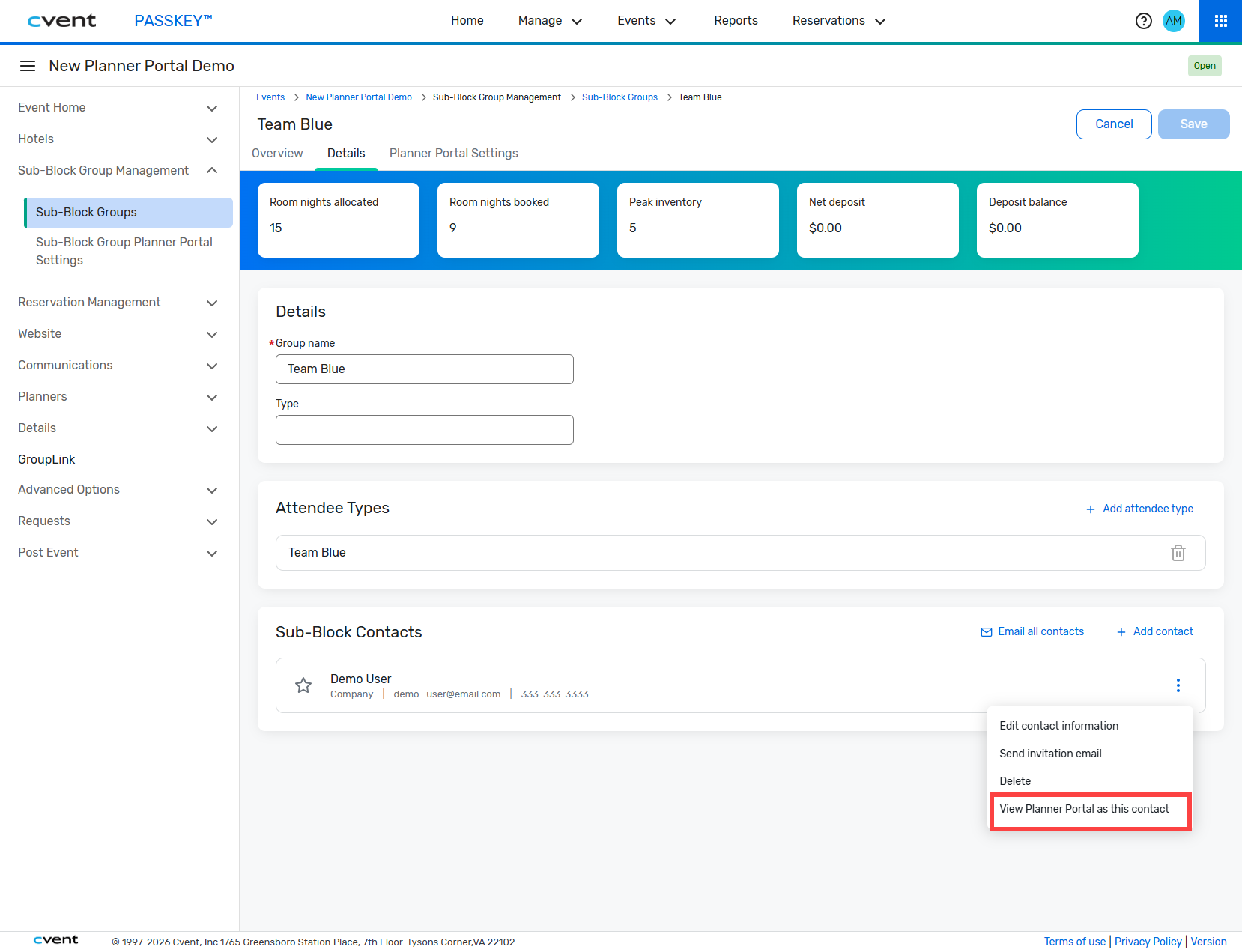
To view Planner Portal as a Sub-Block Group contact, go to Sub-Block Group Management / Sub-Block Groups / [SBG name] / Details, open the menu next to the contact’s name, and choose View Planner Portal as this contact.
Once you enter Planner Portal, you’ll see the experience from that user’s perspective. A persistent banner lets you know you’re viewing as another user and gives you a one-click way to exit the session at any time.
Right now, this experience is limited to Event Overview. Other navigation items appear locked and can’t be opened, and some actions are disabled during the session to keep access appropriately scoped.
Communication Tracking for Smart Alerts and Updates
What’s Changed: Passkey now expands communication tracking beyond Email Campaigns. You can also track Smart Alerts and Updates in the Campaigns Report, giving you more visibility into how these messages perform.
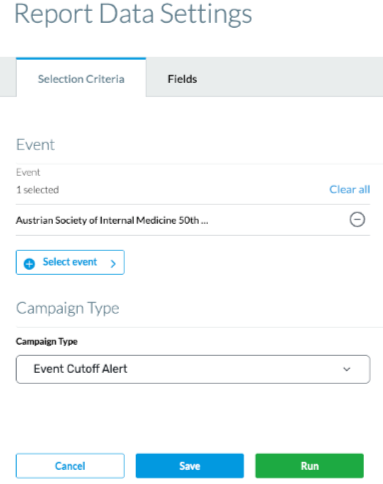
For these communications, you can view recipient email addresses, open rates, and click activity on links included in emails.
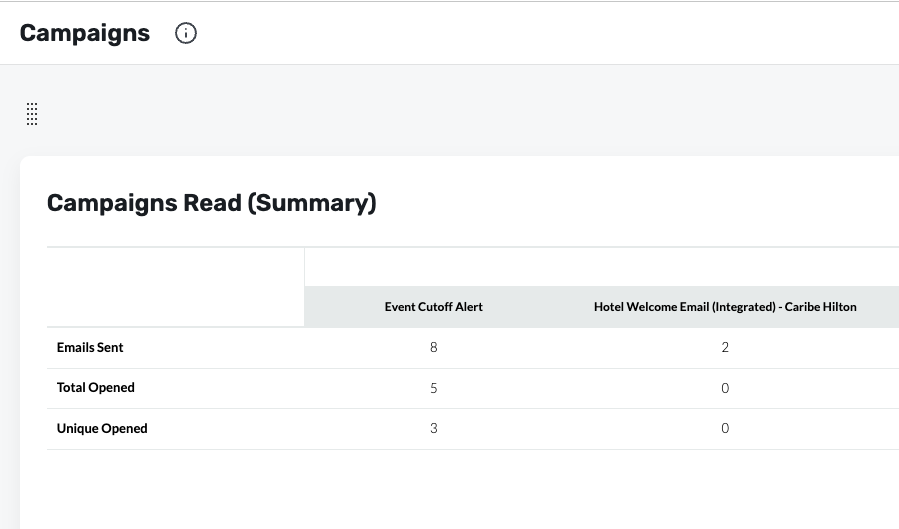
Benefit: You’ll have a more complete view of communication performance across Passkey, so it’s easier to understand engagement and measure the reach and effectiveness of more message types.
See how recipients are interacting with Smart Alerts and Updates.
Better understand which messages are resonating with your audience.
Make more informed decisions about how you communicate with attendees and stakeholders.
Cvent Travel
Save Bids as Negotiation Received
What’s Changed: Buyers can now update select bid details and save a bid directly as Negotiation Received from the Negotiation Response view, without waiting for additional hotel action. This update applies in both the user interface and negotiation response import workflows.
This is especially helpful for travel management companies, consortia programs, and corporate travel managers handling individual bids that need small updates before moving forward.
Buyers can edit a defined set of negotiable fields, including commission, amenities, custom question responses, and currency. Each buyer-submitted update is also recorded in bid history so you can see who made the change and when.
Benefit: This update helps you keep your RFP process moving when a bid is ready to progress but still needs a few final adjustments. Instead of getting stuck in extra back-and-forth, you can make minor edits, move the bid ahead faster, and maintain a clear record of every change.
Move qualifying bids forward without waiting on an additional hotel response.
Reduce delays caused by small corrections or offline/manual bid activity.
Keep visibility intact with an audit trail that shows buyer-initiated updates.
Use the same workflow across both the UI and import process.
Additional Resources
Cvent Community: Questions about the above updates? As always, get answers in the Community via the Open Forum.
Beta Opportunities Page: Try new features and products out before full launch availability. Join Beta Programs.