- DATE:
- AUTHOR:
- Cvent Product News Team

Exchange Solutions Releases for September 16, 2026
Products covered under Exchange Solutions are Cvent Supplier Network, Event Diagramming, Passkey, Travel, Instant Book, Vendor Marketplace powered by Reposite.
Cvent Supplier Network
Verify RFP Contacts Before Sending (Phase 2)
What's Changed:
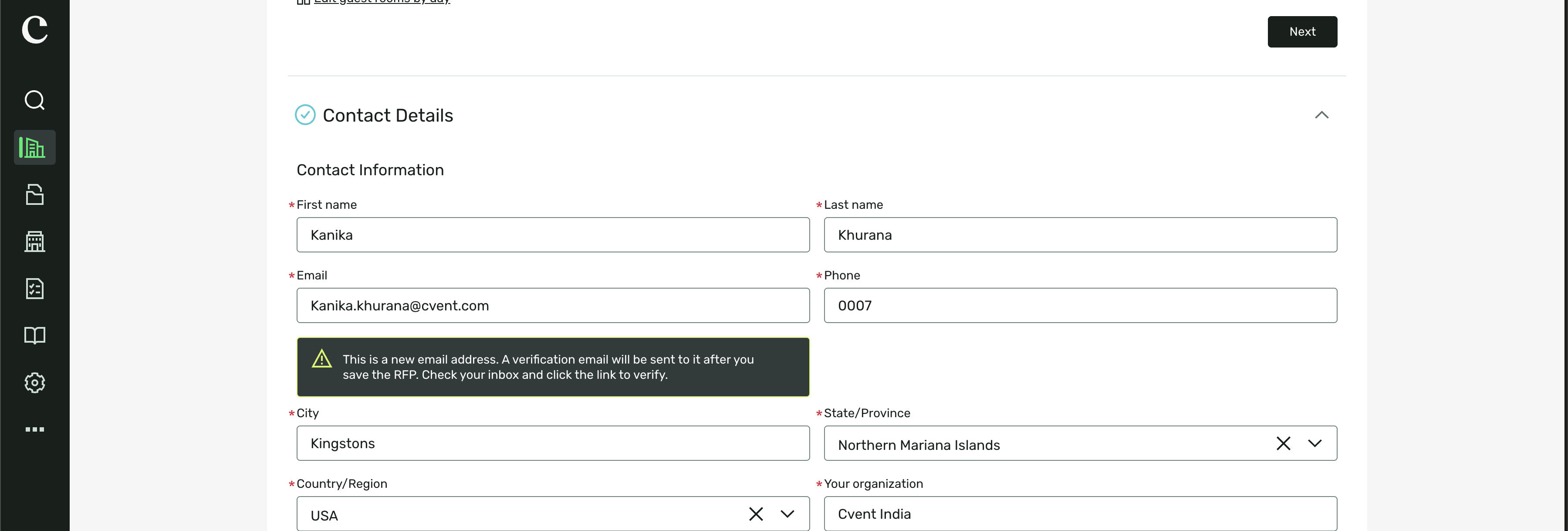
Email verification is now required before you can send an RFP to a key contact whose email address hasn’t been verified. If you’re sourcing on someone else’s behalf, you’ll see clearer guidance throughout the RFP workflow:
An unverified key contact email is highlighted as you complete the RFP form.
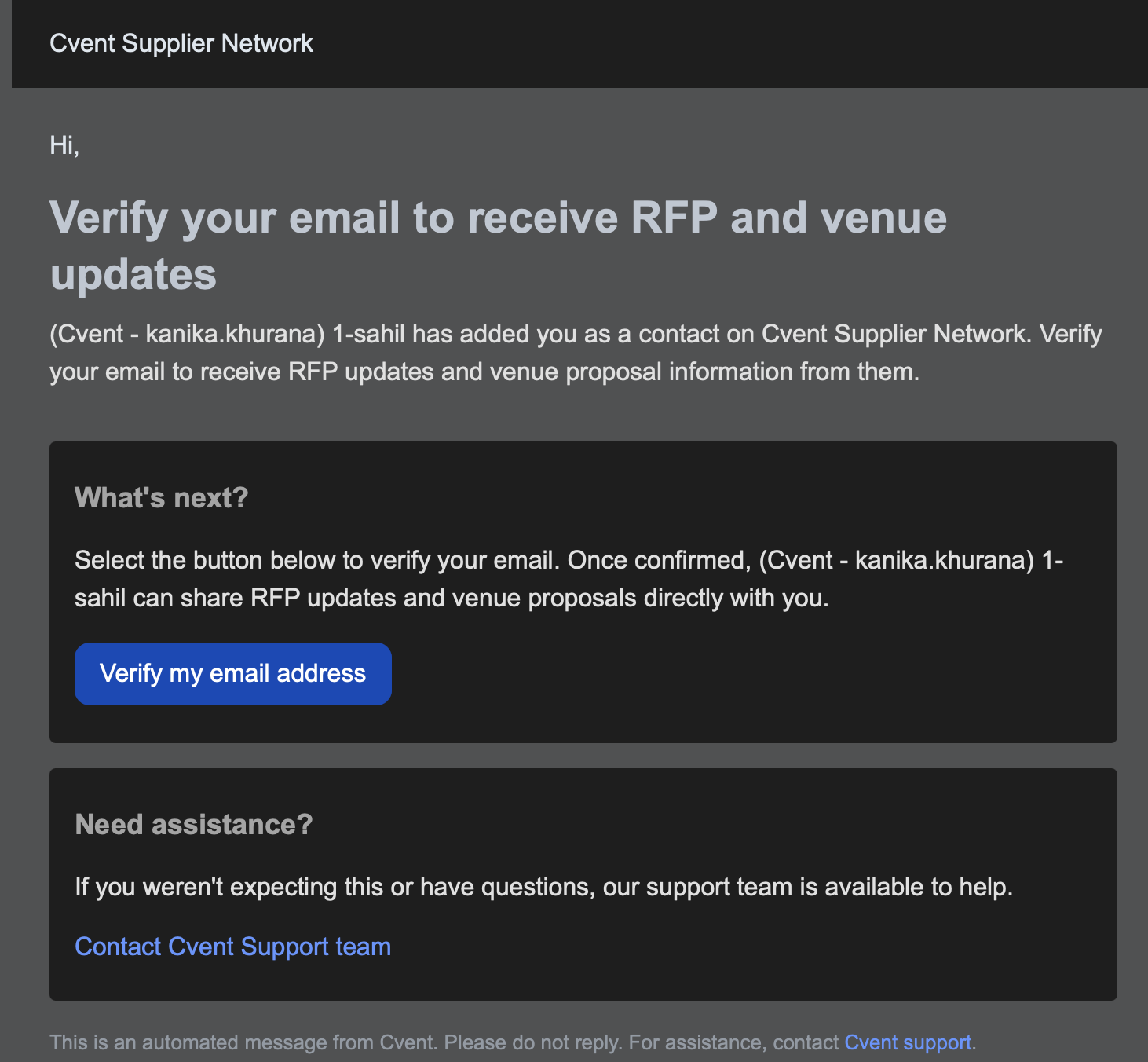
When you save the RFP, we automatically send a verification email to the key contact and mark the address as Pending in the Verified Email section under Sourcing.
A banner on the RFP’s Request Details and Venue List pages lets you know that sending is blocked until verification is complete.
You can continue editing the RFP and adding venues, but the Launch and Send action remains unavailable until the email is verified.
Once the key contact clicks the verification link, the banners are removed automatically, the RFP becomes eligible to send immediately, and the email status changes from Pending to Verified.
After verification, the address can be used for any RFP in your account.
Benefit:
You’ll have greater confidence that RFP communications reach the right person, without needing to pause your workflow or take extra steps after the recipient verifies their email. The clearer alerts also help you identify and resolve verification requirements before you’re ready to send.
If you frequently use RFP key contact email addresses for people who aren’t account users, verify them in advance from the Verified Email section under Sourcing.
In summary:
Verify key contact email addresses before sending your RFP. If an address is unverified, the recipient must confirm it first—but you can continue editing and adding venues, and the RFP unlocks automatically as soon as verification is complete.
Cvent Event Diagramming
Standard 3D Modernization
What's Changed:
Cvent Event Diagramming Standard 3D is getting a modernization focused on visual quality and usability. We’ve updated the experience to provide higher-quality rendering of 3D objects and a refreshed user experience when working with Standard 3D diagrams.
Benefit:
You’ll get a clearer, more polished view of your event diagrams, helping you work with 3D layouts more confidently and efficiently.
See higher-quality rendering for 3D objects.
Use an updated experience when working with Standard 3D diagrams.
Cvent Passkey
Modernized Reservation Summary
What's Changed:
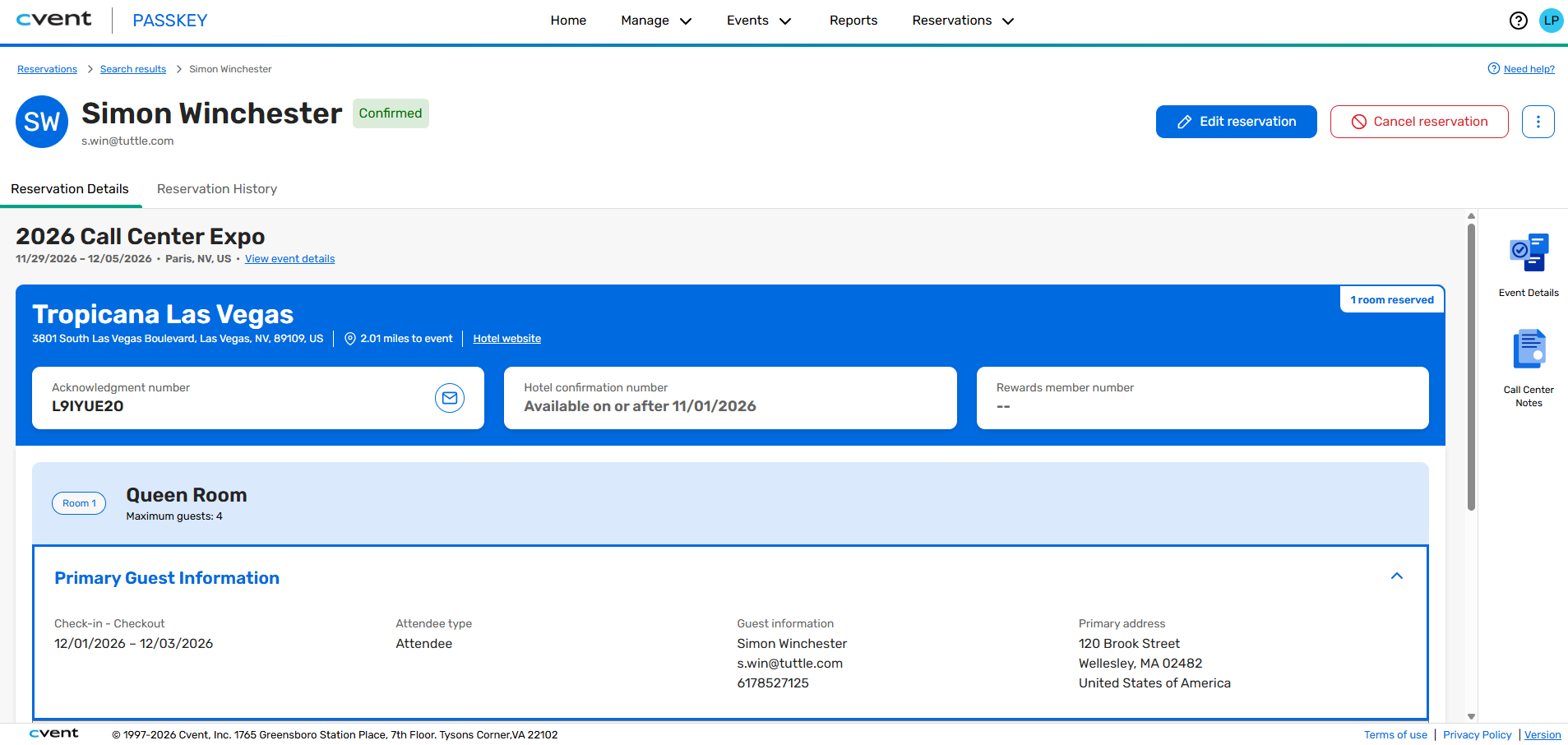
Passkey is introducing an updated Reservation Summary experience for individual reservations and group bookings. Available from the Reservations menu, the new summary brings key event, reservation, guest, payment, add-on, policy, charge, and acknowledgement details together in one place.
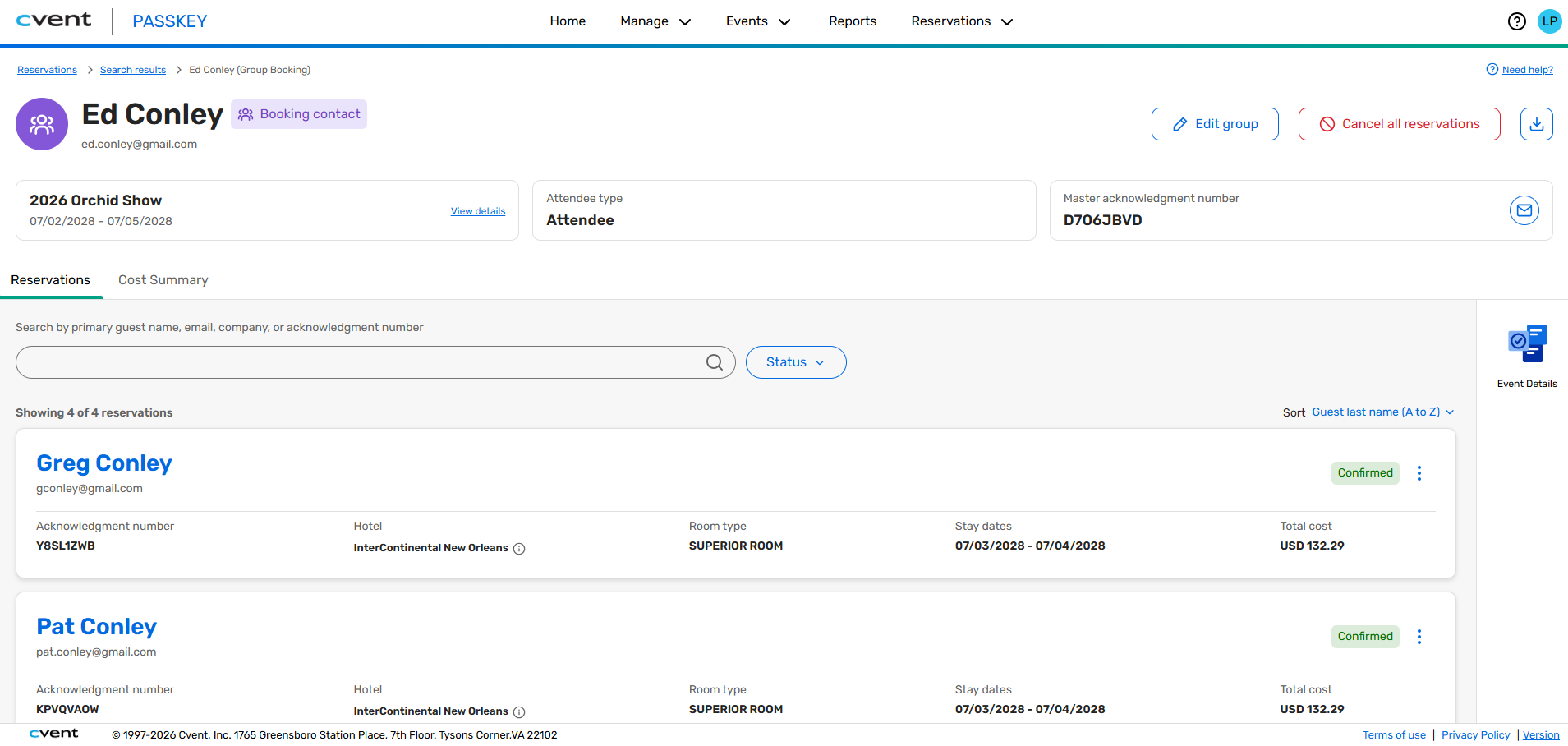
For group bookings, you can also review the booking contact, group booking details, and the individual reservations included in the booking. Open the new experience by selecting an individual reservation or group booking from the main reservations screen or search results. From there, you can resend acknowledgements, review reservation history, cancel reservations, and move between individual reservations and their parent group booking.
Individual reservation example:
Group booking reservation example:
Benefit:
Get the context you need without jumping between screens. The modernized summary helps event organizers, hotel staff, and call center agents answer questions faster and manage reservations with greater confidence.
Review guest, room, policy, cost, payment, and acknowledgement details more efficiently.
Manage individual reservations within a group booking without losing context.
Navigate easily between individual reservations, parent group bookings, and search results.
Review cancellation policies and exceptions before cancelling a reservation.
Manage Bedding and Amenities by Room Category
What's Changed:
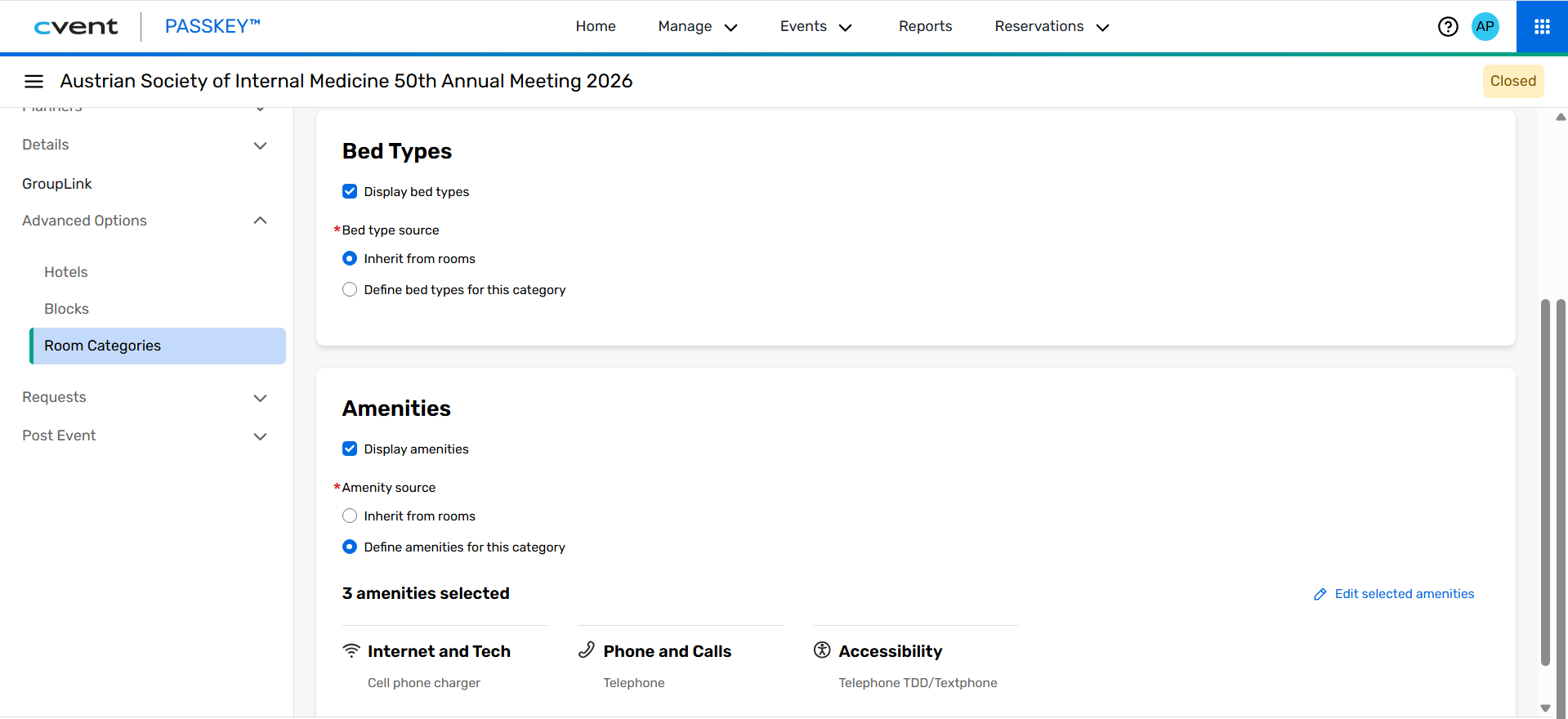
You can now manage bedding types and room amenities at the Room Category level in Passkey. This gives you more control when a category includes multiple room types with different bedding or amenities.
When configuring a Room Category, you can:
Choose independently whether bedding types and room amenities appear on the Attendee Booking Site.
Choose whether displayed details come from the specific room type being booked or from values defined for the Room Category.
Copy bedding types and amenities from a Room Type to its Room Category, then manage them directly at the category level.
Copy a Room Category with predefined bedding and amenities from a hotel’s library into your event.
Benefit:
Present room information more accurately and set clearer expectations for attendees. With the right details shown for each Room Category, you can help create a smoother group check-in experience.
Vendor Marketplace
Smarter Project Dashboard
What’s Changed:
We’re refreshing the Project Overview experience for Reposite planners and adding AI-powered guidance to help you keep every project moving.
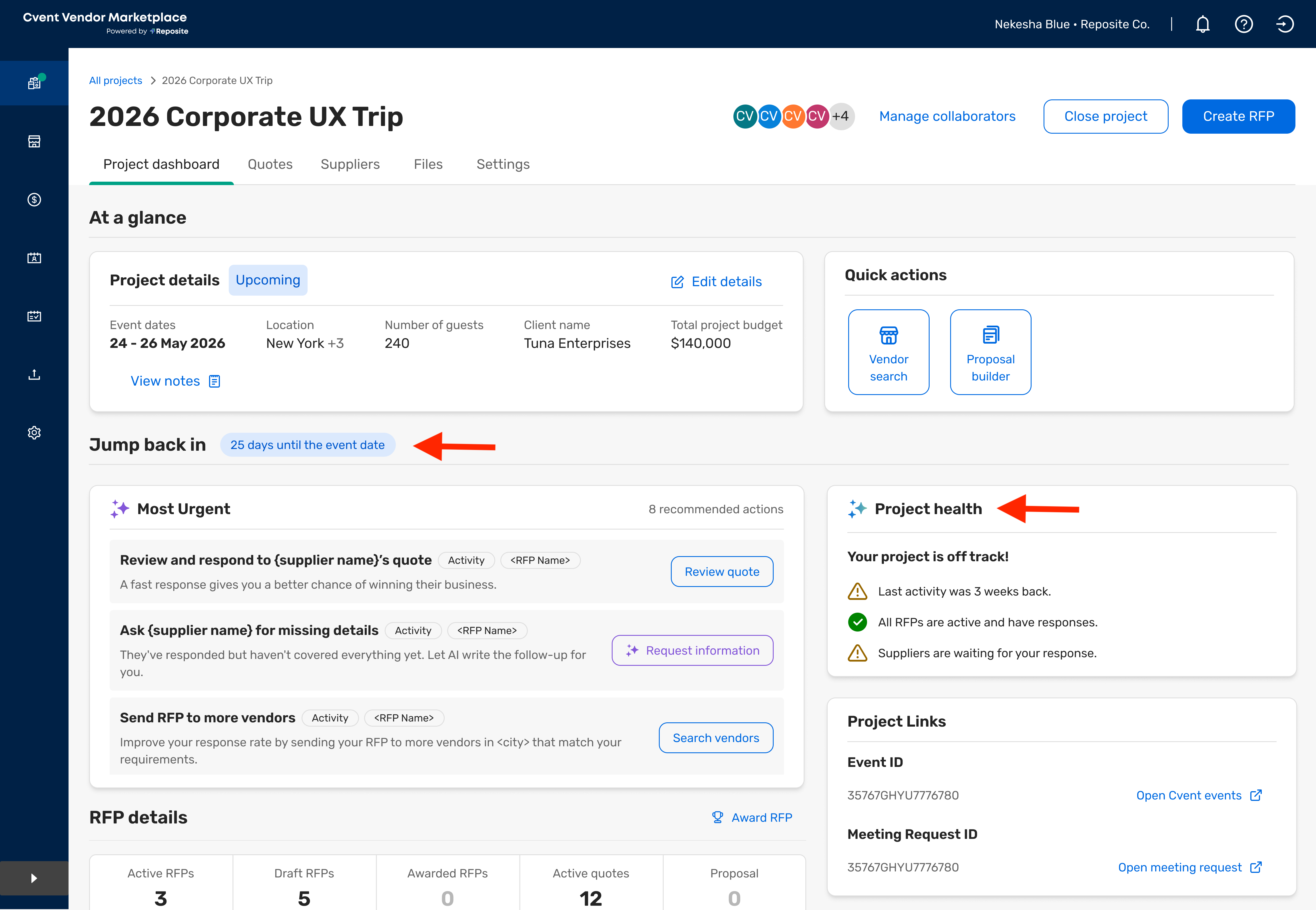
The Project Overview tab is now called Project Dashboard. The former Project Dashboard is now called All Projects.
Project Status now updates automatically as a project moves from Draft to Upcoming, Ongoing, and Completed. Closing a project remains a manual step.
Quick Actions provides relevant shortcuts based on project status, including AI Vendor Search, Create Proposal, and Close Project. Quick Actions aren’t shown for closed projects.
A new RFP Details grid gives you an at-a-glance view of every RFP, including its name, category, status, budget, quote count, and unread messages.
The new Jump Back In section reviews your project’s RFPs, quotes, messages, and PlanPilot checklists to recommend prioritized, project-specific next steps.
Project Health provides an AI-powered snapshot of project activity, RFP progress, and pending supplier responses.
AI-powered features are available when your organization’s AI access is enabled and to users with Admin or Full Access permissions. Read-only users see AI actions as disabled. Basic planner accounts don’t see Jump Back In or Project Health, and those two features require a Premium subscription.
Benefit:
Spend less time searching for updates and deciding what to do next. The refreshed Project Dashboard brings the most important project details into one place, while AI-powered recommendations help you quickly focus on the actions that keep RFPs and supplier conversations moving forward.
See project health and RFP activity at a glance.
Prioritize the next best action across multiple RFPs.
Jump directly into common workflows with contextual shortcuts.
Quickly spot unread supplier messages and pending responses.
In summary:
You can manage projects more easily with a refreshed Project Dashboard, at-a-glance RFP details, contextual shortcuts, and AI-powered recommendations for what to do next.
NEW ENHANCEMENT! Create RFPs with AI from Vendor Search
What's Changed:
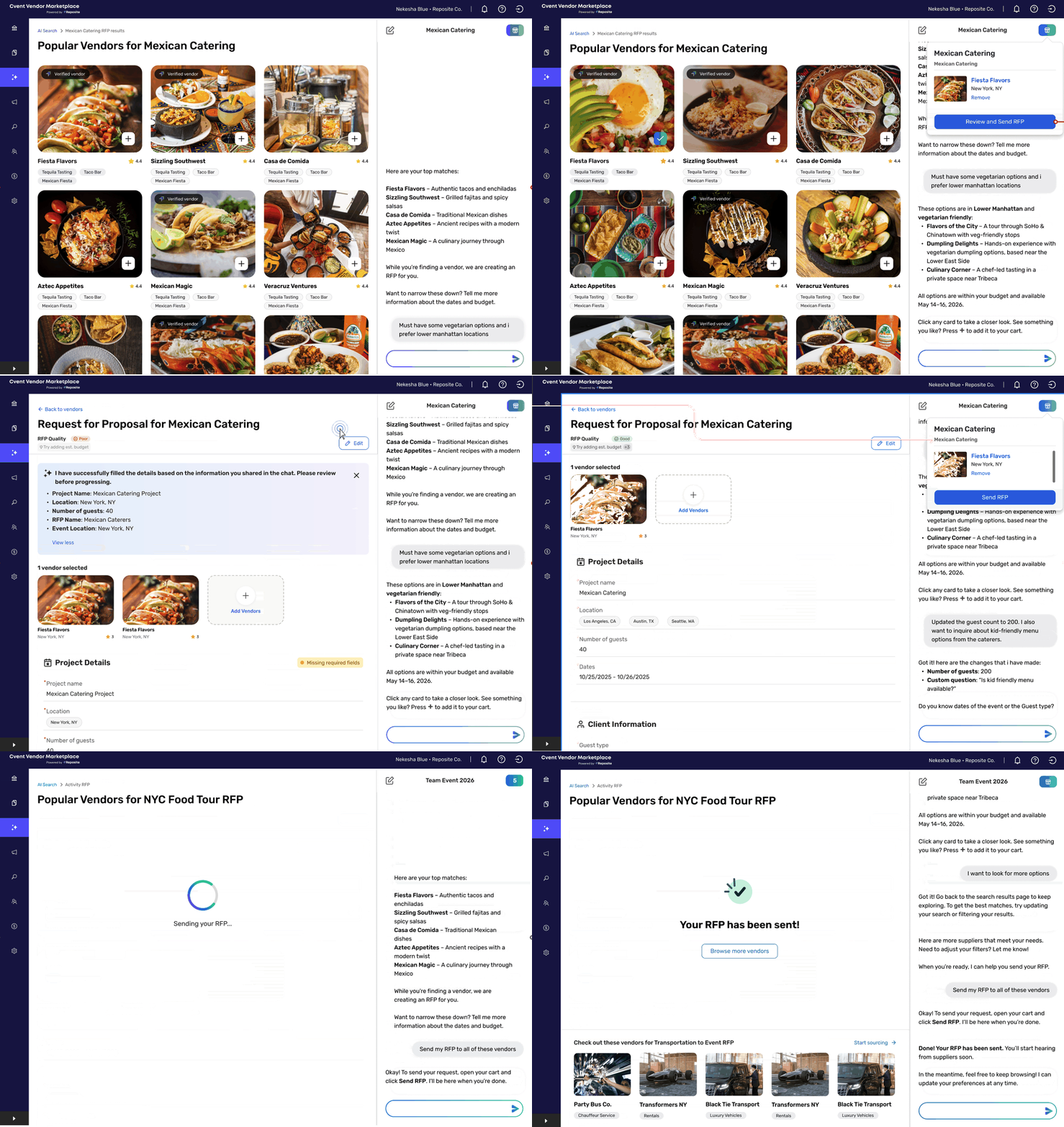
You can now use the Reposite AI RFP Assistant to create an RFP while searching for vendors in AI Vendor Search. Start a chat, describe your event and vendor requirements, and the assistant gathers the details, matches them to the appropriate RFP fields, and creates a draft for you to review before sending.
You can start in either of two ways:
Start with vendor search: Describe what you need in AI Vendor Search, add vendors to your cart, and review the generated RFP before sending.
Start with an existing RFP: Select an RFP first, then use AI Vendor Search to find vendors that match your requirements. If your chat request conflicts with the selected RFP, the assistant asks you to confirm before making updates.
The draft is created in the background and becomes available when you open your cart and select Review & Send. Nothing is saved to your account unless you explicitly choose Save as Draft or Send.
Access follows the existing AI Vendor Search permissions and is available to Admin and Full Access users.
Benefit:
Create and send RFPs with less manual form filling. By sharing your requirements conversationally, you can move from vendor discovery to a review-ready RFP more smoothly while keeping control over what gets saved or sent.
In summary:
Use AI Vendor Search to describe what you need, find the right vendors, and create a review-ready RFP with less manual work, all while staying in control of what gets saved or sent.
Additional Resources
Cvent Community: Questions about the above updates? As always, get answers in the Community via the Open Forum.
Beta Opportunities Page: Try new features and products out before full launch availability. Join Beta Programs.