- DATE:
- AUTHOR:
- Cvent Product News Team

Plan & Promote Releases for April 22, 2026
Registration
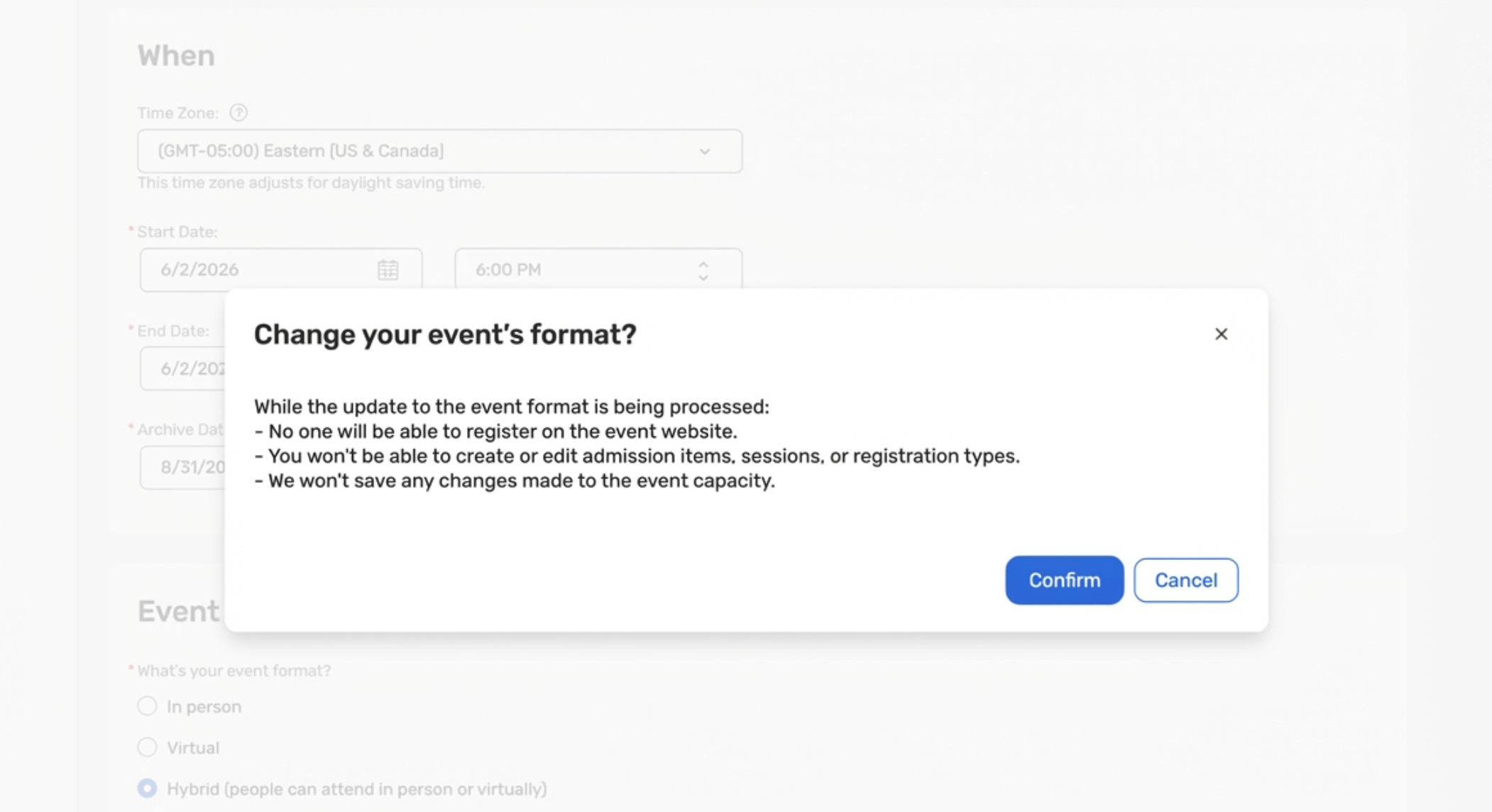
Switch Event Format to Hybrid After Live Registrations
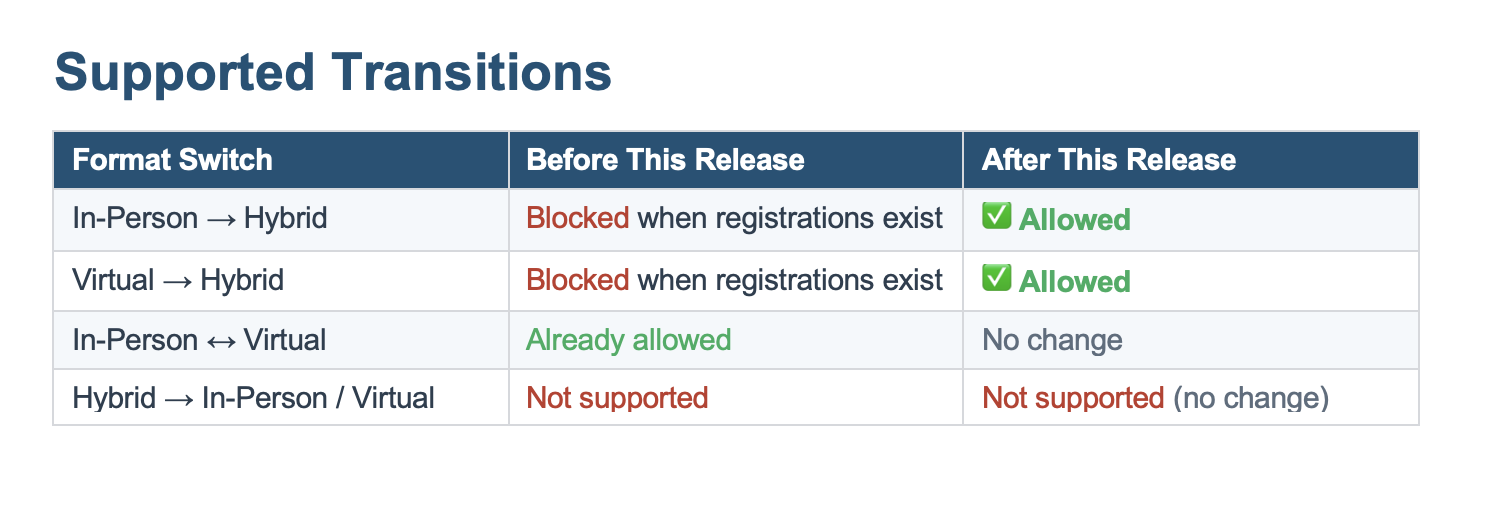
You can now switch an event’s format from In‑Person or Virtual to Hybrid even after registrations have started. This removes the need to copy events and re‑import registrations, while keeping existing registration data and reporting intact.
What's new?
Post‑registration format switch to Hybrid
Use the existing Event Format control from General > Event Information move:In‑Person → Hybrid
Virtual → Hybrid
Hybrid‑ready structure behind the scenes
The system prepares separate in‑person and virtual capacities, types, and sessions so both audiences are supported correctly.Light safeguards during the switch
During the brief format update, some attendee‑related actions on the planner and attendee side are momentarily paused to keep data consistent (for example, modifying registrations or updating session registrations)For In‑Person → Hybrid conversions, existing in‑person session waitlists remain intact. For Virtual → Hybrid conversions, any attendees on a session waitlist are automatically removed from the waitlist as part of the transition.
Key Benefits:
Respond faster to changing event strategy
Pivot from single‑format to Hybrid when conditions change (health guidelines, venue constraints, budget, sponsor asks) without starting over in a new event.Eliminate manual event copy + import workflows
Remove the need to copy events and re‑import registrations, reducing conversion effort from 4–8+ hours to minutes and lowering risk of configuration errors and data loss.Better attendee continuity
Attendees keep their existing registrations, confirmations, and links, instead of being asked to re‑register in a copied event, reducing confusion and preserving their history.
Appointments Now Visible in Invitee Agenda in Event Management
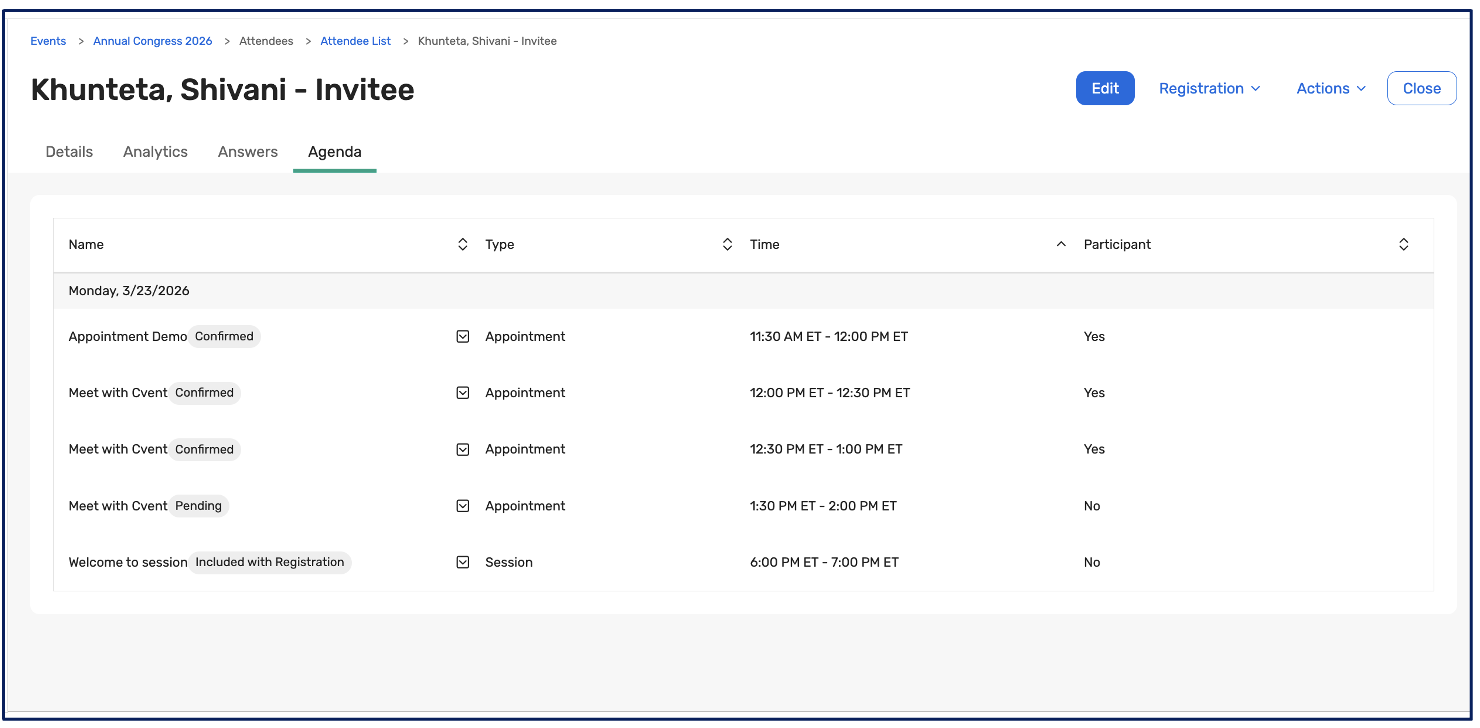
You can now view an attendee's appointments directly within the Invitee Agenda, alongside existing sessions. Previously, the Invitee Agenda only displayed sessions, which told only part of the story. Attendees' sessions and appointments together define their event experience, and by surfacing appointments in the same view, you can:
Make more informed decisions: Quickly identify scheduling conflicts, back-to-back commitments, or gaps in an attendee's day without switching between multiple screens.
Generate richer insights: a complete schedule view enables planners to assess engagement levels, spot pending appointments, and measure the depth of an attendee's event participation.
Bridging reporting gap: Detailed Built-In Appointments (included with your Attendee Hub license) aren’t reflected in event-level reports, so planners can now use Invitee Agenda for appointment insights and visibility.
This is particularly valuable for events where appointments are strategically important.
How does it work?
When you open an attendee's record and navigate to the Agenda tab, they will now see the attendee's appointments listed alongside their sessions, filtered by date for easy navigation.
Each appointment displays a status pill so you can instantly understand its state:
A Confirmed pill appears on confirmed appointments.
A Pending pill appears on appointments awaiting confirmation.
Canceled and declined appointments are excluded from the view to keep the agenda clean.
The Participant column indicates whether the attendee has accepted the appointment, displaying "Yes" if accepted and indicating the attendee's participation. This column is read-only for appointments and cannot be edited by the planner directly from this view.
Appointment data is included when a planner prints or emails an attendee's agenda, ensuring any exported or shared schedule reflects the invitee's full agenda.
For Appointments Premium clients, each appointment row includes a "Go to Appointment" option that navigates the planner to the Appointments Planner Calendar with that specific appointment's details open, enabling quick access for deeper review or action.
Additional Resources
Cvent Community: Do you have questions about the updates we've rolled out this window? As always, get questions answered in the Community via the Open Forum.
Beta Opportunities Page: Help us make Cvent Products better by being the first to test products before they're widely available. Join Beta Programs.
UX Research Panel: Be part of a select group of users who will help guide the future of Cvent's products. Join the UX Panel.