- DATE:
- AUTHOR:
- Cvent Product News Team

Plan & Promote Releases For February 11, 2026
Registration
Registration Modification Shortcuts from Post Registration Pages
Registration modification shortcuts let you route attendees directly to the specific registration page or widget they need to update, dramatically shortening the modification process and making changes feel fast and intentional. Once the attendee has made the necessary updates, clicking "Next" will direct them to the end of the registration form to submit their changes.
Currently, when attendees want to change anything in their registration, they have to log back in, locate and click on the Modify Registration button, and step through every page from the beginning — even if they only need to update a single detail like their session selection or travel information, which are found on later pages. This adds unnecessary friction and steps, creating a poor attendee experience. By allowing you to generate shortcuts to specific registration pages or widgets, the modification process becomes much faster and more intuitive for attendees.
How it Works:
Choose a "Destination" for the Modify Registration widgets on Post-Registration pages
The destination defaults to the beginning of registration (as it works today), with additional options to select a registration page or a specific widget along the registration path. Widget destination options are the following:
Sessions Widget
Admission Item Widget
Quantity Items Widget
Donation Widget
Hotel Requests
Flight Requests
Air Actual
Group Flight
Add multiple Modify Registration widgets on the same registration path, each with its own destination configuration
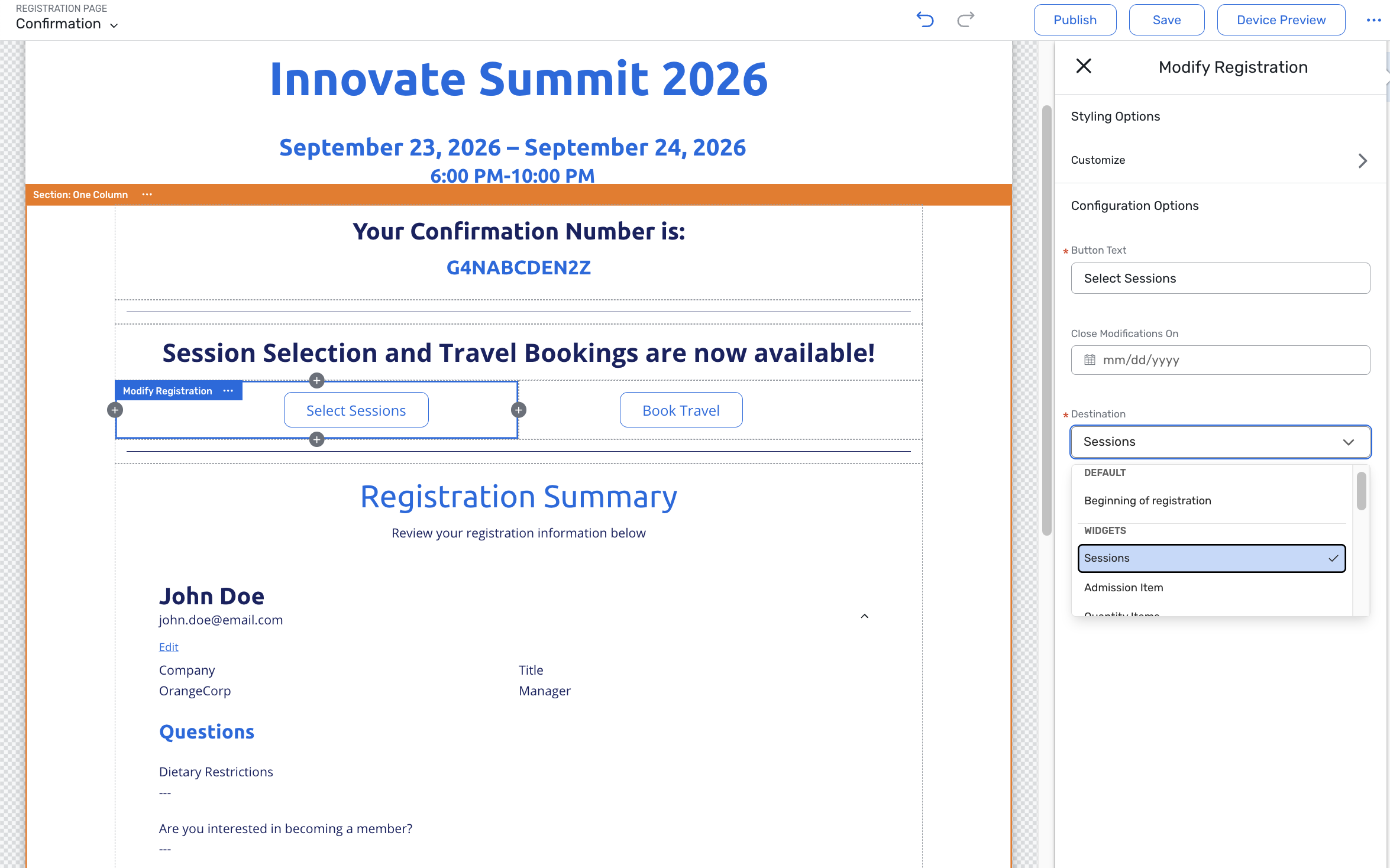
When an attendee is logged in and clicks a Modify Registration button with a configured destination:
They are redirected directly to the destination page.
If the destination is a widget, focus will move specifically to that widget on the page (for example, jumping down to a Sessions widget at the bottom of the page)
After the attendee makes the intended modifications and clicks "Next," they are directed to the final registration page to submit the changes.
Things to Note:
If an attendee enters modification via a modification button with a destination selected, and then clicks "Previous" instead of "Next", they will move backward through the registration flow normally, one page at a time. When they click "Next" again after that, they will not jump back to the submit page and instead go through all remaining registration pages as normal; the navigation to the submission page only applies when clicking "Next" immediately from the destination page
If a destination page or widget is no longer valid (for example, the page is deleted or the widget is removed from the path), the system defaults to the first page of registration, treating the click like a standard Modify Registration start.
If the configured destination page is skipped for an invitee (for example, because it only contains widgets with no items available based on registration type, or all questions/fields on the page are hidden for the attendee because of widget visibility logic), the attendee is navigated to the beginning of registration instead of that page.
If the configured destination widget is hidden for a particular invitee (for example, no items available based on their registration type), but the page itself is still valid and not configured to be skipped, the attendee is still dropped onto that page; they simply won’t see the hidden widget.
If an attendee uses a shortcut, lands on a destination page, and changes something that would normally reveal new required questions on later pages, the system does not validate that those newly required downstream fields are answered before submission. If it is on the same page as the destination, it will be validated and thus required for attendees to fill out. This is to reduce frustration for attendees who might otherwise not know where to go or what additional information they need to provide when the required fields are on different pages and not visible.
While destinations are independently configurable per widget, the “Close modifications on” setting is shared at the path level. All Modify Registration buttons on the same path still honor the same modification close date/time.
Registration Process and Travel Permission Are Now Available for Event Roles
To give account administrators more flexibility when configuring event-level permissions, the existing Registration Process and Travel permission is now available under Event Roles. This allows teams to fine-tune what you can see and manage on a per-event basis, rather than relying solely on user role configuration.
What’s changing?
Previously:
Registration Process and Travel permission were only configurable at the user role level.
It was not surfaced when configuring an Event Role (Admin > Meetings Management > Event Roles).
With this release:
Registration Process and Travel is now available as a permission on the Event Roles page.
Navigation: Admin > Meetings Management > Event Roles
The permission on Event Roles supports the same four access levels as at the user role level:
No Access
Read-Only
Full Access
Content Only
Default behaviour on release
Upon release, the Event Role version of the Registration Process and Travel permission will default to
"blank"for all existing Event Roles.While the Event Role permission remains "blank", the system will:
Defer to the user role’s Registration Process and Travel permission when determining access within events.
Once an admin sets a value for Registration Process and Travel on the Event Role:
That Event Role setting takes precedence over the user role permission for users assigned to that Event Role in that event.
Improved Chart Layout in Report PDF Exports
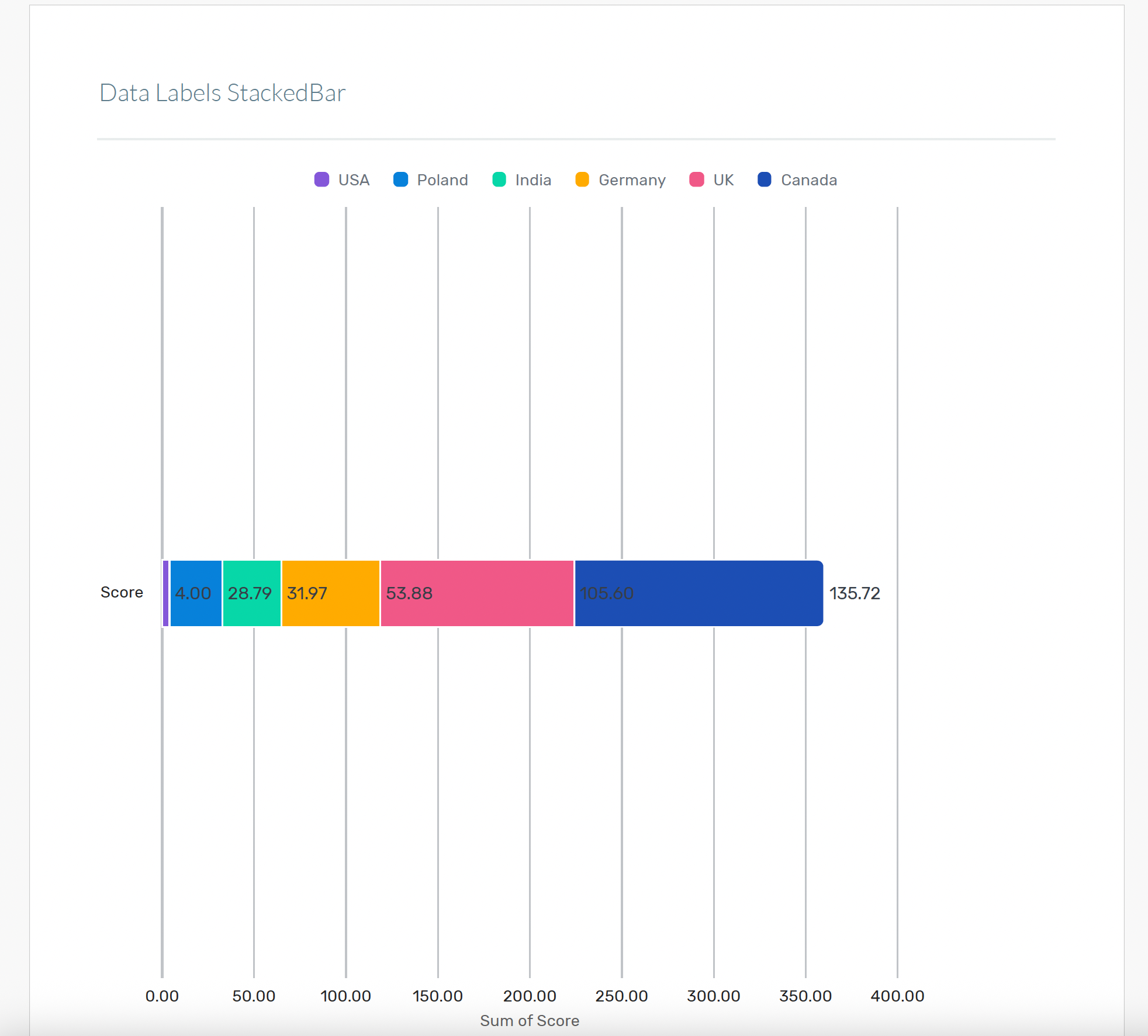
With this release, each chart in a report's PDF export will appear on its own page, taking up the full width (and, in most cases, the full height) of the page. This provides significantly more space for labels and data, improving readability and reducing issues such as overlapping or misaligned labels that led to a poor UI experience and workarounds via Excel exports.
Previously, numbers and labels could get jumbled or cut off in stacked charts, producing unreadable exports and a poor UI experience.
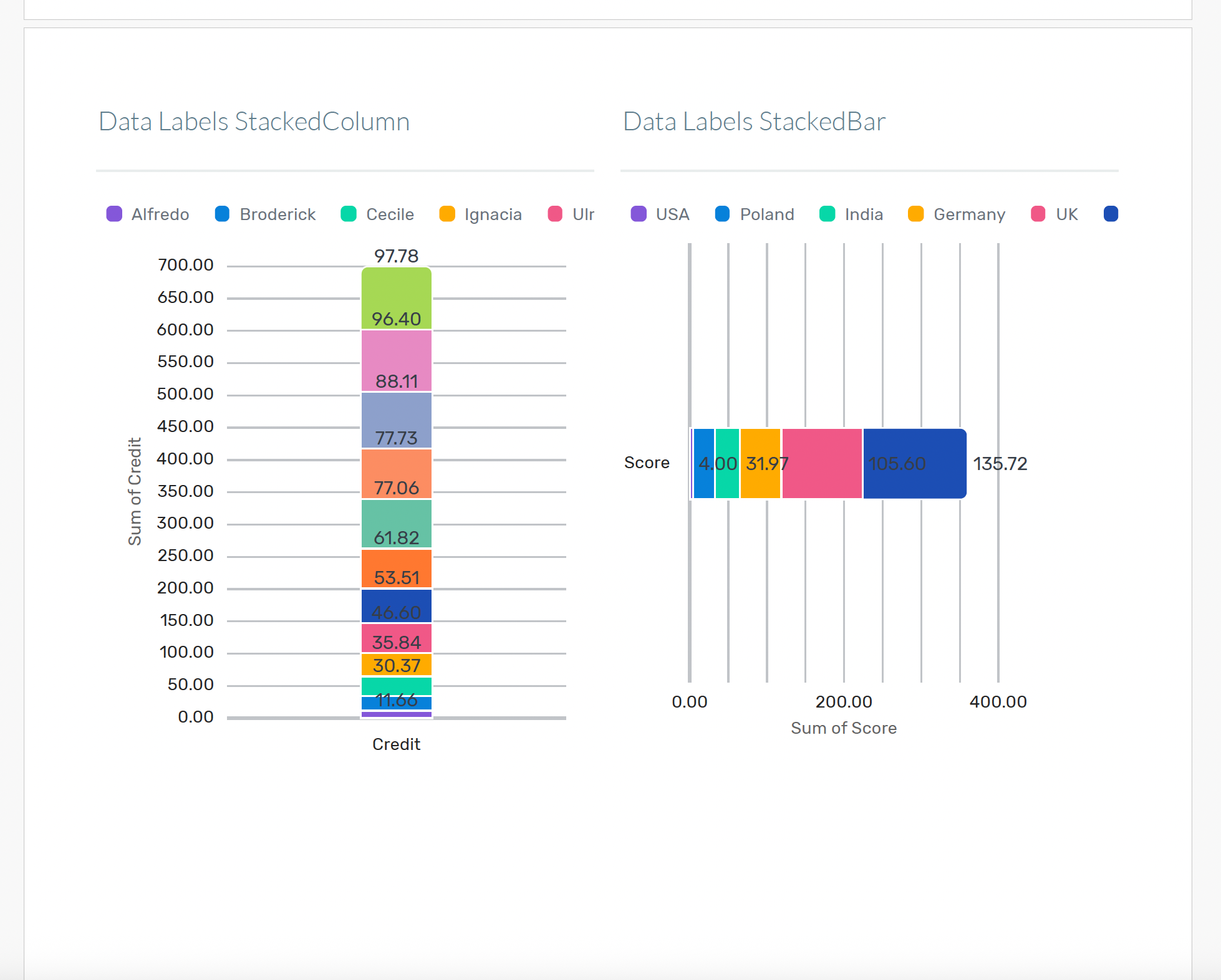
Now, every chart spans the full page width, leading to a better UI and no overlapping labels.
Key Takeaways:
This change will apply to all reports in the Cvent Reporting Framework, for both planners and suppliers.
The underlying report data, calculations, and chart types remain unchanged.
Export options (PDF, Excel, CSV, etc.) remain the same; only the PDF chart layout changes.
Charts in other exports are not affected.
Additional Resources
Cvent Community: Do you have questions about the updates we've rolled out this window? As always, get questions answered in the Community via the Open Forum.
Beta Opportunities Page: Help us make Cvent Products better by being the first to test products before they're widely available. Join Beta Programs.
Quarterly Product News Webinar: Stay tuned for our upcoming Q1 2026 Product News webinar planned for March 4.