- DATE:
- AUTHOR:
- Cvent Product News Team

Plan & Promote Releases for July 7, 2026
Registration
Introducing Train Travel: More Flexibility for Event Journeys
Train Travel is now available in Cvent for those who manage attendee travel, building on existing air and hotel travel capabilities. This release rounds out Cvent’s attendee travel offering by giving you a new way to collect train travel requests, import train actuals, and work with train travel details across registration, attendee management, reporting, and event emails.
It also gives registrants more flexibility to share their travel preferences and supports organizations that want to offer additional travel options, including more sustainable choices. Registrants can also review train request details during registration and receive train travel details in event emails.
Before this release, those who needed to support train travel had to rely on manual workarounds and custom data collection methods to capture, share, or report on this information. Train Travel brings these tasks into Cvent, giving both you and registrants better visibility into train travel details throughout the event process.
Key capabilities include:
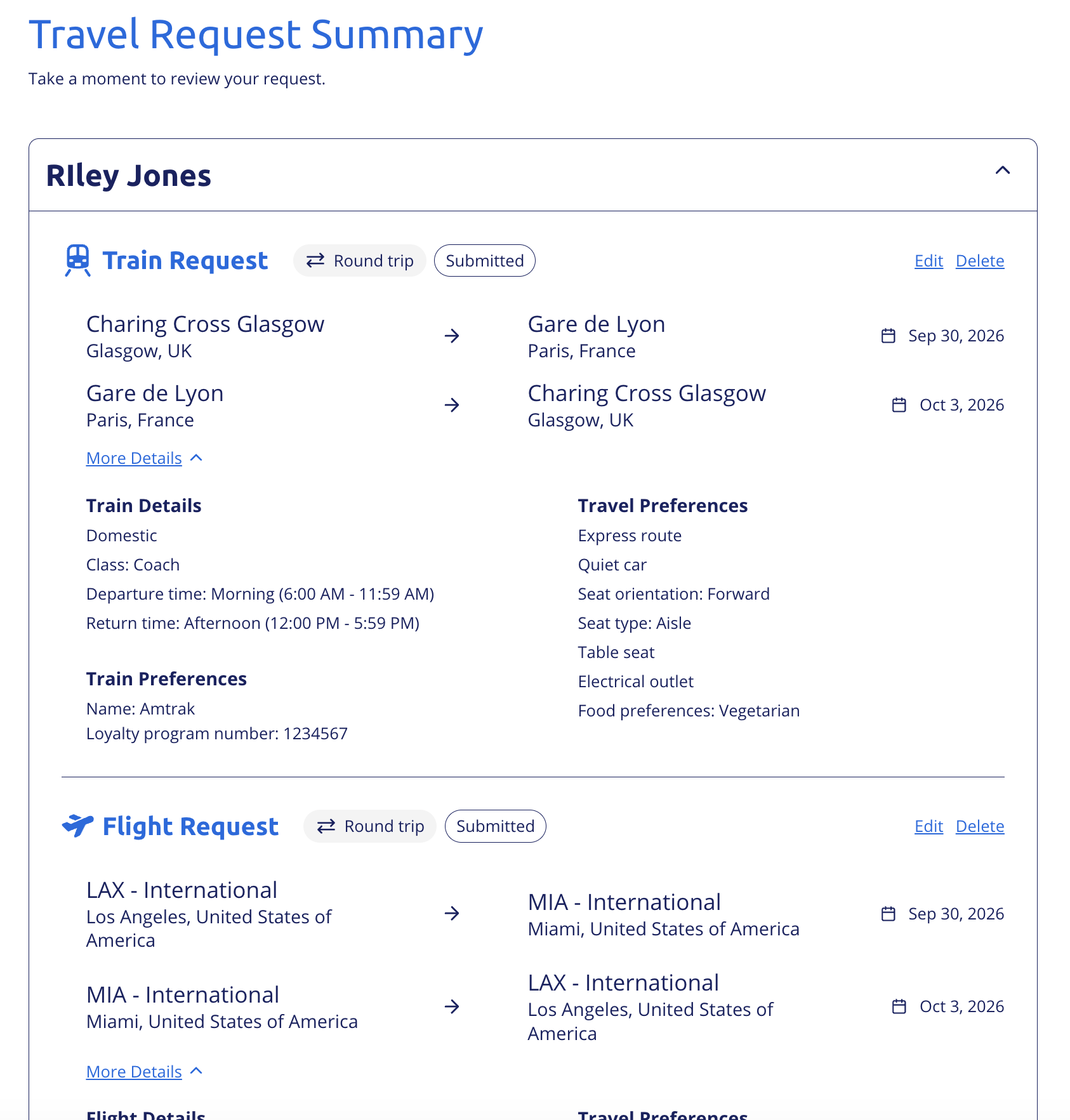
Registrant train travel requests: Registrants can submit train requests during registration and review their train request details before completing registration. If needed, registrants can submit train requests in addition to flight requests.
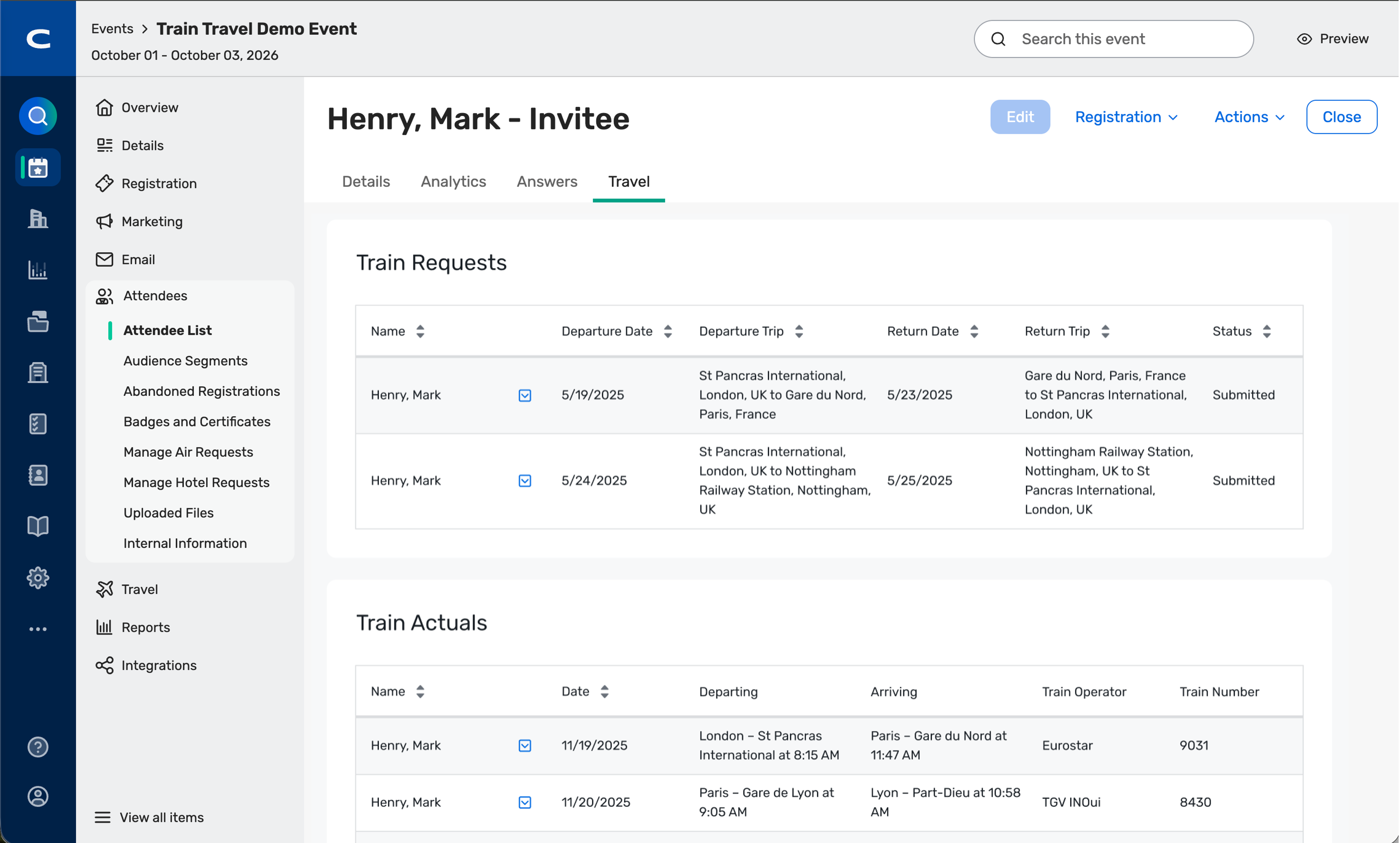
Planner visibility into train travel: You can view train requests and imported train actuals on the attendee travel tab.
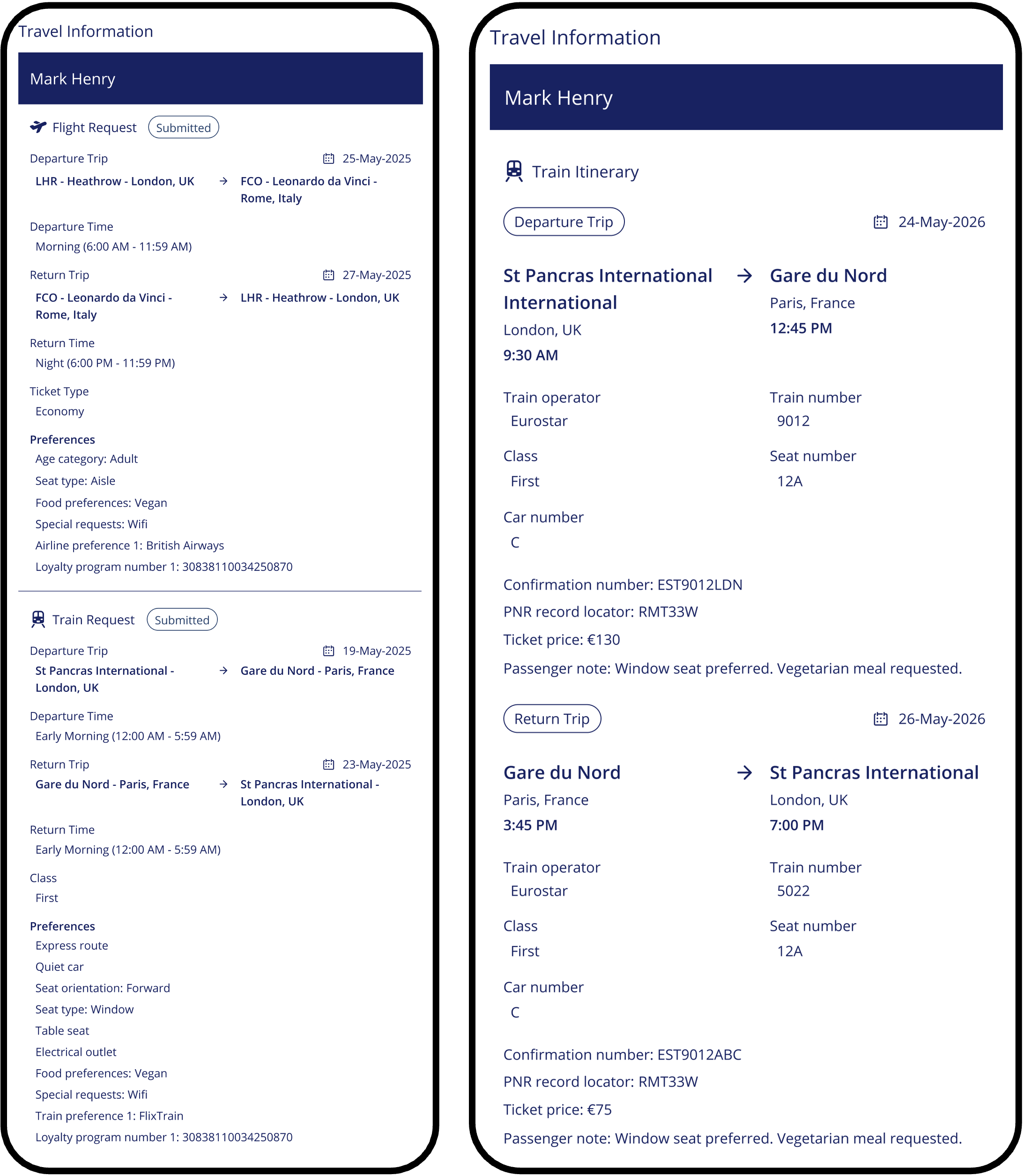
Train travel details in event emails: You can use the new email widget to include train requests and train actual details in event emails, helping registrants access their travel information before and during the event.
Reporting for train requests and actuals: You can use the Travel Request Details by Registrant and Travel Actual Details by Registrant reports to review train travel data, and clients with the Spend per Person module can display train travel costs in the Spend Details per Person Report.
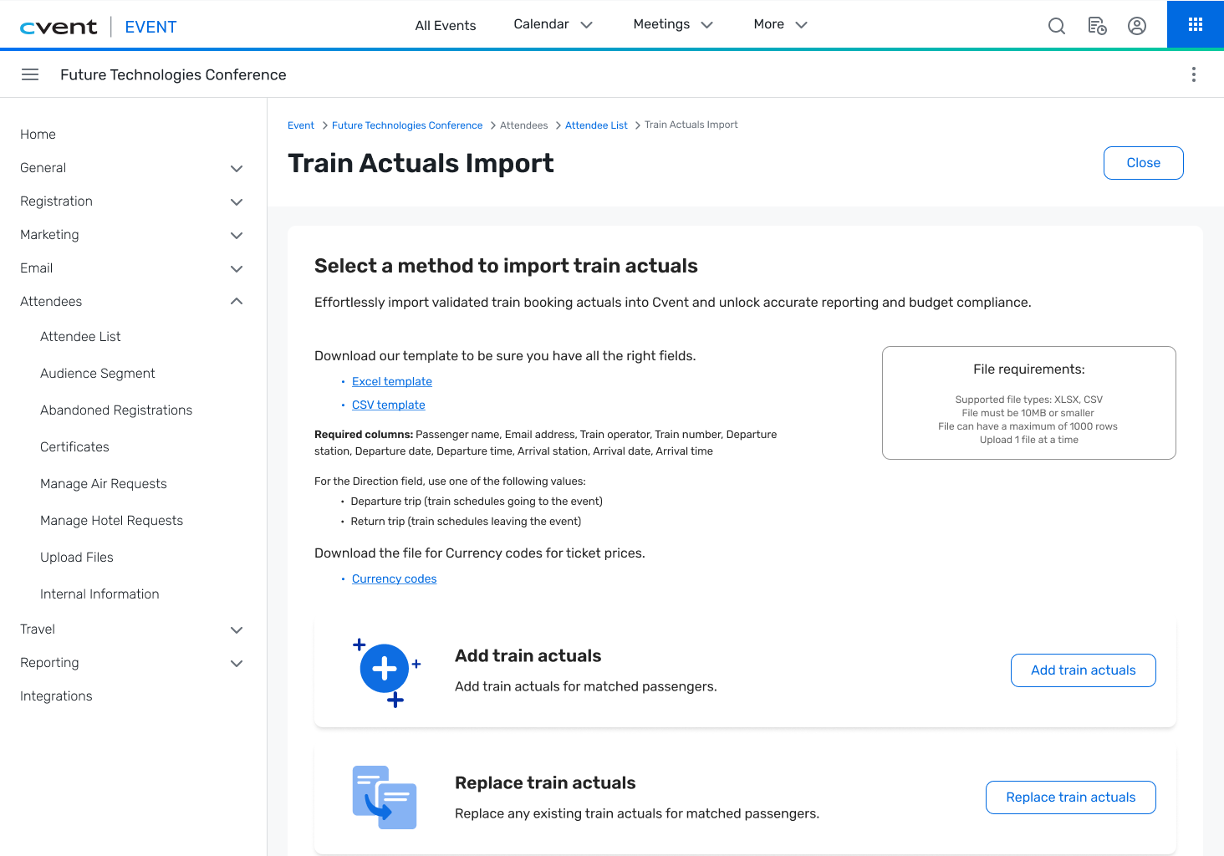
Train actuals import management: Once the travel manager or TMC has booked the actual train ticket, planners can import those train actuals, monitor import status in the existing Recent Imports/Exports admin page, and review any records that did not import successfully.
Registrants can review train request details alongside flight requests during registration:
Import train actuals into Cvent:
View train requests and imported train actuals on the attendee travel tab:
Registrants can view train requests and train actual details in event emails:
Event Details in Access Portal Report List
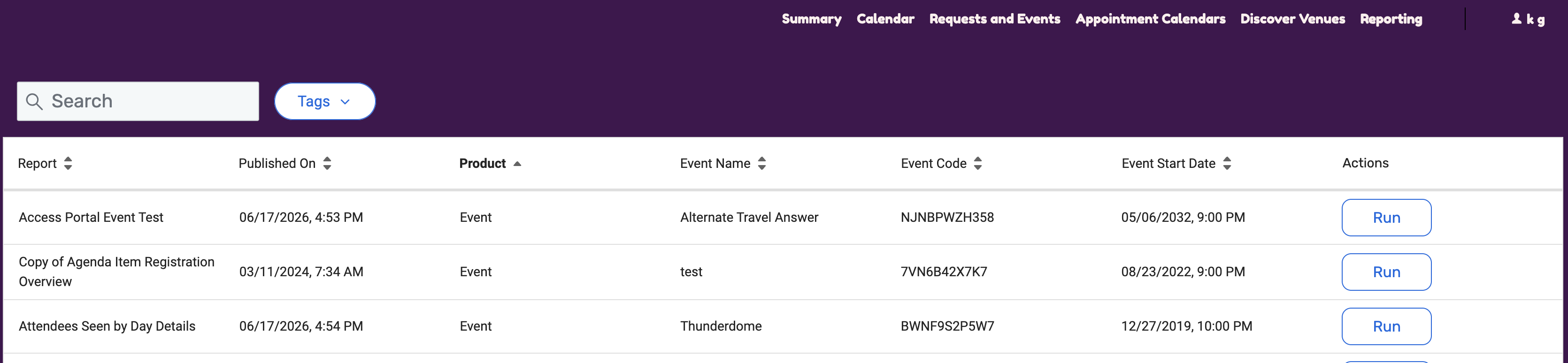
We've added event-level details to the Access Portal report list. Portal managers can include event information as columns, so users can immediately see which event each report belongs to.
Until now, the report list showed report details but could not surface which event (if applicable) each report belonged to. With this release, three new event-level fields are available as columns in the report list:
Event Name
Event Code
Event Start Date
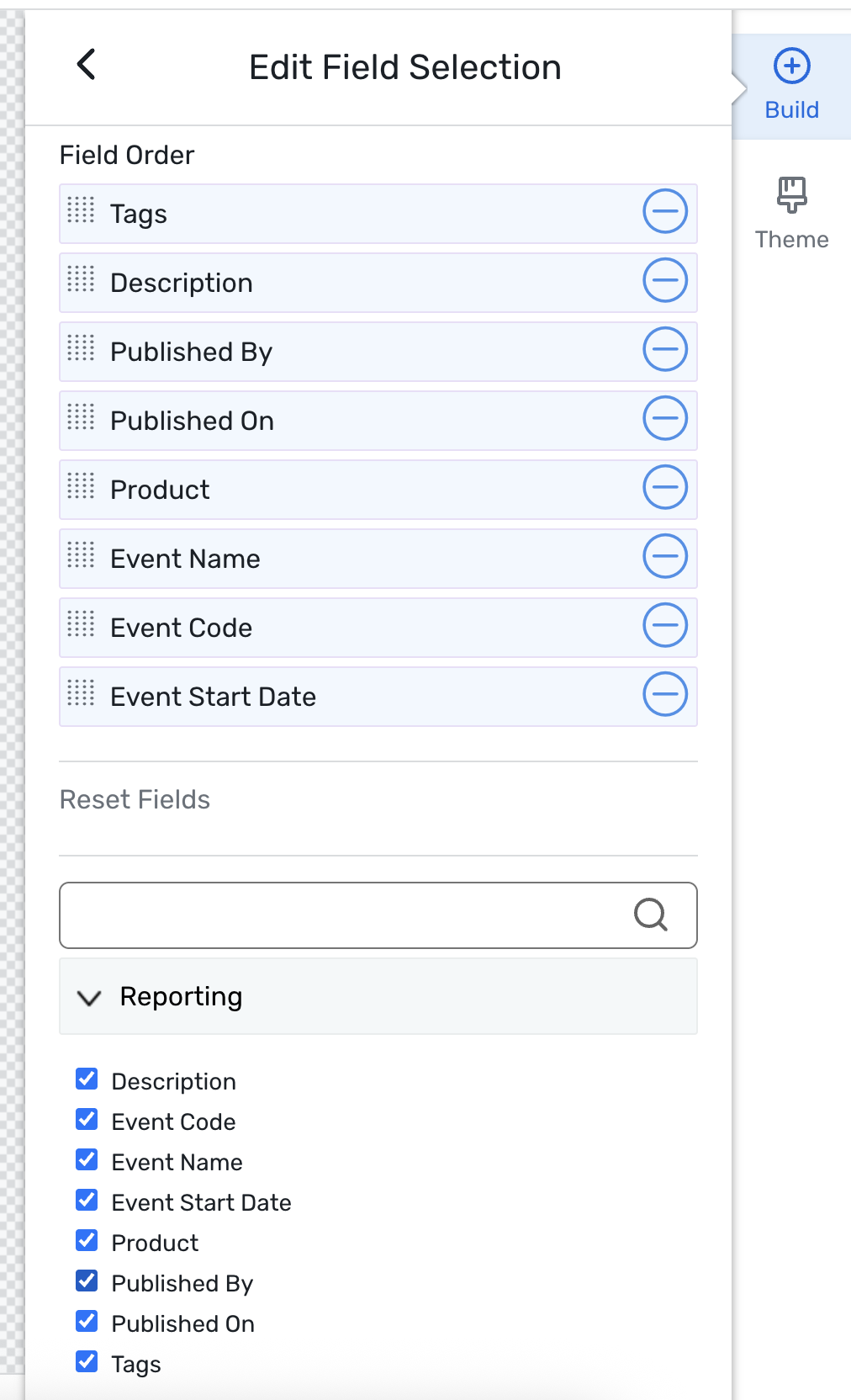
Portal managers can select, reorder, and save these fields in the Site designer. Users can also search and filter by Event Name and Event Code across the full report list.
Things to know
The new fields are added as columns in Access Portal Site Designer: Admin > Access Portals > select a portal > Content > Site Designer > Reporting > Edit Field Selections.
New portals will have these fields selected by default. Existing portals will need to select them manually in Site Designer.
These are event-level fields and may not be populated for all product types, so some reports may not show values.
Session Programs in the Website Agenda Widget
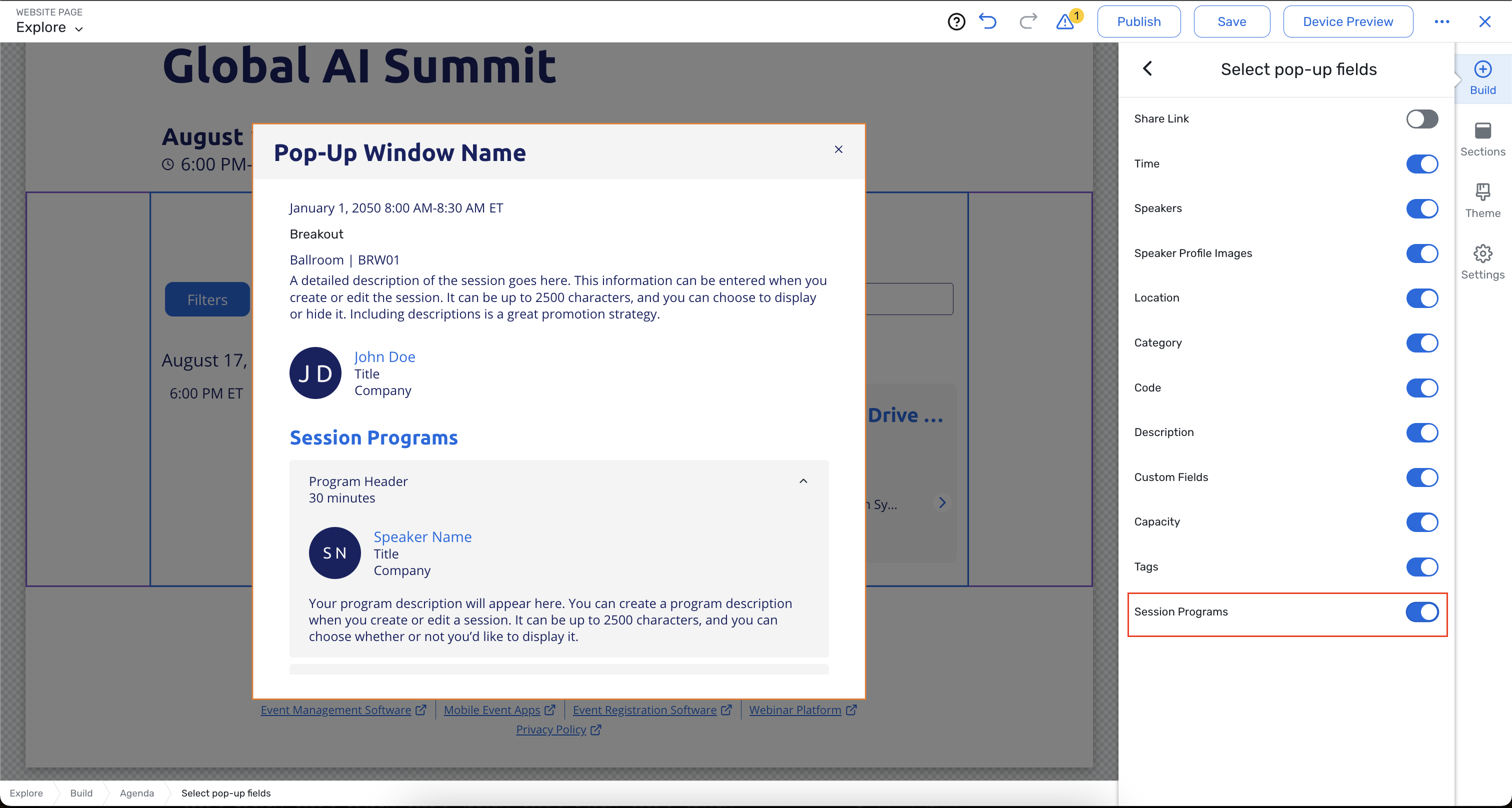
You can now surface Session Programs directly in the Agenda widget on the Event Website, making it easier for attendees to understand what a session includes before deciding whether to attend.
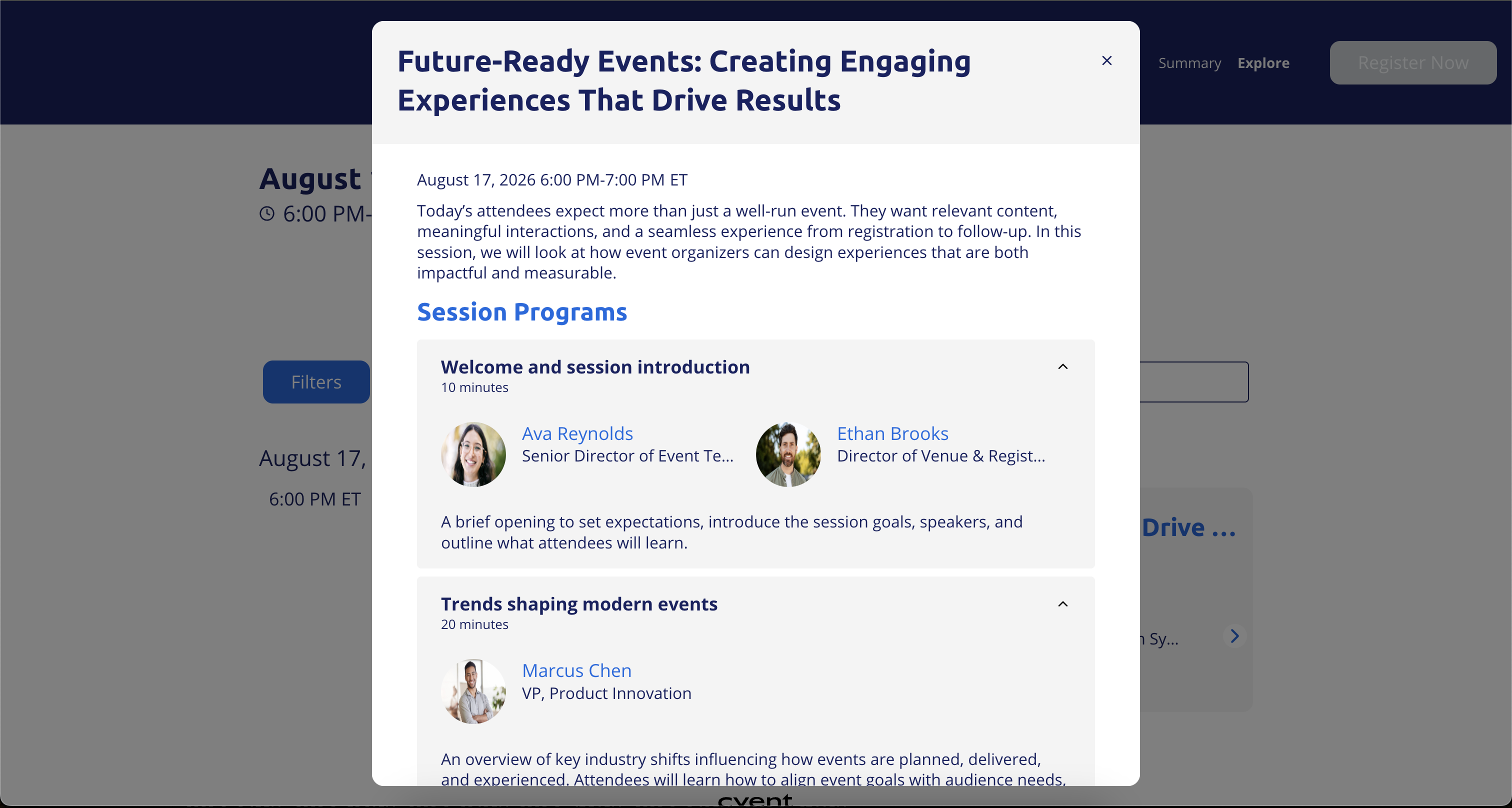
When the new Display Session Programs on Agenda Widget setting is enabled, sessions with one or more program items show a visual indicator that a detailed agenda is available. Attendees can open the session details modal to view the Session Program content in the configured order.
The Session Program section can include item titles, durations, speakers, and descriptions consistent with the existing Session Programs experience. Sessions without Session Programs remain unchanged.
Why it matters
This update helps attendees discover rich session content earlier, browse sessions more efficiently, and make more confident registration decisions for complex or high-value sessions.
It also helps planners keep the agenda list clean while still giving attendees access to detailed breakdowns within the session details experience.
How it works
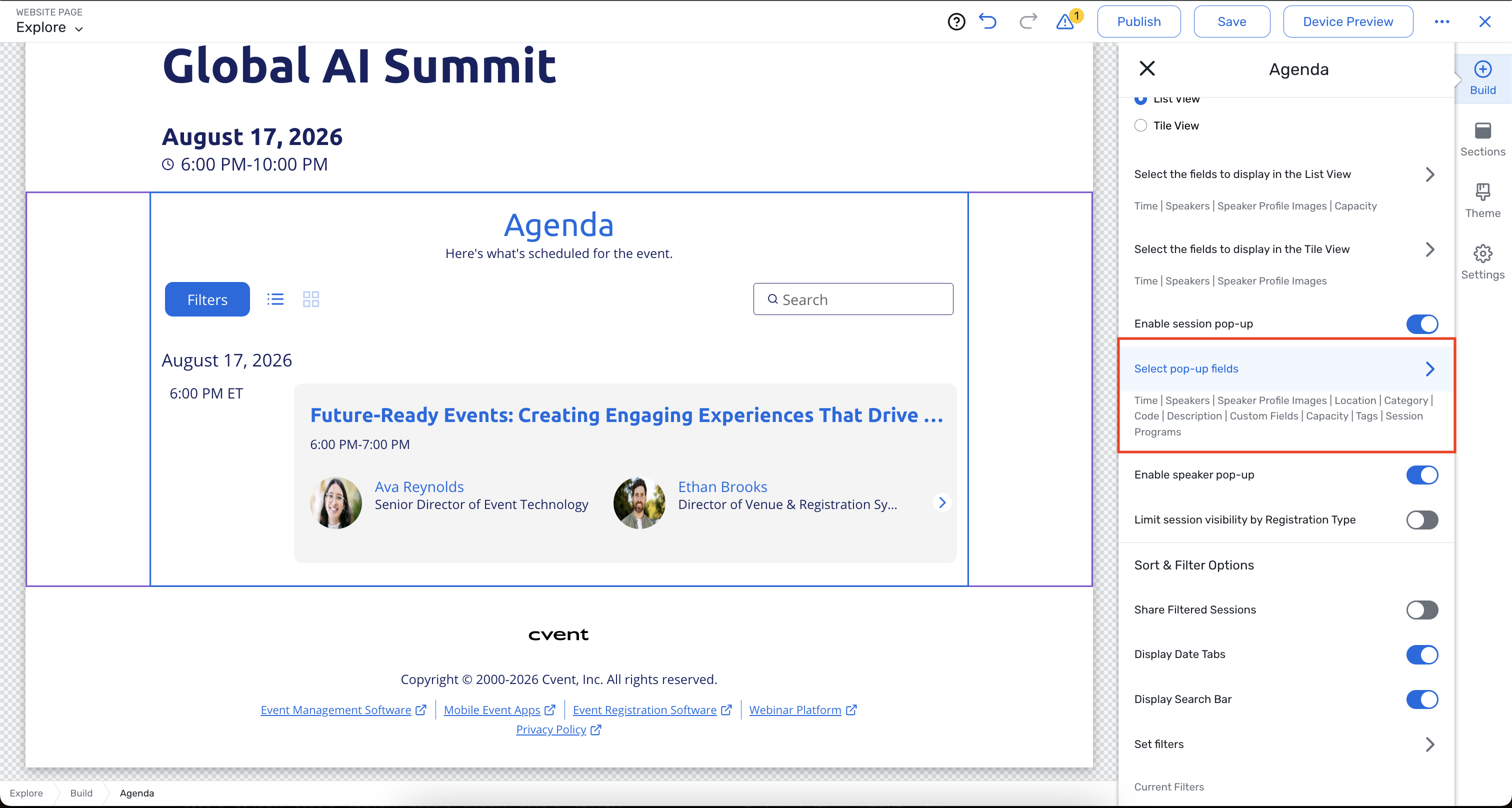
You can enable Session Programs in the Agenda widget settings in Site Designer using the Display Session Programs on Agenda Widget toggle. Once enabled, any session with configured program items will display its detailed agenda in the session details modal on the Event Website.
Notes
This enhancement follows existing Session Programs limits and behavior, including support for up to 25 items per session and up to 10 speakers per item.
Program documents will not be a part of the session program website experience, but will continue to work as is in the Attendee Hub.
Cvent Payments - Additional countries supported for payouts
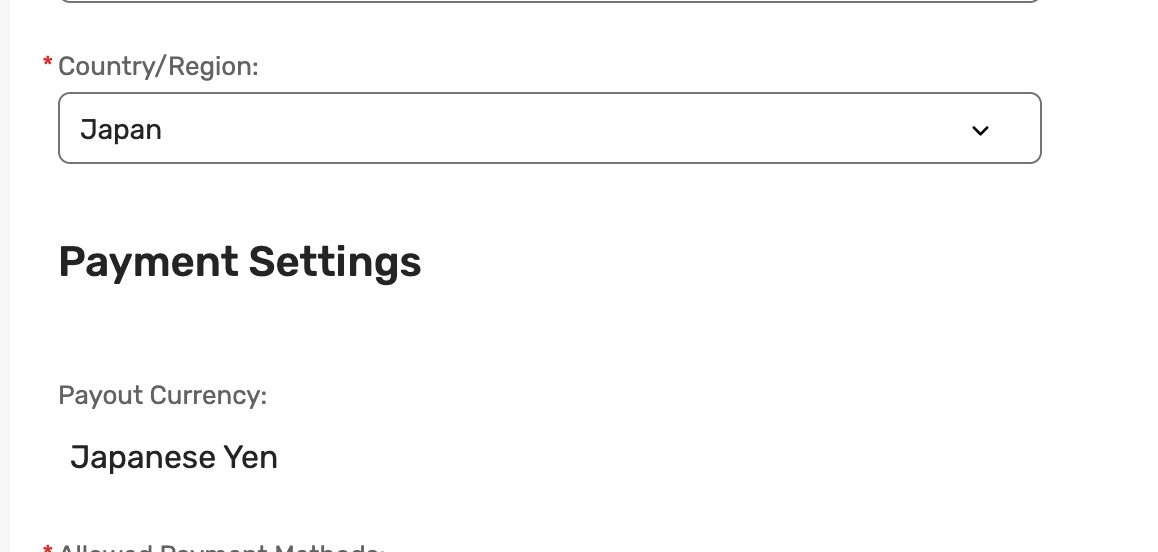
Cvent Payments now supports payouts in additional priority regions, expanding where customers can receive funds in supported payout currencies.
Newly supported payout regions
This is accessed when someone is creating a Cvent Payments merchant account.
The following additional regions are supported for payouts:
Hong Kong — HKD local currency payouts
Japan — JPY local currency payouts.
New Zealand — NZD local currency payouts.
Cyprus — EUR/GBP local currency payouts.
Puerto Rico - USD local currency payouts.
Exhibitor Management
Exhibitor Resources & Personalized Messaging from LeadCapture
Booth staff can now send personalized messages and collateral directly from LeadCapture, keeping leads warm while the conversation is still fresh. Attendees can return to those interactions (and the resources shared with them) at any time through Attendee Hub. For planners, in-app messaging activity and resource engagement provide measurable visibility into exhibitor performance, making it easier to demonstrate sponsor ROI.
From the lead scan flow in LeadCapture, staff can attach resources (e.g., product sheets, case studies, decks, images, or links), compose a message, and send, all without leaving the app. While progressing through the lead scan flow, staff can also leverage AI to generate a personalized draft in one tap, drawing on the attendee's qualification survey responses, the resources being shared, and event context. Every draft is editable before it goes out, so staff stay in control of what gets sent.
The attendee receives the message and attached resources via email. For events using Attendee Hub, the LeadCapture follow-up extends beyond email to create an ongoing in-app engagement experience. Every message sent from LeadCapture, along with any shared resources, is automatically delivered as a 1:1 conversation in Attendee Hub. Subsequent follow-ups from the same booth staff member are added to the same conversation thread, making it easy for attendees to revisit past interactions, access shared content, and continue the dialogue directly in-app.
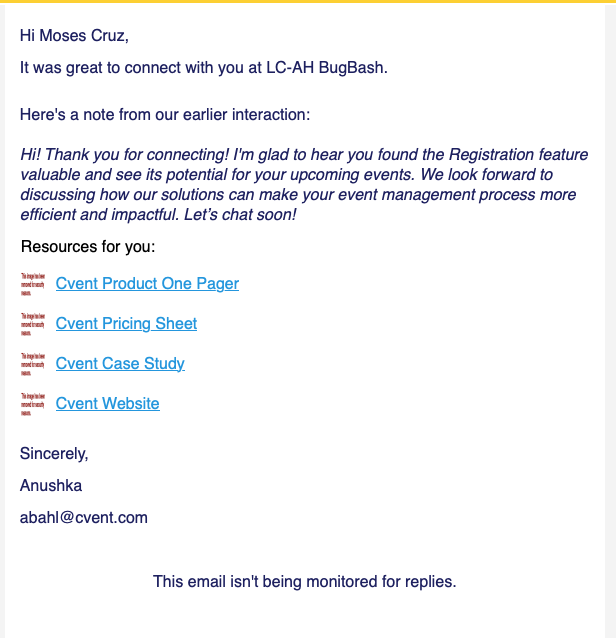
Attendees can find resources they were sent through the Exhibitors Met and Resources sections. They can then reopen conversations, view shared resources, and quickly reconnect with exhibitors they met during the event.
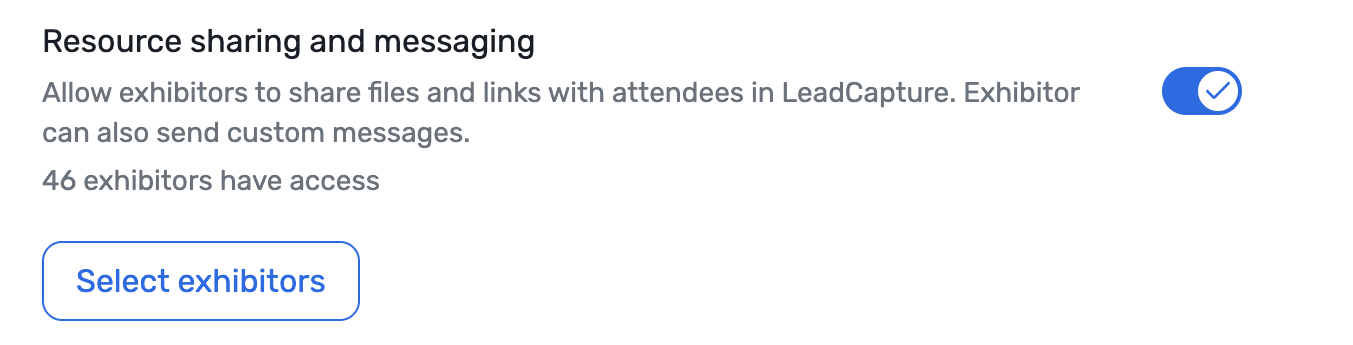
Planners can enable this feature by turning on the new Resource sharing and messaging toggle in Exhibitor Management Settings.
Things to Note:
A follow-up email is always sent anytime a message or resource is sent from LeadCapture, regardless of whether Attendee Hub is enabled for the given event.
For events using Attendee Hub, the message is also mirrored as a 1:1 in-app conversation only if the attendee is visible in Attendee Hub. Hidden attendees will still receive the follow-up email.
Resources can also be sent from the lead details page, not just during the scan flow.
AI-generated messages are always editable before sending — nothing goes out without staff review.
Apart from the message itself, the organizer can modify the default email content in the Exhibitor Resources email in Exhibitor Emails.
Introducing Exhibitor Management Overview Page
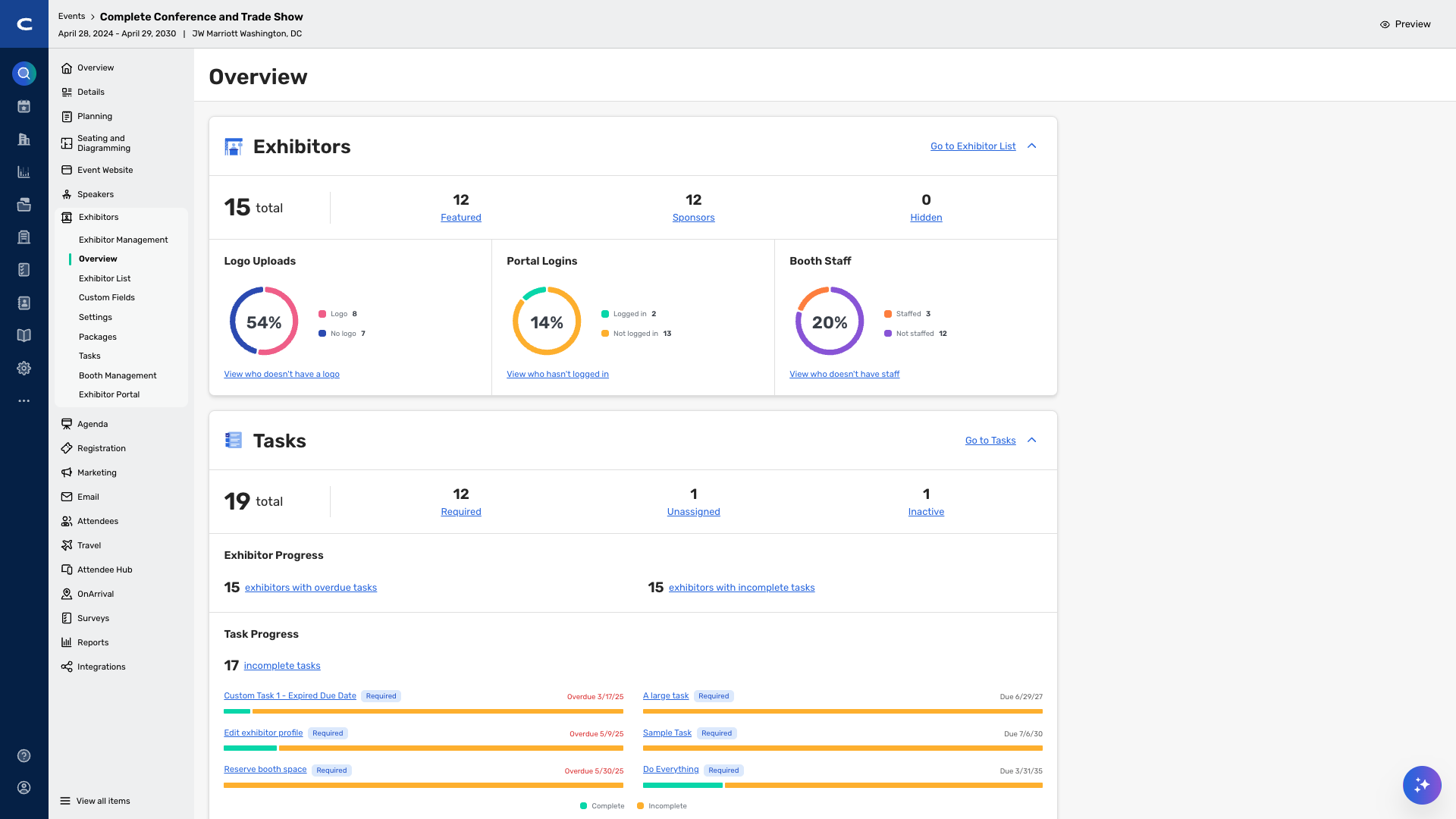
We are introducing the Exhibitor Overview page to give you a centralized, at-a-glance view of your entire exhibitor program. As exhibitor programs grow in complexity, you have had to navigate multiple pages and pull reports manually to understand how your exhibitors are performing — this page consolidates that information into a single location.
With this release, you have five widgets in your dashboard — Exhibitors, Tasks, Lead Capture, Booth Management, and Attendee Hub Engagement — viewed from the Exhibitor Overview section. Instead of manually gathering data across different areas of the platform, you now have immediate visibility into exhibitor readiness, task completion, lead activity, booth assignments, and attendee engagement. The Exhibitor Overview page appears automatically when the Exhibitors feature is enabled in an account, and displays live data as exhibitors are added and features are assigned.
Key capabilities include:
Exhibitor program snapshot - See total exhibitor and sponsor counts, logo upload status, portal login activity, and booth staff assignments — all linking directly to the Exhibitor List for follow-up action.
Task monitoring - The Tasks dashboard shows the status of all tasks across the event, including overdue, incomplete, unassigned, and inactive tasks, with a prioritized view of tasks requiring the most immediate attention.
Lead visibility - When LeadCapture is enabled, you can track total and average leads per exhibitor and sponsor, qualified lead percentages, and license distribution — with direct links to the Lead by Exhibitor Details report.
Booth Management status - View total booth counts alongside pending requests, unassigned booths, and assigned booths to ensure every exhibitor is accounted for before the event.
Attendee Hub engagement insights - When Attendee Hub is enabled, the dashboard surfaces average exhibitor and sponsor page views, top-performing content types, sponsored content click performance, Event Ads impressions, and appointment activity — giving planners a clear picture of attendee-exhibitor interaction.
Things to Know
The Exhibitor Overview page is available when the Exhibitors feature is enabled, and it is not configurable by a setting.
An empty state is displayed when no exhibitor data has been added to the event. Dashboards populate as exhibitors are uploaded and features are assigned.
The LeadCapture card only appears if the customer has access to this feature from an account level.
The Attendee Hub Engagement card only appears if the Attendee Hub feature is licensed.
The Appointment section within the Attendee Hub card requires both Attendee Hub and a Premium Appointments event configuration.
The Event Ads section requires the Event Ads feature to be enabled in the event.
The Booth Requests section only appears if booth requests are enabled for exhibitors.
Manually rearranging or deleting cards is not supported in this release.
Additional Resources
Cvent CONNECT sessions:
The future of content management for complex conferences: Get an early look at how Cvent is building the future of content management for large, complex conferences. This product-led session will show how upcoming innovations are designed to improve submission quality, simplify review and speaker coordination, and connect accepted content to the agenda with less manual work. Session starts Tuesday, July 14, at 2 PM CT.
Cvent Community: Questions about the above updates? As always, get answers in the Community via the Open Forum.
Beta Opportunities Page: Try new features and products out before full launch availability. Join Beta Programs.