- DATE:
- AUTHOR:
- Cvent Product News Team

Plan & Promote Releases for May 20, 2026
Registration
Introducing Cvent Assistant Knowledge & Support Capability
Get help & support without leaving your workflow
The Cvent Assistant Knowledge and Support Capability helps you get answers faster by bringing support directly into the product. Instead of leaving your workflow to find answers, you can ask questions where they arise, in natural language, get answers with cited sources from the Cvent Community, and move to the right support path when you need more help.
What’s new
With the Cvent Assistant, you can now:
Ask support questions directly in-product
Get answers with cited sources grounded in relevant Cvent Community content
Escalate when needed by clicking to Get Support from the menu or typing to get options such as:
Create a case: submit a support request for follow-up, with the details needed for the team to investigate and respond.
Submit feedback: share thoughts on a feature, workflow, or experience so the right team can review your input.
Request a callback: have support contact you directly, so you can continue the conversation offline.
Live chat: connect with a support agent in real time for immediate help (when available).
AI-generated summaries make case or feedback submission easier without the need to repeat.
Submit files and screenshots for review when escalating.
Why it matters
This capability reduces the friction of switching between tools and support channels, helping you resolve questions faster and stay focused on the work you are trying to accomplish. It also creates a more connected support experience by combining self-service guidance with the rich knowledge from our Cvent Community, with the option to dig in deeper when complexity warrants collaboration with support teams. You can choose your own adventure to get the support you need.
Help & support can be accessed across products, and answers can be provided for any topic our Cvent Community Knowledge Base covers.
Bottom line
The Cvent Assistant makes support easier to access, easier to trust, and easier to act on—so you can get help in the moment, without breaking your flow.
Powered by CventIQ intelligent capabilities, the Cvent Assistant is Cvent’s AI-driven, permission-aware planning assistant embedded across the platform to help organizers move faster from intent to action. This new capability starts a growing family of capabilities that will soon support organizers with in-product guidance, event and attendee workflows, data insights, and AI-generated content, helping them plan, execute, and optimize every event experience.
Open Beta note: This feature is currently in beta. You may experience some issues or incomplete functionality. We welcome you to send us feedback at betafeedback@cvent.com
Enhanced Stock Image Library
The Cvent Stock Image Library, powered by Getty, provides a curated collection of licensed stock images directly in the Cvent website editor, enabling you to discover, preview, and apply high‑quality visuals without leaving the platform. This enhancement streamlines site design, elevates event branding, and gives a simple, compliant way to use stock images in Cvent experiences.
What’s New
Find the perfect visual just by describing it
Type a short phrase like “modern conference stage” or “casual networking reception,” and AI‑powered natural language search surfaces stock images that match what you have in mind.
A scrollable, single‑column image panel shows Getty images with rich visual previews.
Images are lazy‑loaded, so you can quickly explore a large set of options.
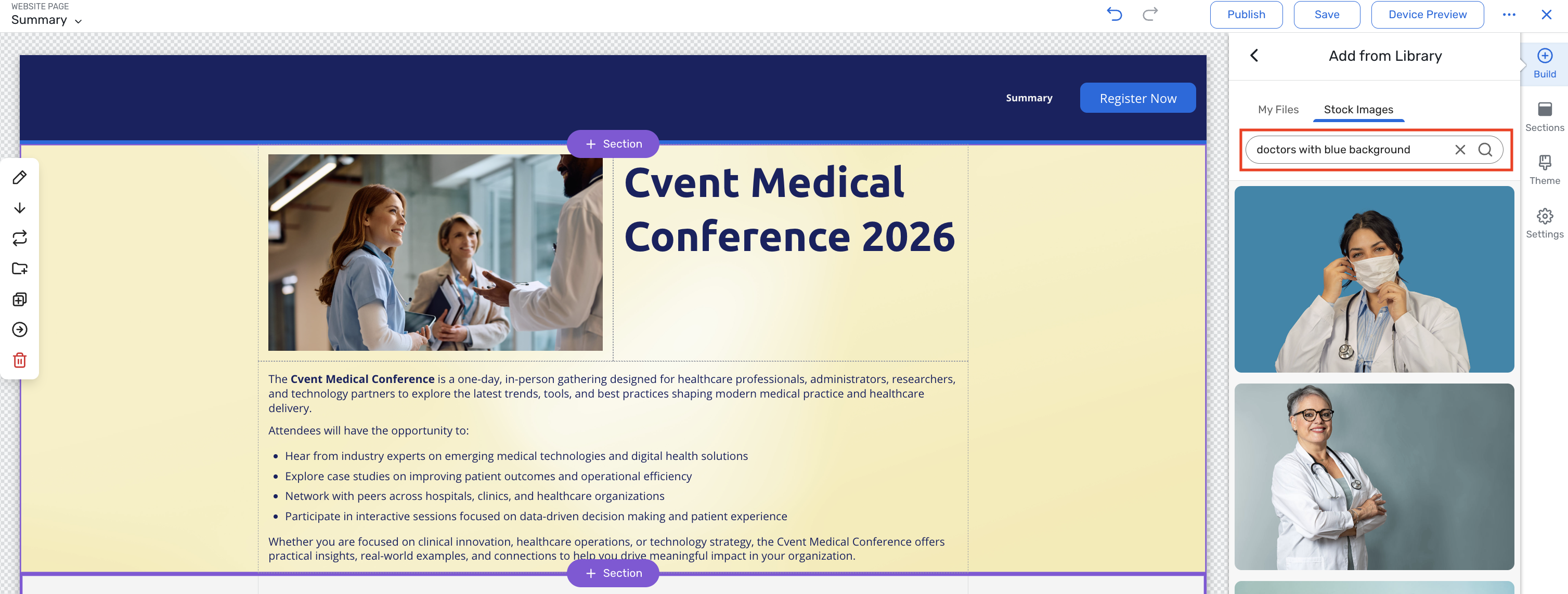
Choose great images without leaving your build flow
At the exact moments you’re adding or replacing images, pick from either your Media Library or the Stock image library, all within the same familiar workflow
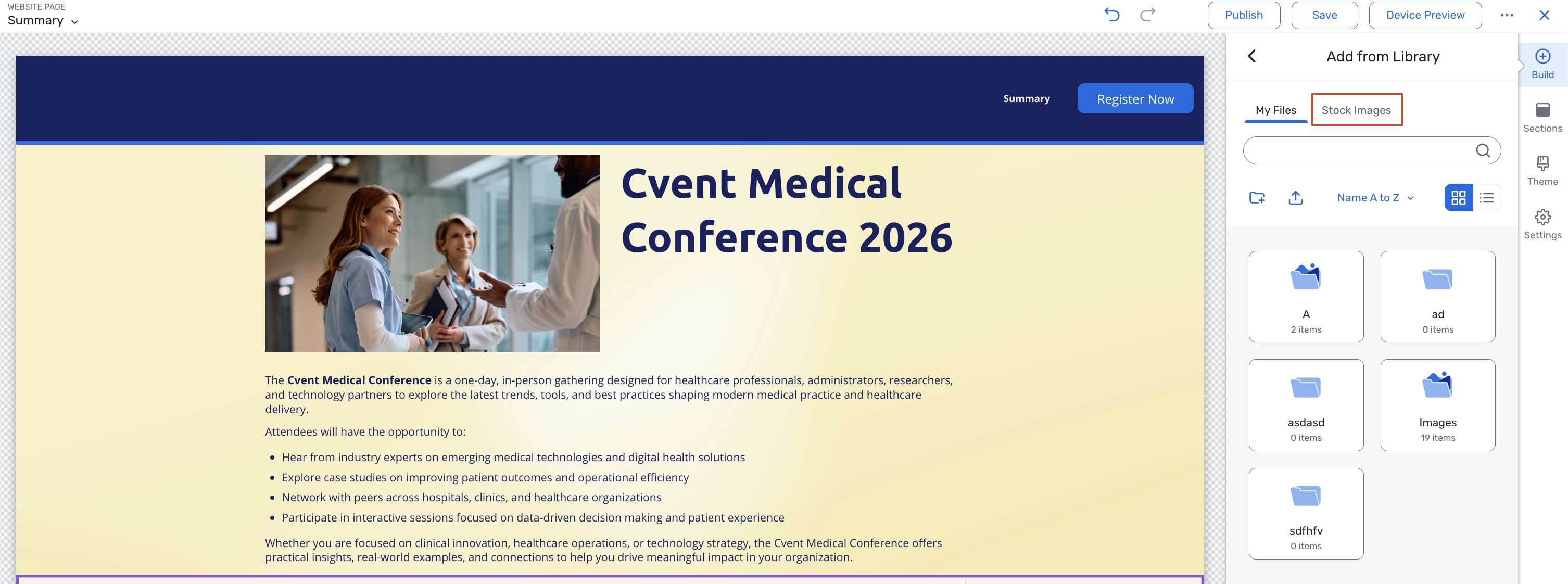
See it first, then drop it in with one click
A large preview modal is available for detailed inspection, with clear Apply and Close actions.
When applied, the selected image is dropped directly into the canvas (e.g., as a background), consistent with existing Site Designer behavior.
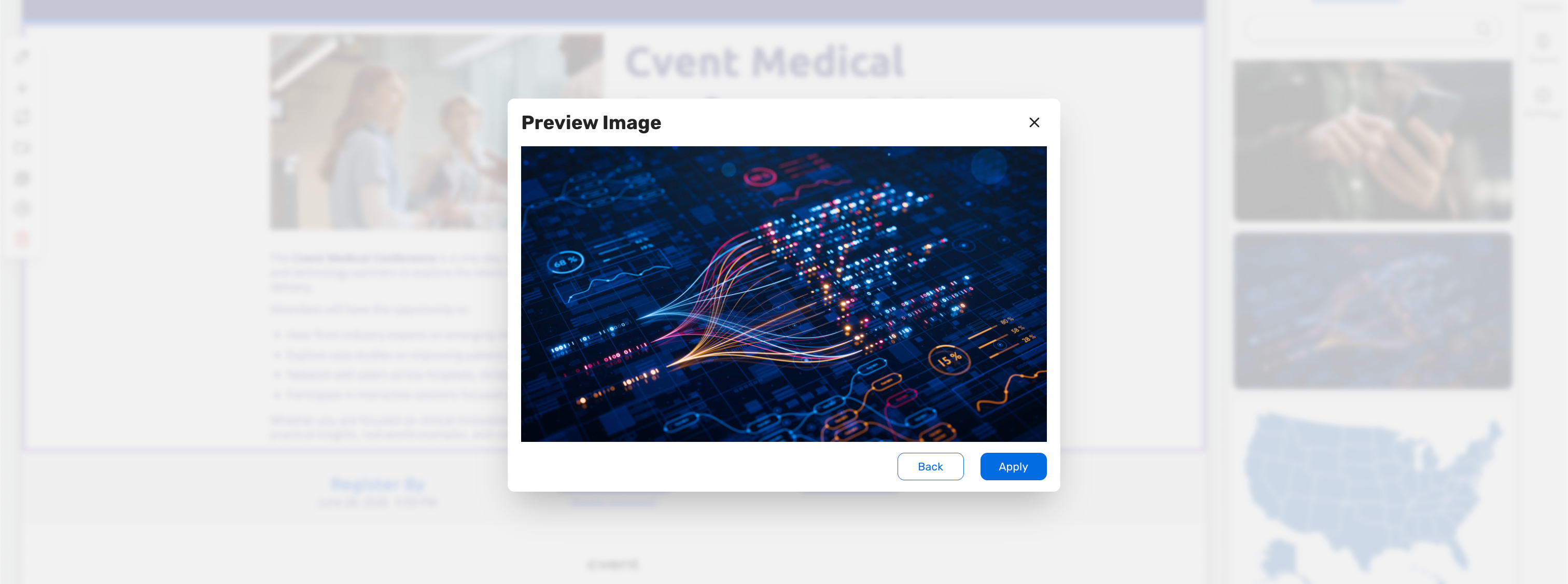
Editing with existing tools
Once dropped into the site, Getty images can be edited and transformed using the same image tools you already know (e.g., positioning, cropping, and other supported transformations).
Benefits
Faster website creation by removing the need to search external stock sites, download assets, and re‑upload to Cvent.
AI‑powered natural language search to find the right image fast by describing what you need in plain language and instantly surfacing relevant stock images.
Higher‑quality, on‑brand visuals that help event sites stand out and feel more professional and cohesive.
No setup or configuration required – the stock image library is automatically available in all workflows, allowing you to add an image to event websites and registration forms.
PayPal Complete Payments is Now Available
PayPal Complete Payments (PPCP) is a newly-supported gateway for customers and can be enabled in the product.
Why this matters
This update introduces a supported path for customers who want to use PayPal Complete Payments gateway while also providing an in-product enablement setup experience that helps them get started more quickly to run transactions in their events where they want to leverage PayPal.
What’s changing
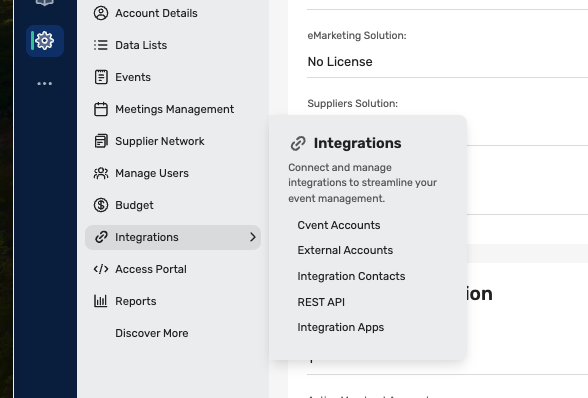
Once enabled in the product, Admins can create a PayPal Complete Payments account from the External Accounts experience (Admin > Integrations > External Accounts).
During setup, they can either link an existing PayPal account or create a new one as part of the flow.
After setup is complete, the account becomes available in Cvent so customers can link it to an event and begin running transactions.
You will need to confirm a newly-created account via email, but will be directed to do so.
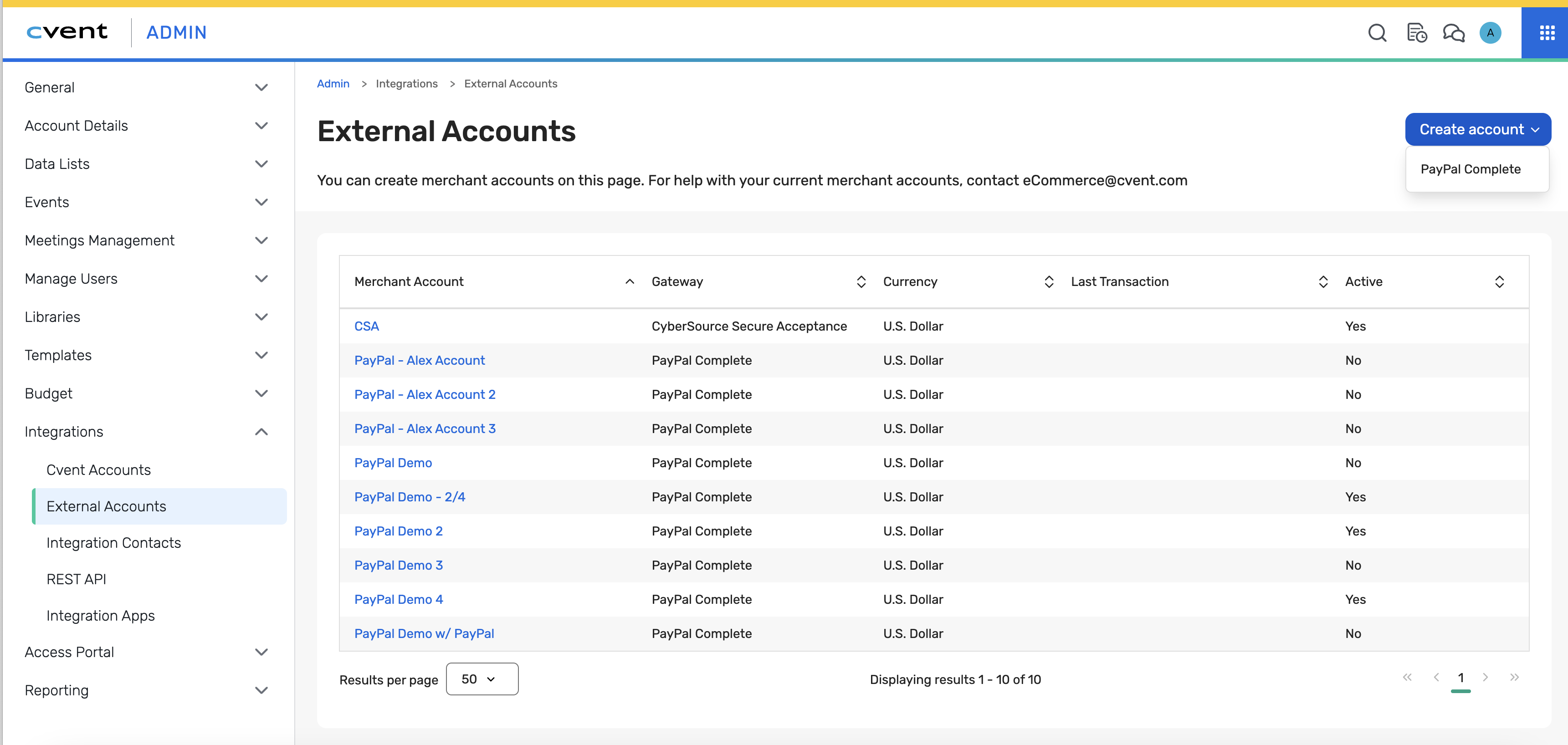
Update to Merchant Accounts Side Navigation Tabs
We’re updating the Merchant Accounts side navigation to make it easier for admins to distinguish between Cvent Payments accounts and third-party gateway accounts.
What’s changing
The Merchant Accounts area will now be split into 2 tabs:
Cvent Accounts — for Cvent Payments merchant accounts
External Accounts — for non-Cvent Payments accounts, including third-party gateways
Why this matters
This update creates a clearer separation between Cvent Payments accounts and external payment gateway accounts, making merchant account management more intuitive for admins.
What admins will see:
All admins will be able to see the Cvent Accounts tab.
The External Accounts tab will only appear if the account has at least one external account or non-Cvent Payments account configured.
If an account does not have any external accounts, admins will not see the External Accounts tab.
Registration Settings on Registration Overview Page
This update has simplified Registration Settings setup by moving controls and advanced options into the Registration Overview page, reducing navigation and making it easier to keep registration aligned with event goals.
What's new?
Registration Settings in one place: Manage the registration deadline, capacity (including in-person and virtual for hybrid), and attendee goal from a settings modal on the Registration Overview page
Registration Settings page removed: The old Registration → Registration Settings page is retired, and you can directly manage settings from Registration Overview
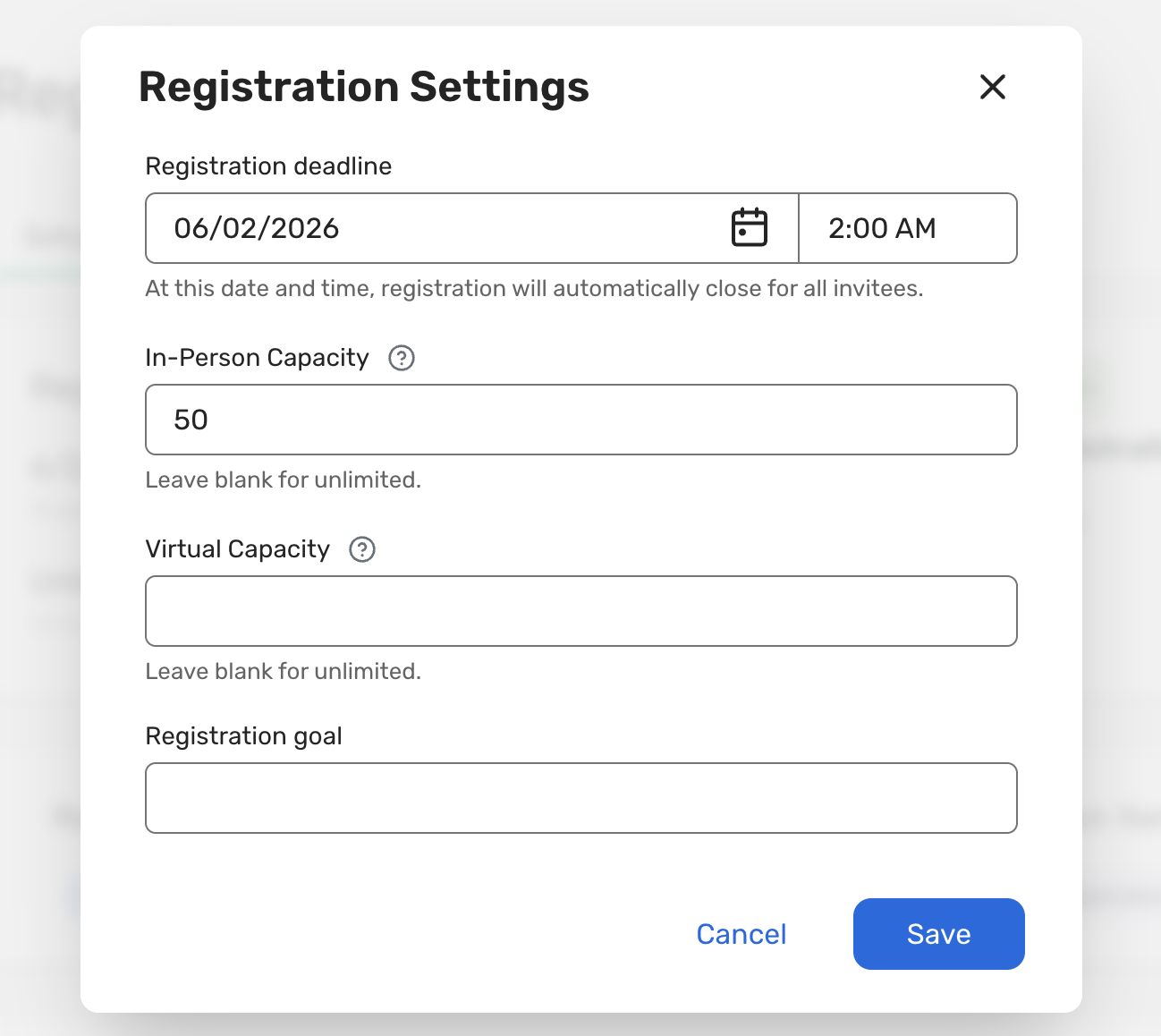
This means fewer clicks and faster updates. Registration settings decisions are made where you review the event set-up
Audience Segments - Segment by Attendee Pricing Fields
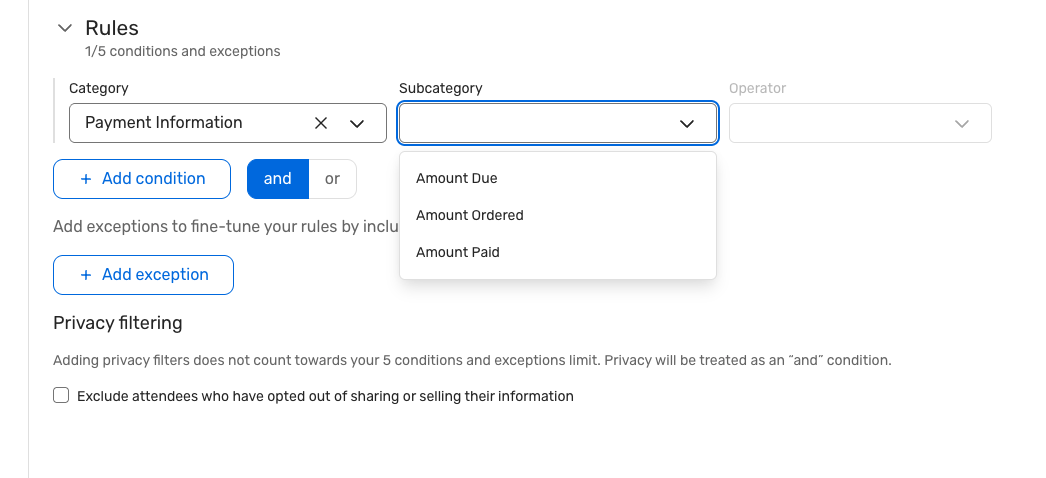
We're excited to announce that you can now build rule-based audience segments using Payment Information fields.
With Payment Information added as a rule category, you can instantly target attendees based on Amount Ordered, Amount Paid, and Amount Due - making it easy to identify who's paid in full, who's partially paid, and who still has an outstanding balance.
Instead of chasing down payment status offline and re-importing lists, you can now build always-on segments that automatically stay current. From there, you can power personalized communications and timely payment follow-ups, or control session visibility and Attendee Hub experiences based on financial status.
This enhancement will be available to existing events using rule-based segments as well as new events after release.
Key Highlights
New “Payment Information” category in Rule-Based Audience Segments. It is only available for selection in events with Payments enabled and for rule-based segments.
Three attendee pricing fields available as segment conditions. All amounts follow the event’s configured currency:
Amount Ordered - Total value of the registrant’s order at registration (gross amount charged).
Amount Paid - Total amount the registrant has actually paid to date.
Amount Due - Outstanding balance (Amount Ordered – Amount Paid).
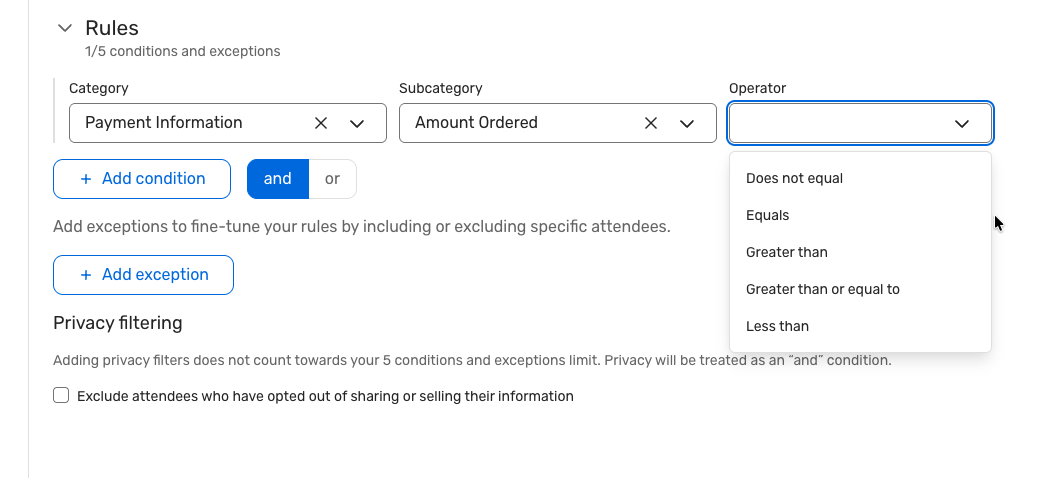
Each field supports the full numeric operator set:
Is Equal To, Is Not Equal To
Is Greater Than, Is Less Than
Is Greater Than or Equal To, Is Less Than or Equal To
Segment membership is automatically re-evaluated when payment data changes: initial payment, partial payment, full settlement, refund (partial or full), order cancellation, or order adjustment.
Changes are captured in Association History with clear attribution.
Use Case Examples
1. Unpaid/outstanding balance follow-up
Quickly identify all registrants who still owe money and send reminders.
Example condition: Payment Information → Amount Due > 0
What this enables:
Targeted payment reminder emails.
Operational follow-ups from finance or event operations teams.
2. Paid-in-full VIP or premium experiences
Segment fully paid registrants and route them into high-touch experiences.
Example condition: Registration Information → Registration Type → VIP AND Payment Information → Amount Due = 0 (includes both paid-in-full and complimentary VIP registrants with 0 ordered).
What this enables:
VIP-only sessions, lounges, or tracks.
Customized Attendee Hub pages for top-tier attendees.
3. High-value spender targeting
Identify high-spend attendees for differentiated engagement.
Example condition: Payment Information → Amount Ordered > X (e.g., > 500).
What this enables:
Invitations to exclusive networking or executive briefings.
Prioritized concierge support or premium swag allocation.
4. Low / no-spend and complimentary attendees
Separate low-spend or complimentary attendees for tailored access and messaging.
Example conditions:
Amount Ordered = 0 (complimentary only).
Amount Ordered < X (e.g., < 50 for low-fee registrants).
What this enables:
Different content, offers, or access rules for complimentary cohorts.
Monitoring and reporting on comp ticket usage.
Modify Registration Shortcuts in Emails
You can now add modification shortcuts directly into post-registration emails, routing attendees straight to the specific widget they need to update — no re-entering the full registration flow required. This builds on the existing Modify Registration shortcuts available on post-registration pages, and extends them to email communications so you can proactively prompt attendees to take action right from their inboxes.
Before this release, when you wanted attendees to update a specific part of their registration — like adding sessions after the agenda launched, or filling in travel details — the only option was a generic "manage your registration" link that dropped attendees on the confirmation page, where they had to hunt down the Modify Registration button and step through the entire registration form to update one thing.
Now, you can add a Modify Registration widget directly inside post-registration emails in the Email Designer, and configure exactly which widget destination the button links to. When an attendee clicks the button in their email, they are taken straight to that widget after logging in.
How It Works
A new Modify Registration widget is available in the Email Designer, exclusively for post-registration and post-event emails (not available for pre-event emails).
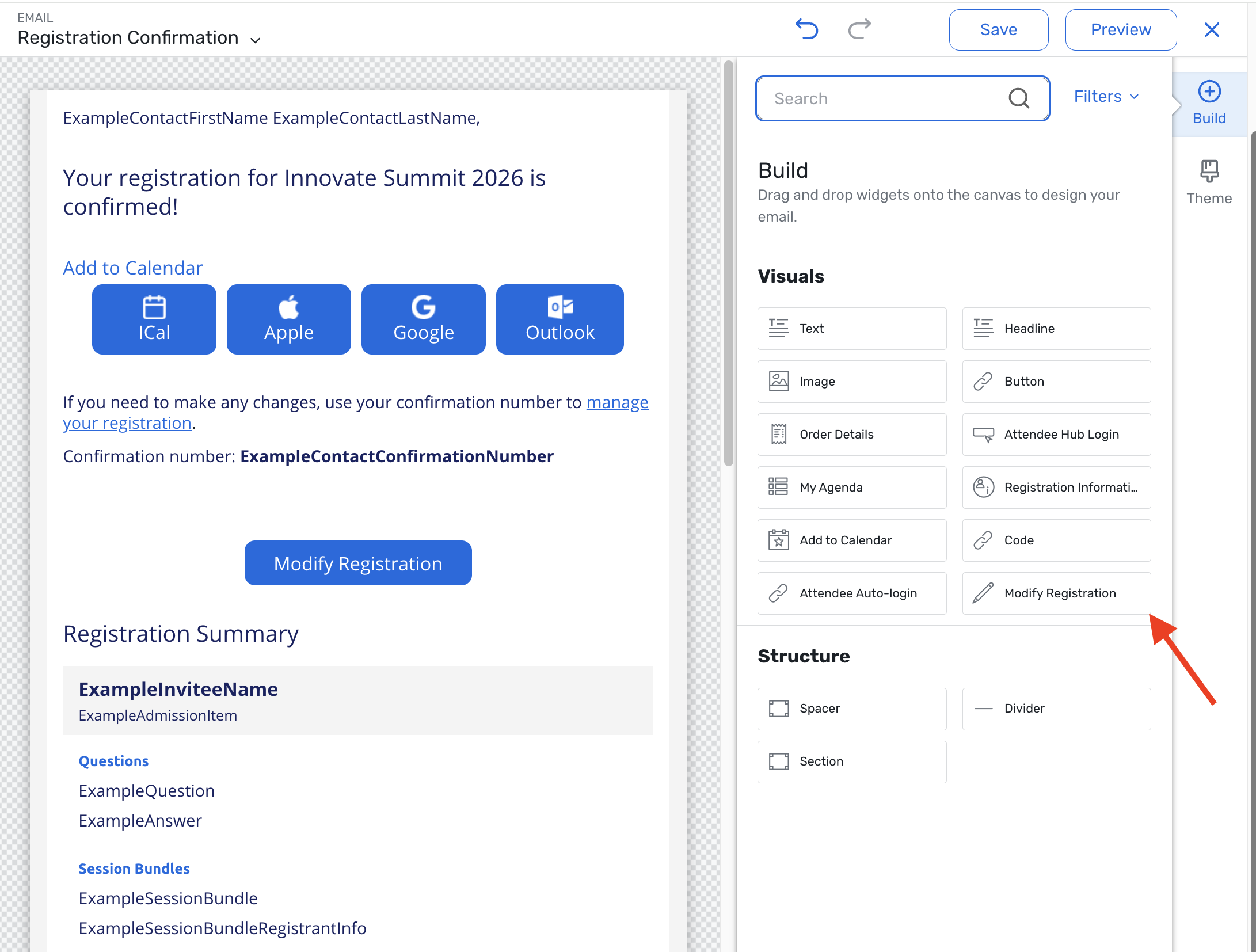
Configure the widget with:
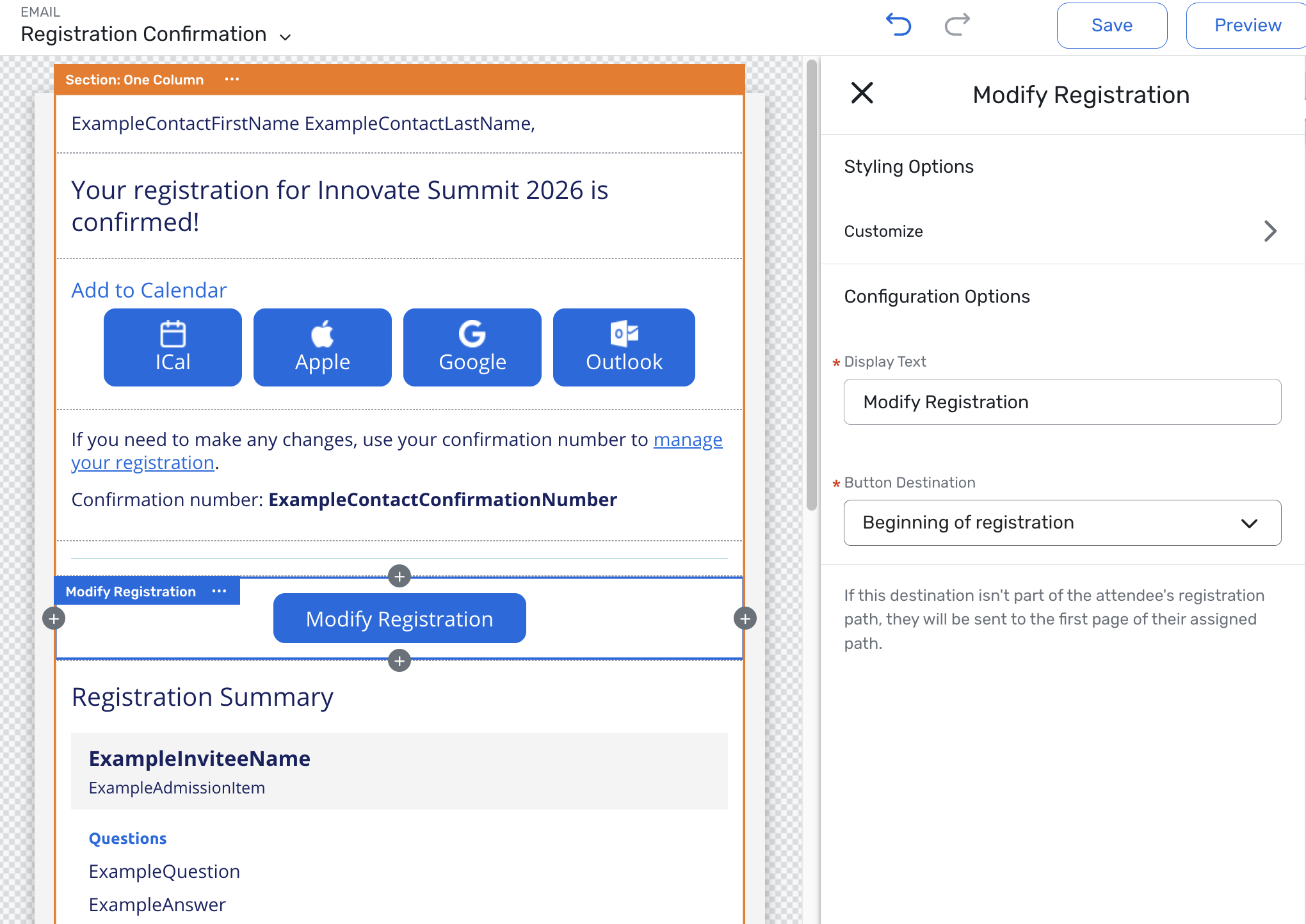
Display text — customize the button label
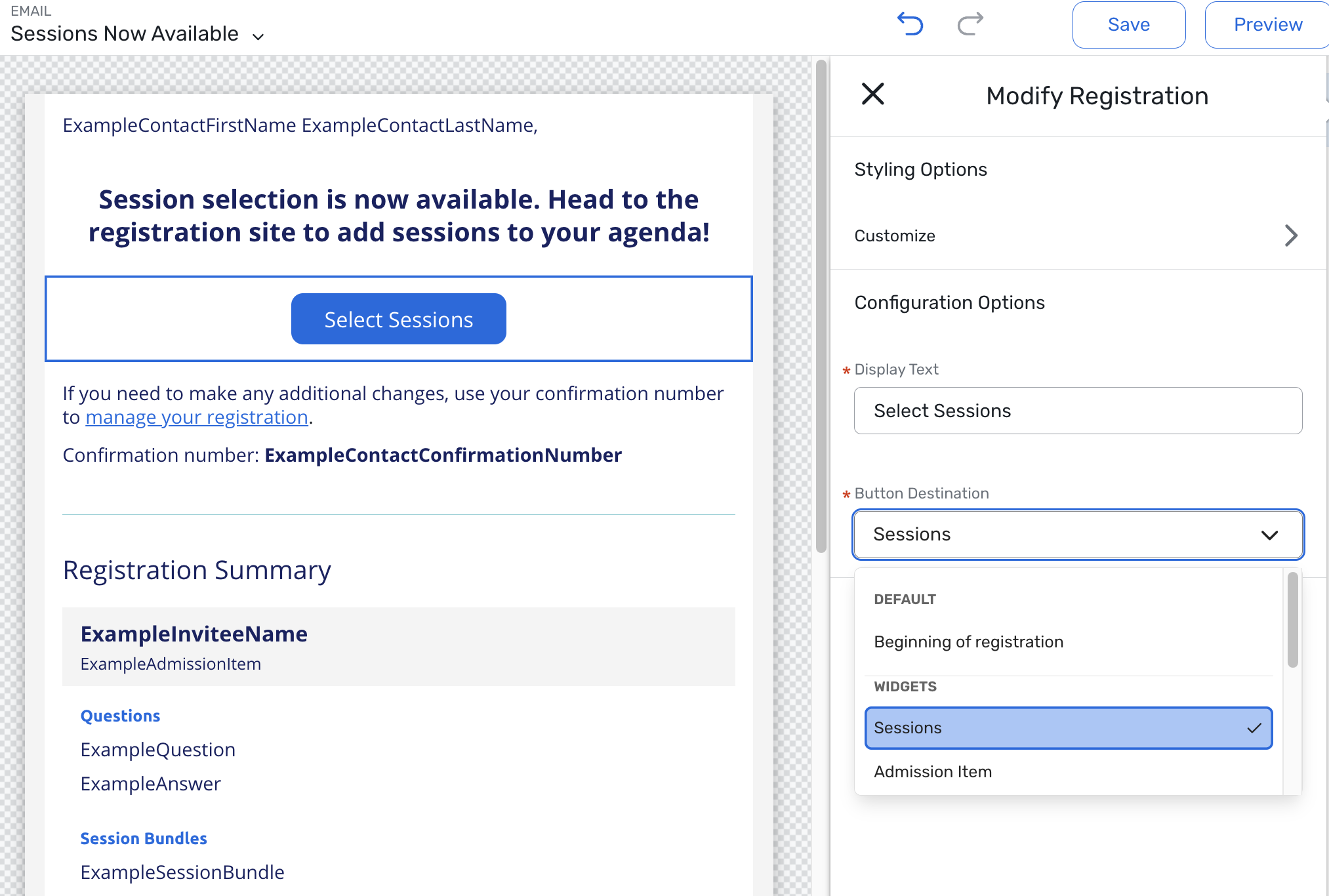
Button destination — choose a specific widget to route attendees to:
Sessions
Admission Items
Quantity Items
Donation Items
Hotel Requests
Flight Requests
Air Actual
Group Flight
A note beneath the destination selector reminds planners: "If this destination isn't part of the attendee's registration path, they will be sent to the first page of their assigned path."
When an attendee clicks the email button, they are taken to the Already Registered login screen. Their email address is auto-populated since they are a known invitee, and after entering their confirmation number, they land directly on the configured destination widget, where the attendee can then make their updates and submit their changes in a seamless experience.
Things to Note
This widget is only available in post-registration emails — it will not appear in pre-event email templates.
It cannot be added to emails where the send audience is "Accepted Guests." This is because only primary registrants can enter the modification process for their guests.
Widget destination options appear only if the corresponding module is enabled for the event (e.g., Sessions only appear if the agenda is enabled; travel options only appear if travel modules are active).
If a destination widget is not part of the attendee's registration path, the system defaults to the first page of registration.
If the destination widget is hidden for a specific attendee (e.g., no items available for their registration type), they will still be dropped on the destination page — they just won't see the hidden widget.
This feature works with confirmation number, OAuth, SSO, and secure verification code login methods. It is not compatible with HTTP Post authentication.
Clicking "Previous" from the destination page breaks the shortcut navigation, and the attendee proceeds through the remaining registration pages normally.
Reusable Email Asset Library
Today, many of your best-performing event emails are trapped inside a single event. This release turns those emails into reusable library assets that can quickly be applied to any event in a few clicks - so teams move faster, stay consistent, and extend the impact of every great email they design. It’s the first phase of our broader email reusability initiative, focused on making individual emails easy to reuse across your entire program.
With this release, you can:
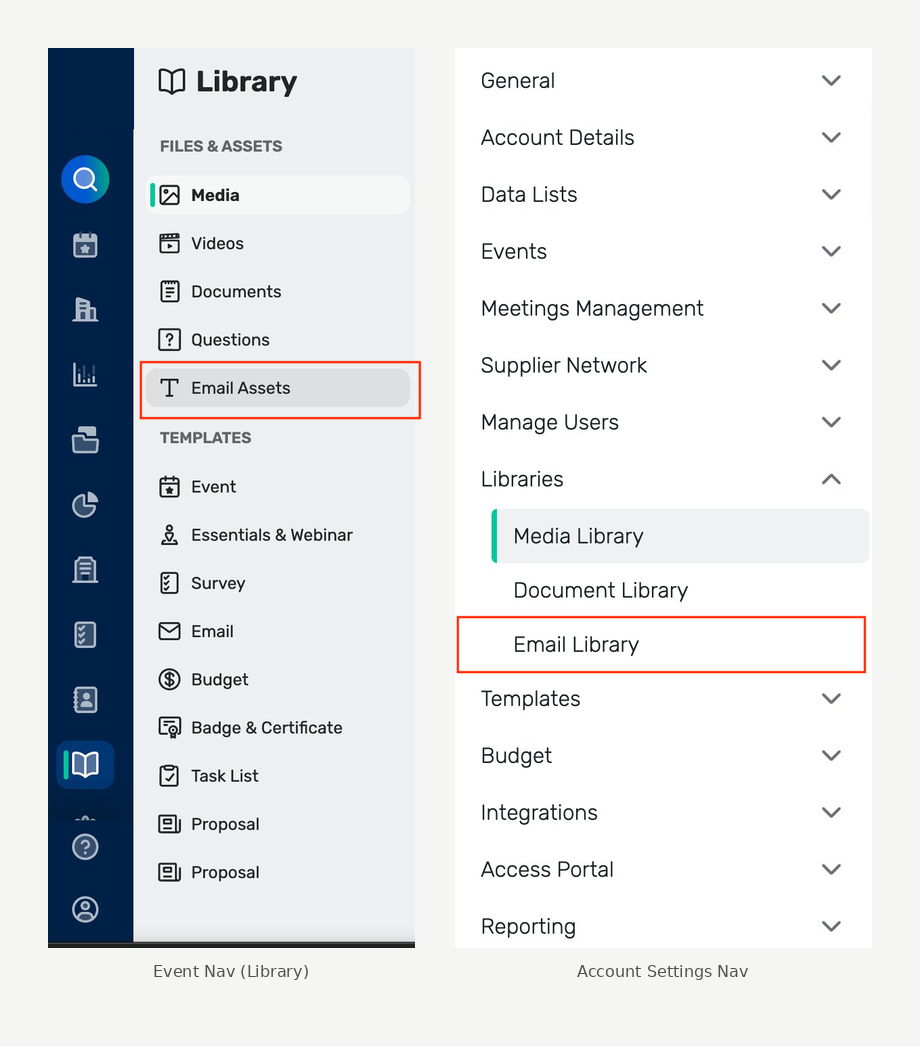
Save any event email into Admin → Email Assets
Create new emails in an event using a saved Email Asset
Replace content from an Email Asset (or another event email) into an existing email while keeping event-specific settings like audience and schedule intact
Email Assets are stored at the account level, making them reusable across all events in your account.
What’s new?
Save event emails to the library
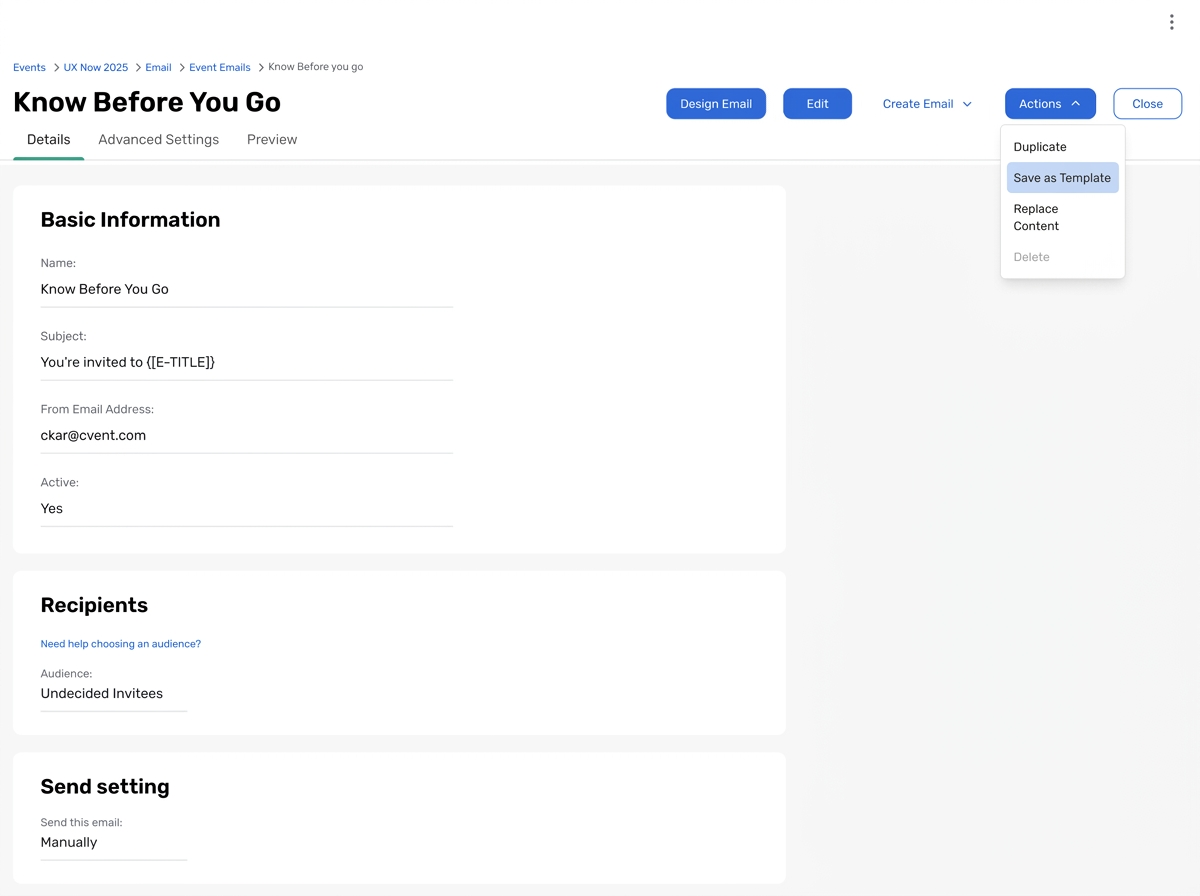
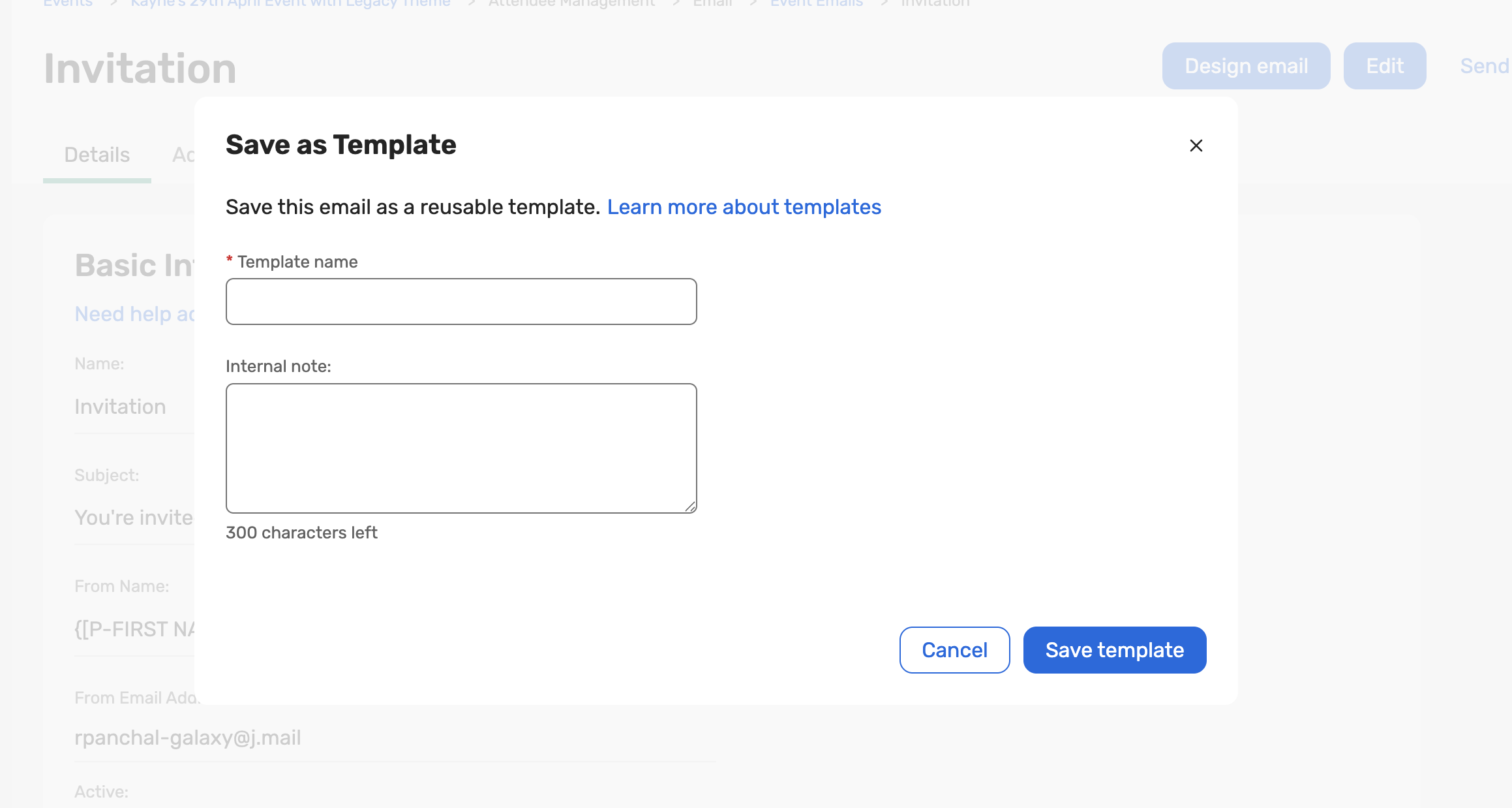
From the email details page, use Save as Template to add any event email to the Email library.
Give it a unique name and an optional internal note so others know when and how to use it.
The template captures the email layout, HTML content, images, styling, and data tags, and subject line.
Create new emails from the library
When creating a new custom email, choose Use email library (alongside “Create from scratch” and “Use an email from this event”).
Search by name and then apply the chosen email to land directly in edit mode.
The email inherits the target event’s theme, header, footer, From name, and From email address, so branding and sender details stay event‑specific.
Replace the content of existing emails
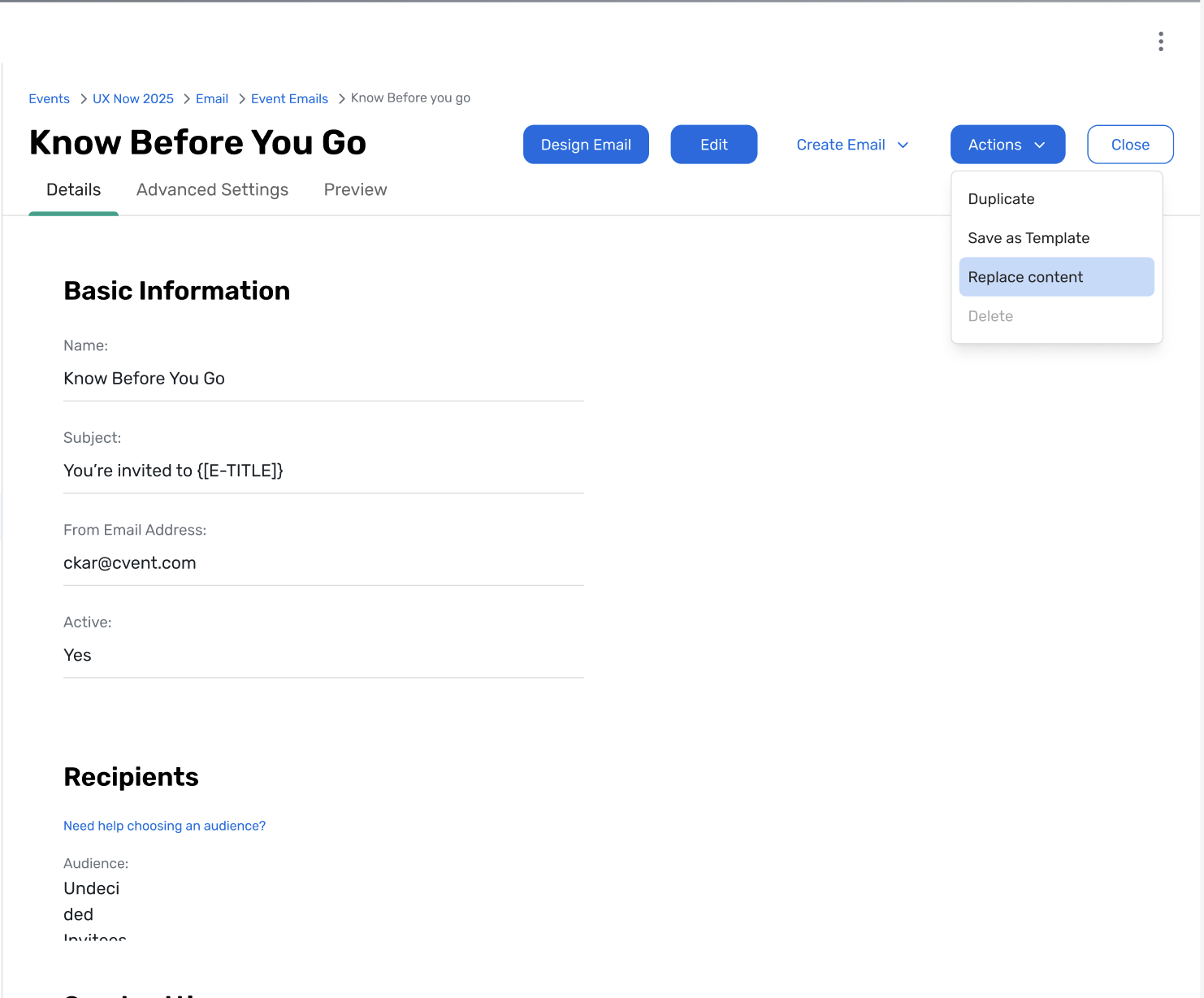
On the email details page, use Replace content to update an existing email.
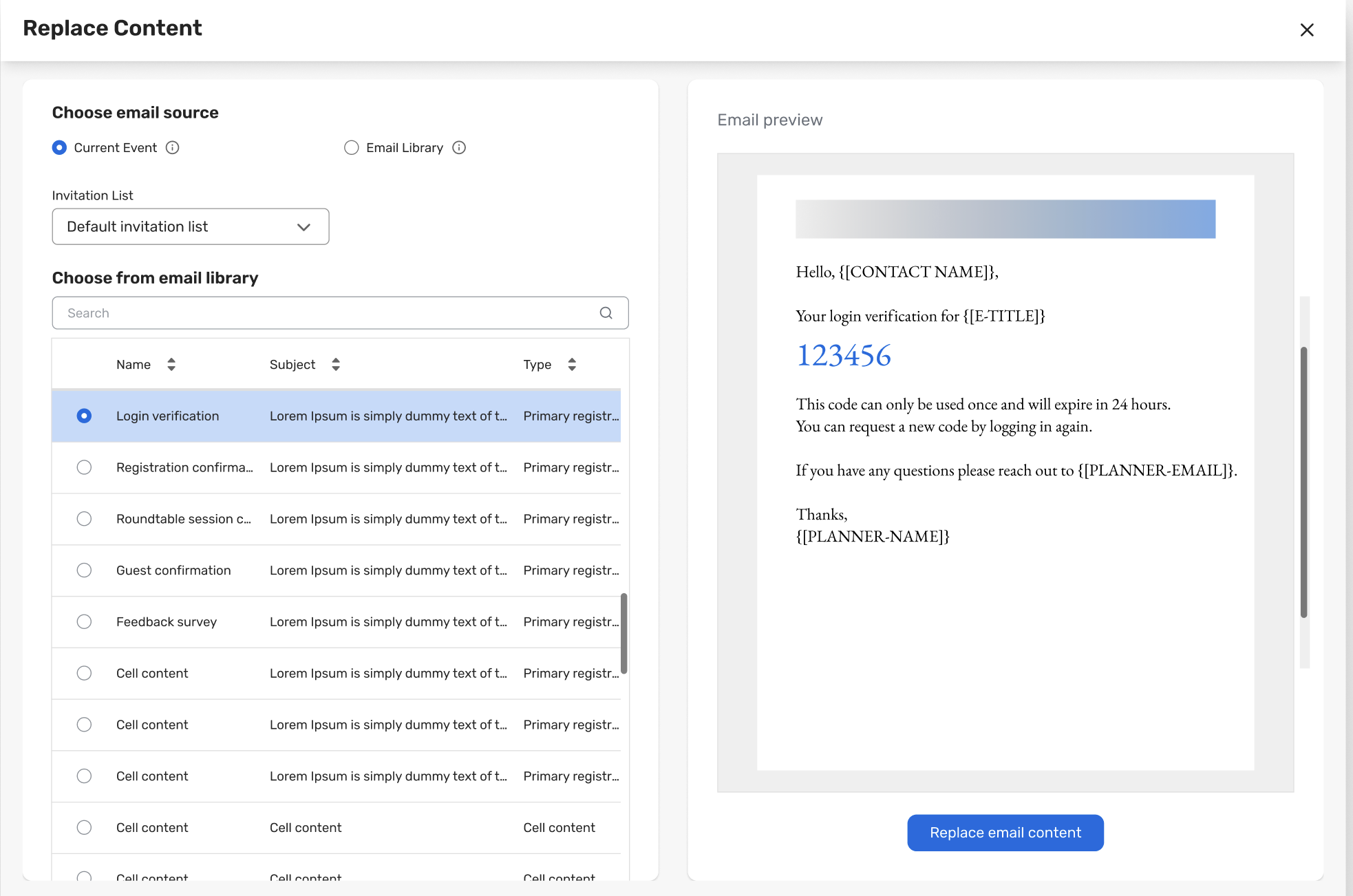
Choose content from another email in the current event (with invitation list filtering) or from the Email library, with search and preview.
On confirmation, only the content/layout is replaced; audience, schedule, and other key settings are preserved, so you can safely refresh messaging without re‑configuring the email.
The email inherits the target event’s theme, header, footer, From name, and From email address, so branding and sender details stay event‑specific.
Permission‑driven access
Account-level Email Template permission controls who can save to and consume from the library.
Supporting permissions (Email Management, Email Details & Settings, Email Content, Invitation list) ensure only the right users can manage or apply library content. Templates are visible only to users with appropriate access.
Save as Template:
Replace Content (use an email asset in an existing email):
Key Benefits
Save time: Start from proven emails instead of recreating invitations, reminders, and confirmations each time.
Stay consistent: Standardize look, structure, and messaging while each email still inherits the branding and theme of the event where it’s used.
Scale programs: Turn one great email into a reusable asset that can support dozens or hundreds of events across your portfolio.
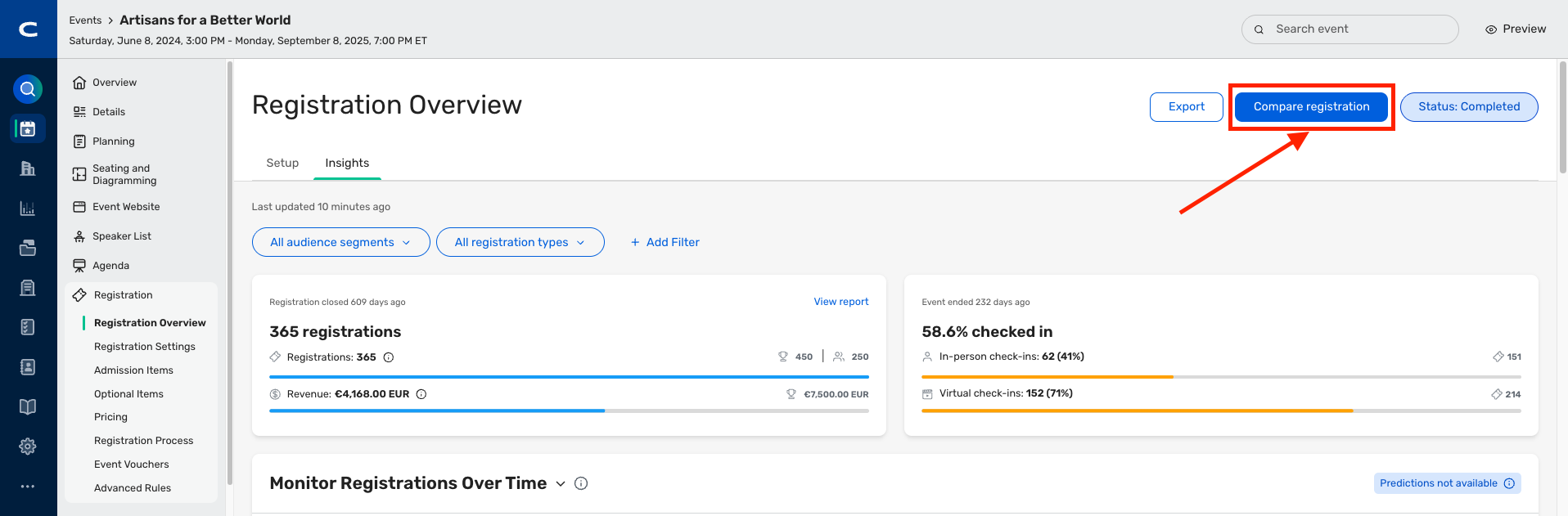
Registration Insights: Compare Registration Over Time
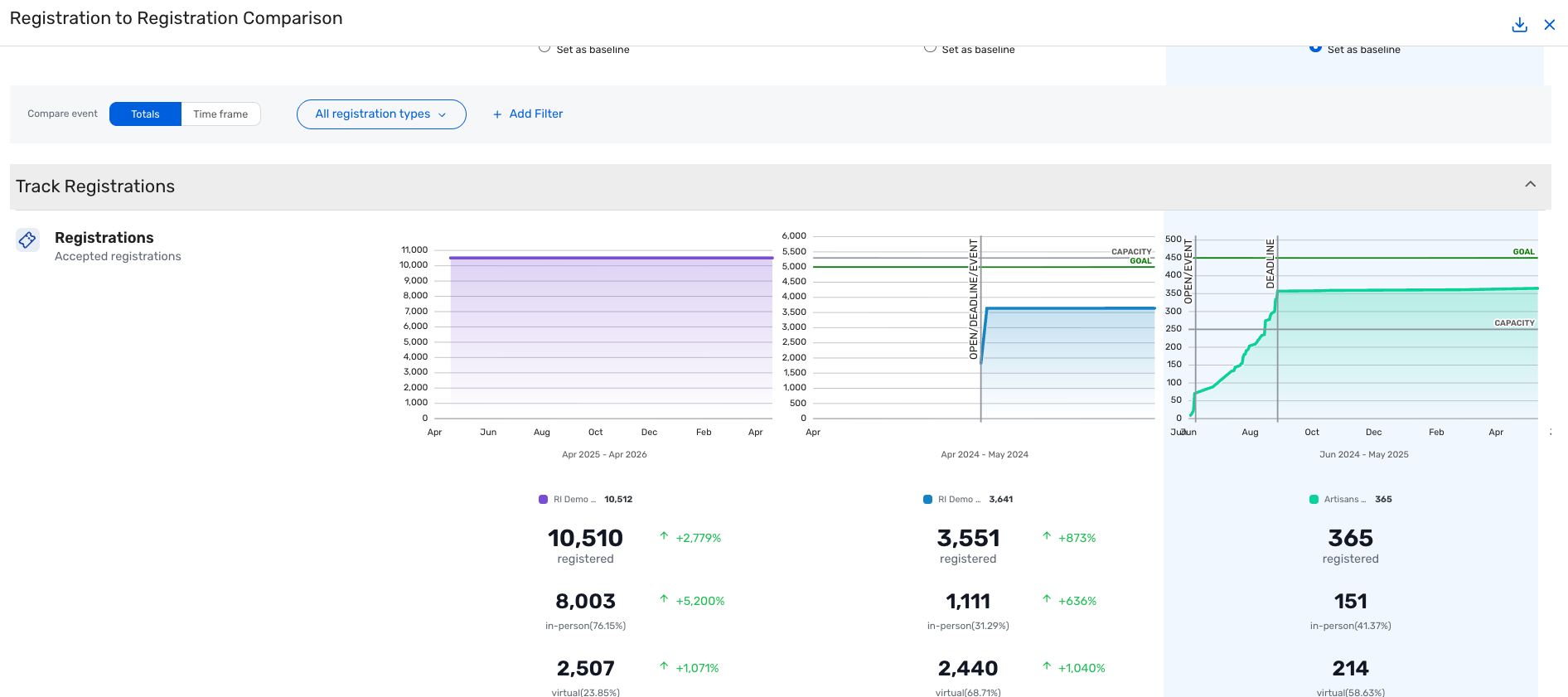
We are expanding the Registration Comparison feature to support time-relative event comparisons, giving you a more meaningful way to benchmark registration performance across events.
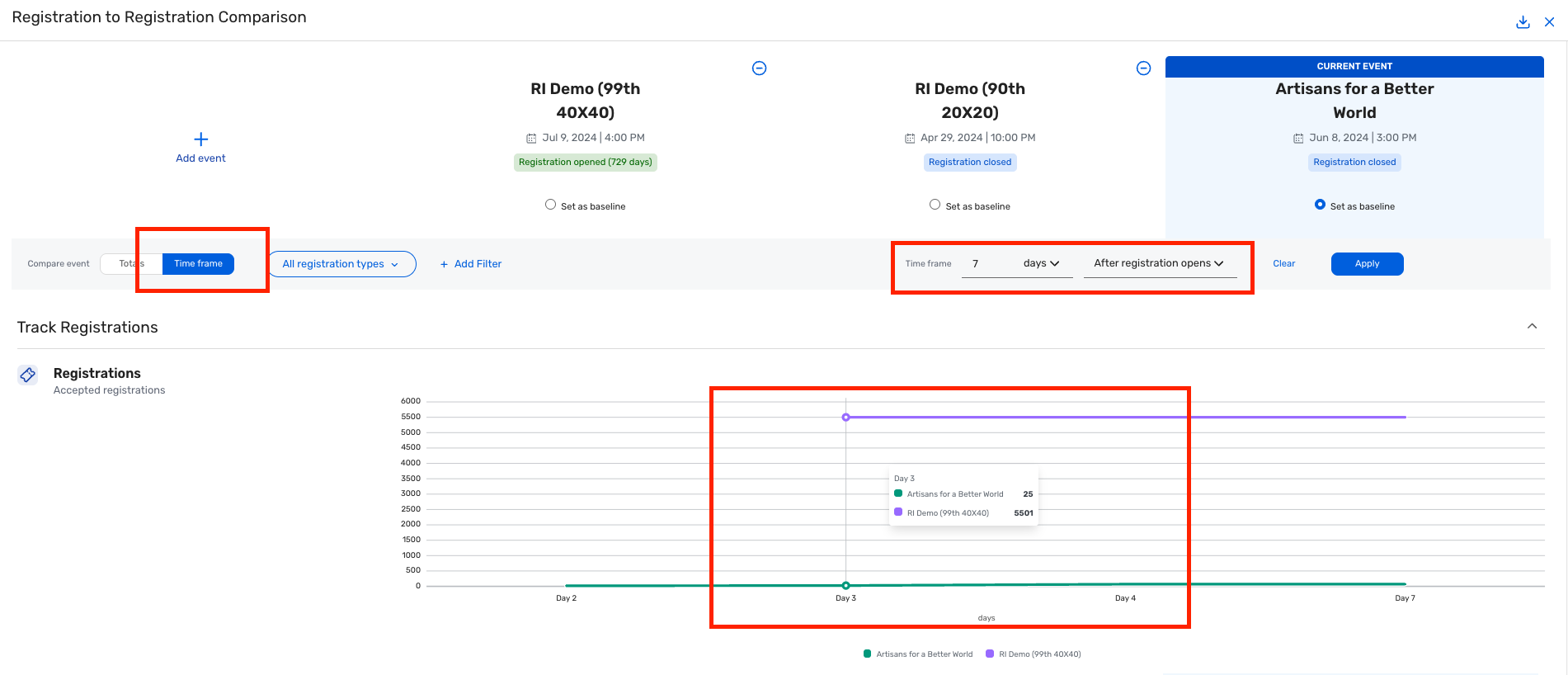
With this release, you can now compare where registration stood at the same relative point in time across multiple events, rather than only by calendar date. Instead of viewing each event on a fixed timeline that makes early-launch and late-launch events hard to compare directly, you can now align events around a shared reference point such as days/weeks after registration opens, before registration closes, before the event begins, etc.
Key capabilities include:
Time-normalized comparison. Users can view registration counts aligned to a shared relative reference point across all compared events, removing the noise of different launch dates and making apples-to-apples analysis possible.
Configurable reference points. The time frame can be anchored to key registration milestones, including days after registration opens, days before registration closes, and days before the event starts, supporting a range of planning and forecasting scenarios.
Adjustable window size. You can define the number of days to display, allowing focused views on short bursts of registration activity or longer trend analysis over weeks.
Things to Know
The Time frame view is available within the existing Registration to Registration Comparison feature and requires no separate configuration to enable.
Up to 4 events can be compared simultaneously.
This feature is available to all Cvent customers with access to Registration Insights.
Additional Resources
Cvent Community: Do you have questions about the updates we've rolled out this window? As always, get questions answered in the Community via the Open Forum.
Beta Opportunities Page: Help us make Cvent Products better by being the first to test products before they're widely available. Join Beta Programs.
UX Research Panel: Be part of a select group of users who will help guide the future of Cvent's products. Join the UX Panel.