- DATE:
- AUTHOR:
- Cvent Product News Team

Plan & Promote Releases for May 6, 2026
Registration
Introducing Build Your Own Reports in Email Reports
We're excited to announce the addition of Email Reports in Build Your Own Reports. This enhancement allows you to create customized reports focused on event email performance and engagement. With these new options, planners can easily access and analyze key metrics related to email communication sent from their events using Build Your Own Reports.
What’s new
The new BYOR – Email category introduces a set of sub-reports designed to answer common questions about email effectiveness across your events. You can mix and match fields, apply filters, and save tailored views to track performance over time, just like other BYOR report types.
Access to the Email category follows your existing event reporting and email permissions, ensuring only authorized users can view and build these reports.
Sub-reports
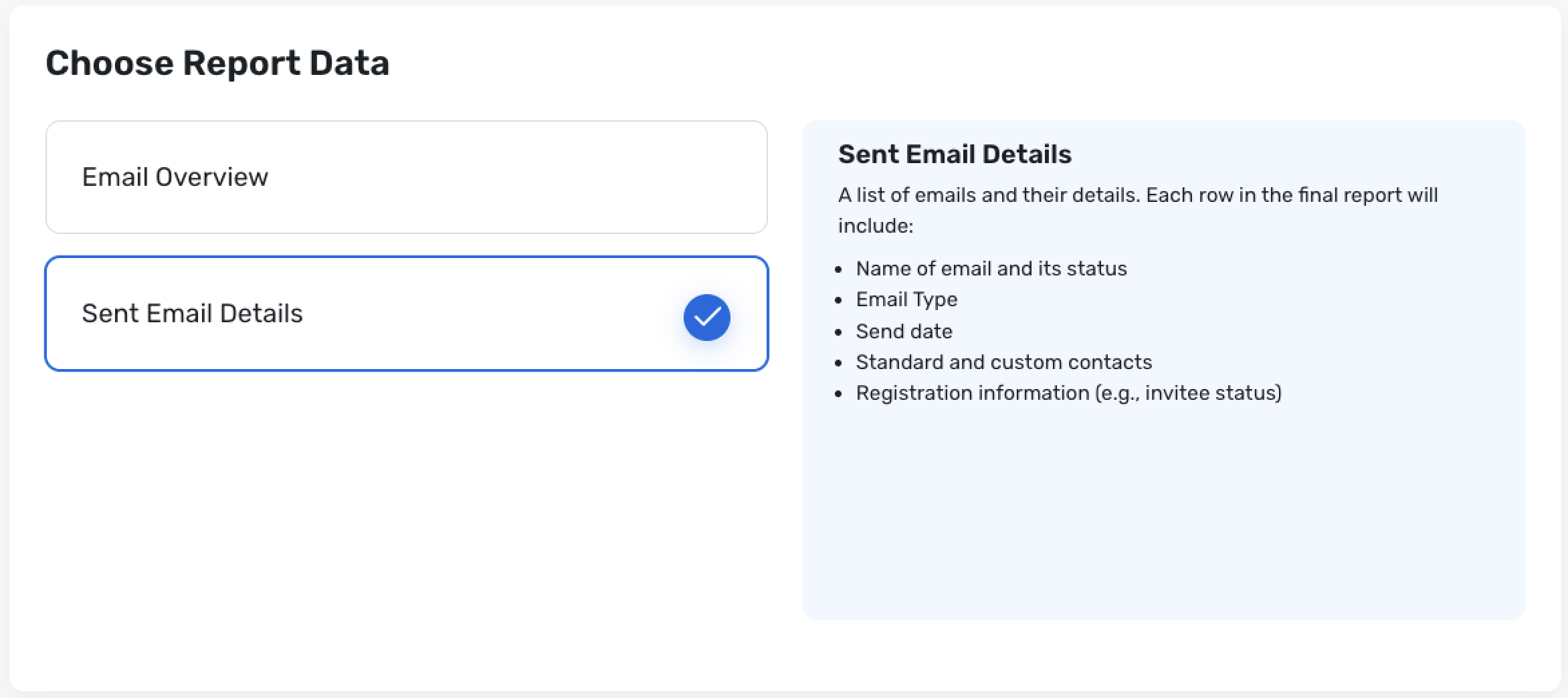
Email Overview
Run this report when you need a quick snapshot of how each email is performing—for example, before or after a major send, when comparing invitations vs reminders, or when monitoring open and delivery rates. Use this sub-report to see a list of emails and their overall performance. Each row in the report represents an email, including key details such as the email name, email type, send and delivery information (such as send date and delivery rate), and open rate.Sent Email Details
Run this report when you want to drill down to exactly who received a specific email and how it relates to their registration status—for example, to follow up with non-responders or troubleshoot issues for specific contacts. Use this sub-report to analyze detailed information about each sent email. Each row in the report represents an email send instance with the email name and status, email type, send date, associated standard and custom contacts, and registration information such as invitee status.
How do I access these reports?
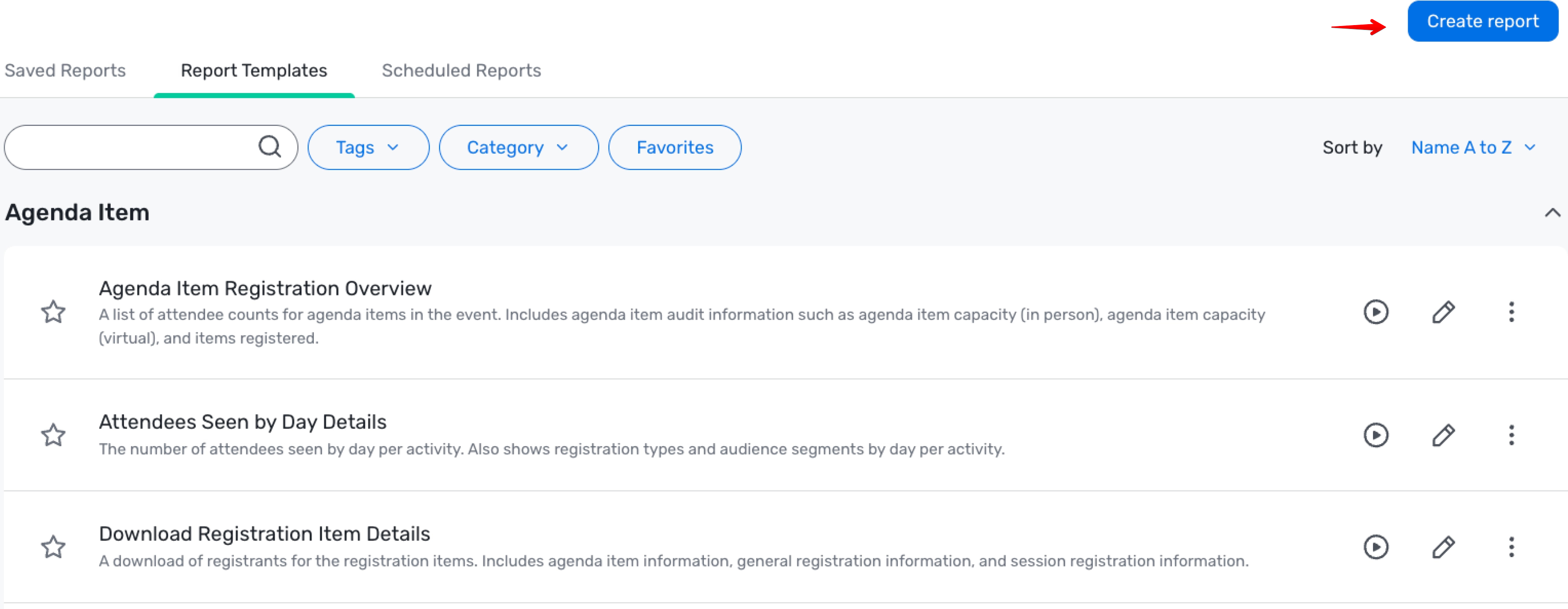
Navigate to the Event >> Reports and Click on "Create Report" on the top right of the screen.
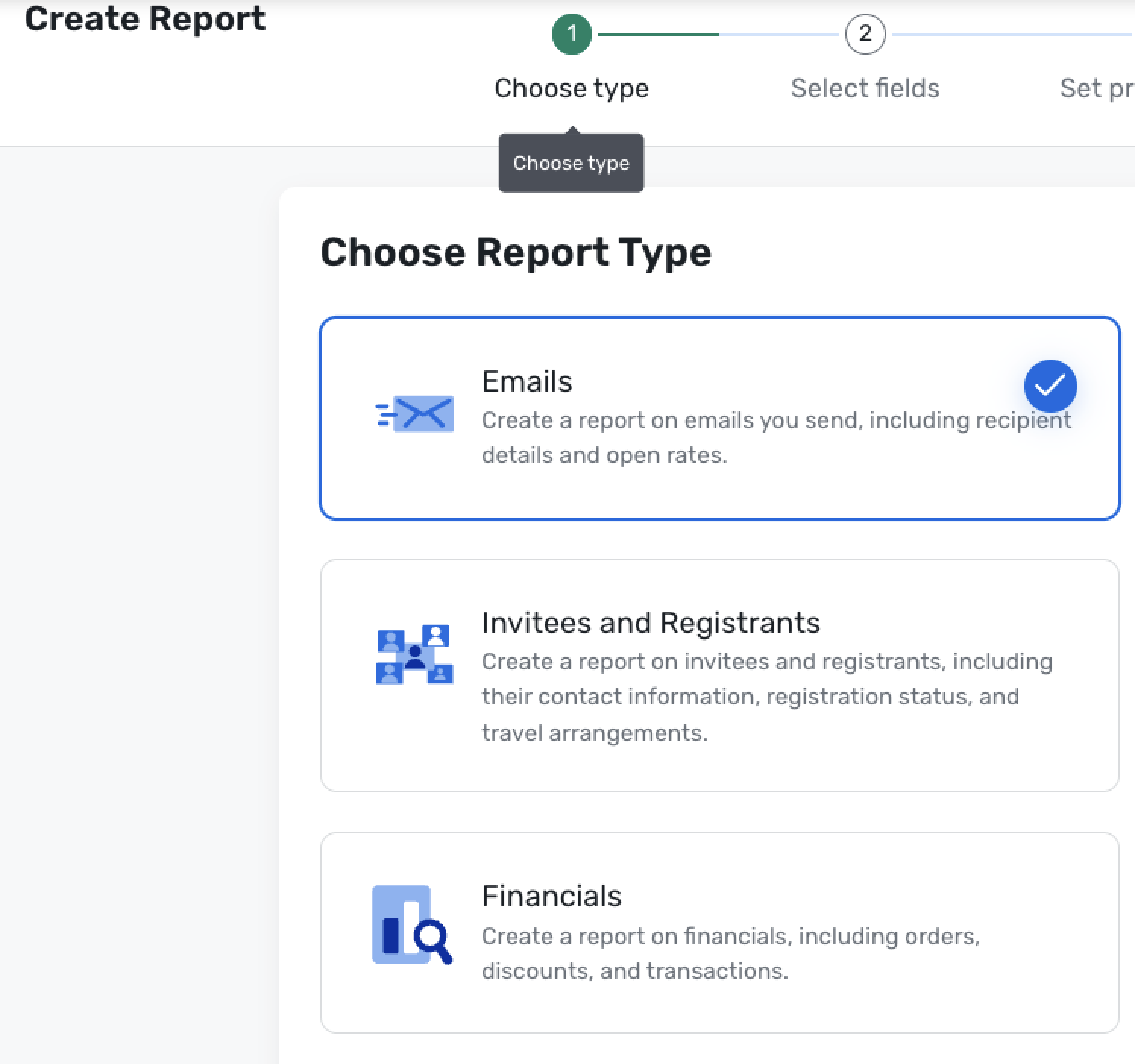
Choose Emails report Type
Pick the Report Sub Type depending on the data you want to look at
Download Report Charts as Images
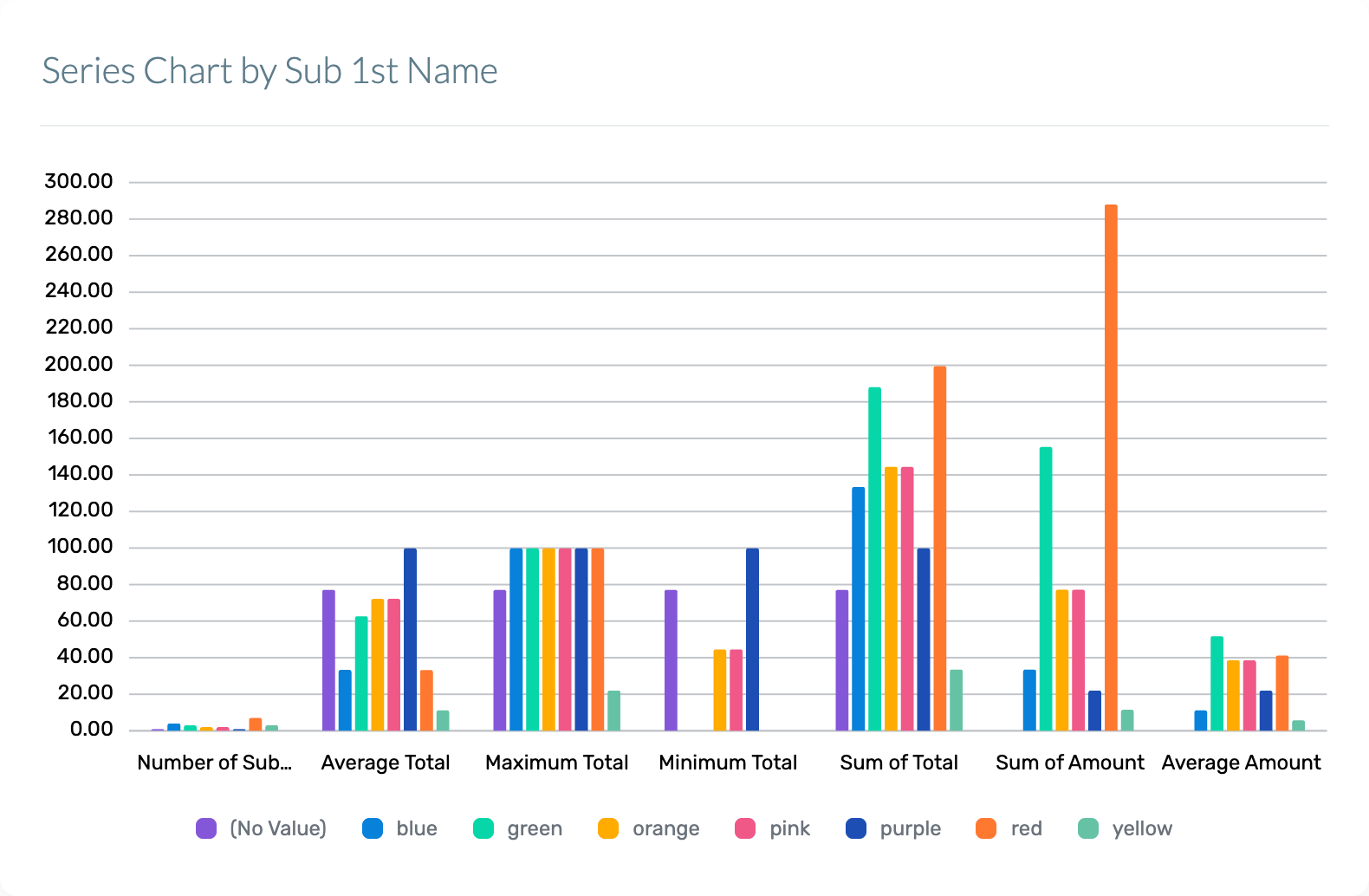
You can now download high-resolution PNG images of your charts, making it easy to reuse clean, on-brand visuals in presentations, documents, and emails—no screenshots required.
What’s changed
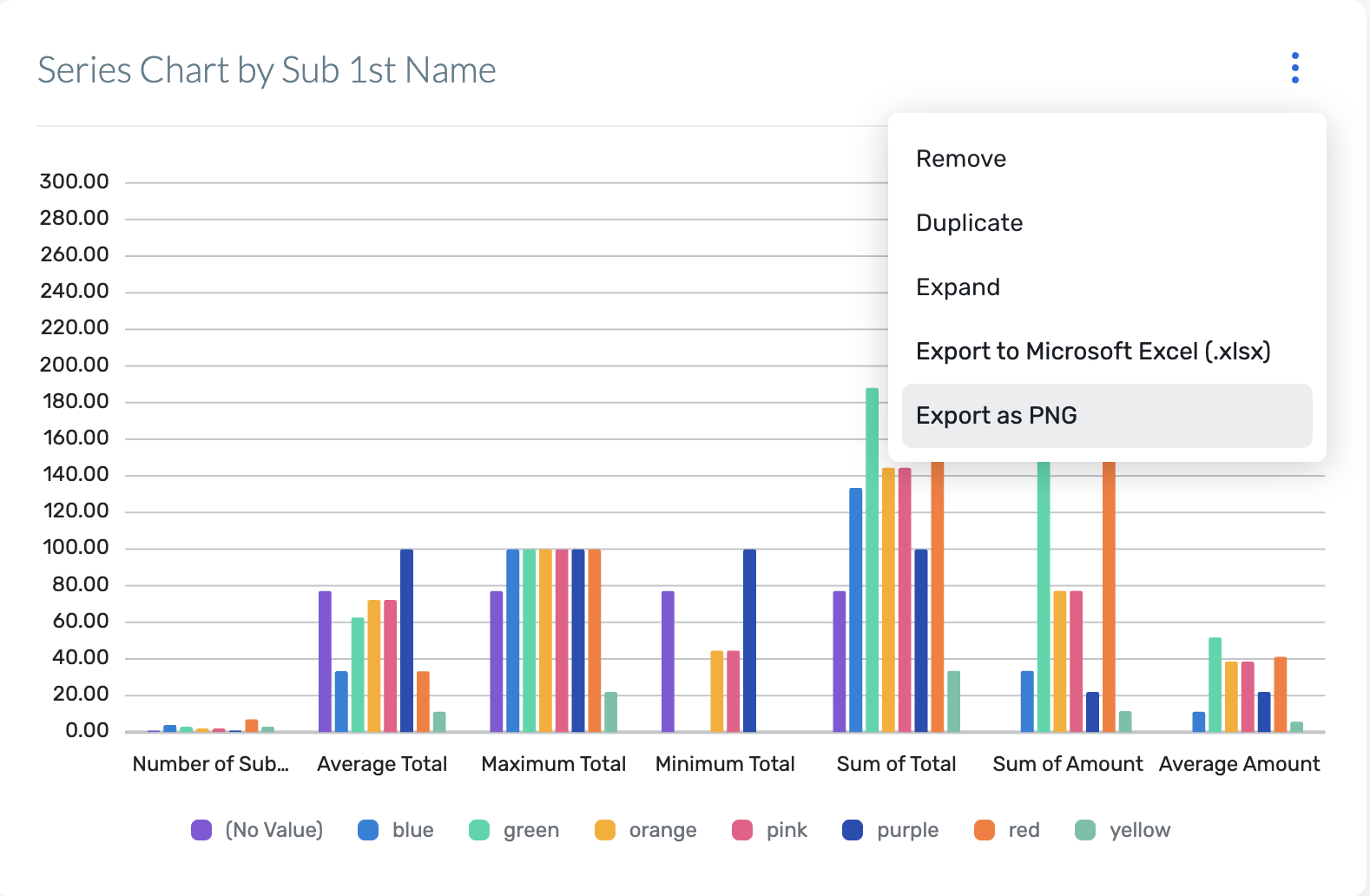
Each chart in Reporting now includes an “Export as PNG” option in the chart controls.
Clicking this option generates a high-resolution PNG that preserves labels, legends, and colors as seen in the report.
The exported images are optimized for common uses like slide decks, status docs, and email updates, so you don’t need extra editing or cleanup.
Export Option in Reports:
Downloaded Image:
Key Considerations
This option will be visible wherever supported charts are available in reporting throughout the application.
Exporting as PNG will not be available for grids.
The feature works alongside existing reporting capabilities; it doesn’t change how charts are built, saved, or shared within the product—only how they can be exported for use outside the application.
Enhanced Table Widgets in Reports
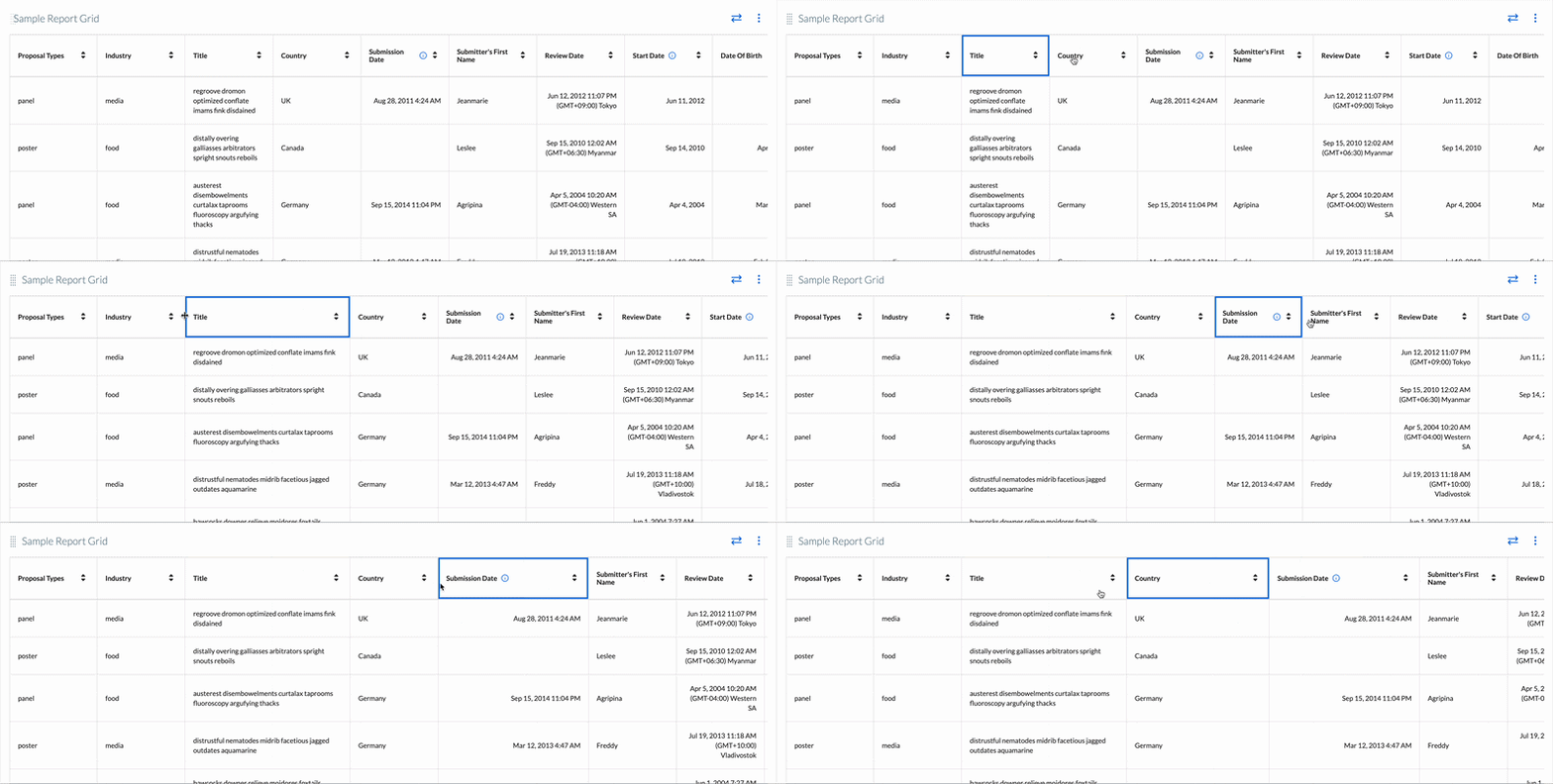
We have refreshed the report table widget experience to make it easier to scan, compare, and work with your data, while keeping all existing reporting behavior the same.
What’s changed
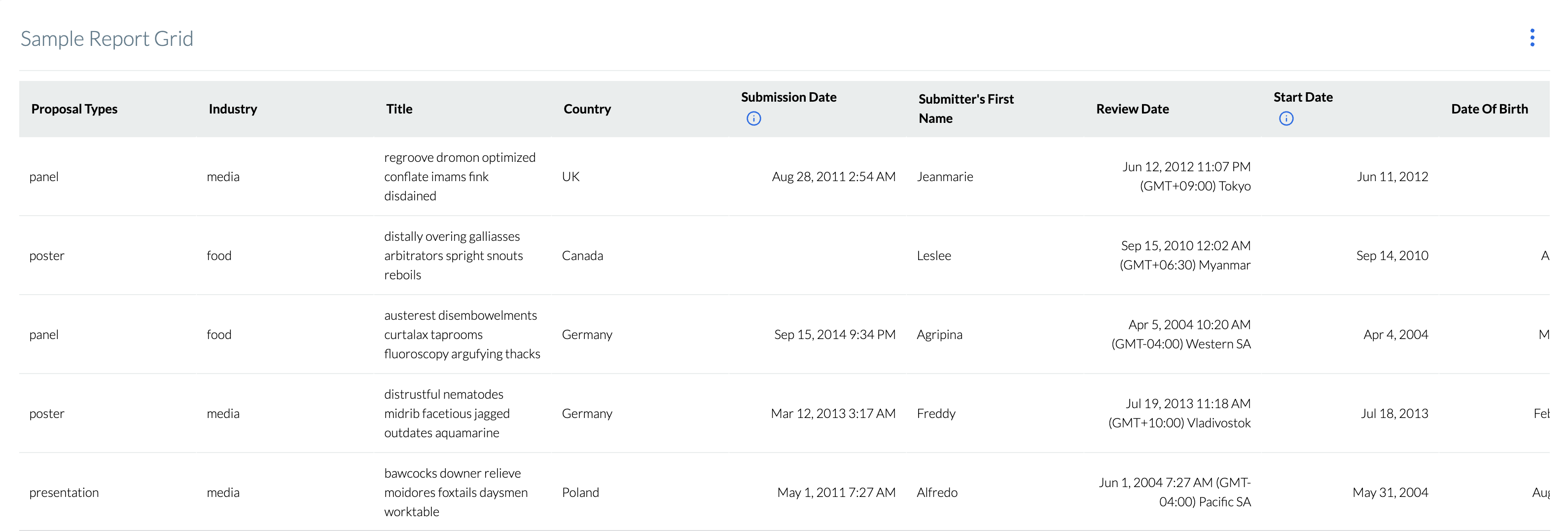
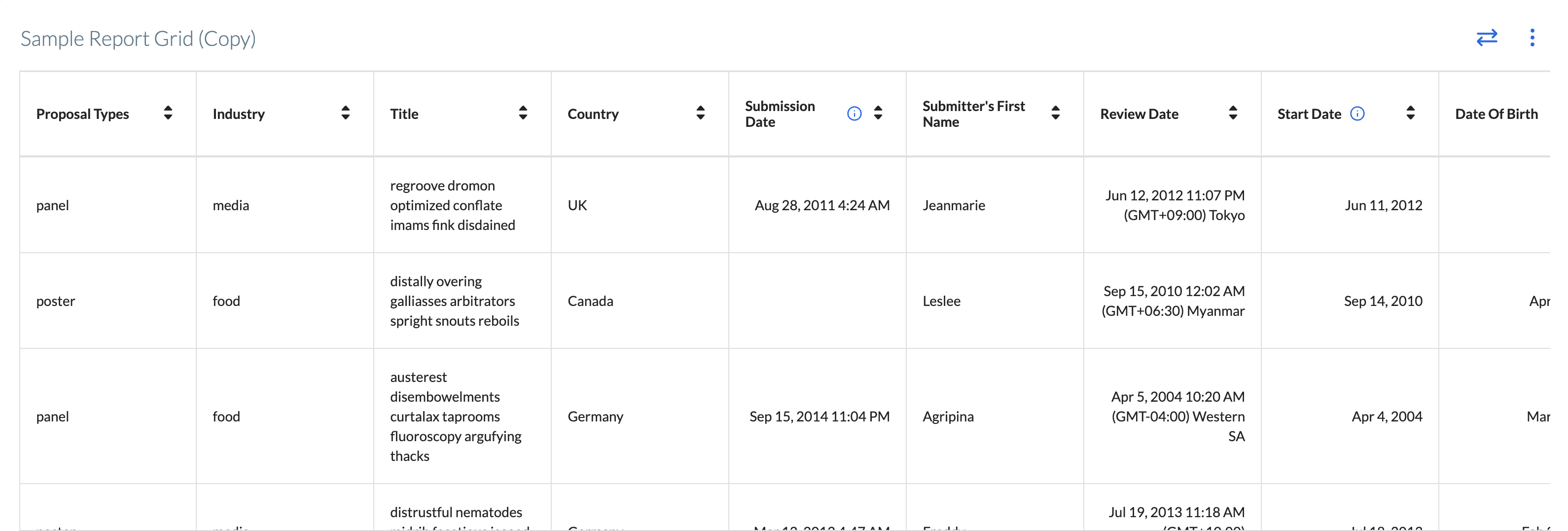
Clearer layout and alignment: Each value now sits in a dedicated cell with consistent spacing and alignment, making long text and dense grids much easier to read at a glance.
Better readability and usability: Header styling and row structure are more defined, so it’s easier to follow a row across the grid and distinguish columns in wide reports.
Before:
After:
New capabilities
Reorder columns with drag-and-drop: Use the Reorder columns control to drag and drop columns into the order that works best for your analysis, without editing the underlying report definition.
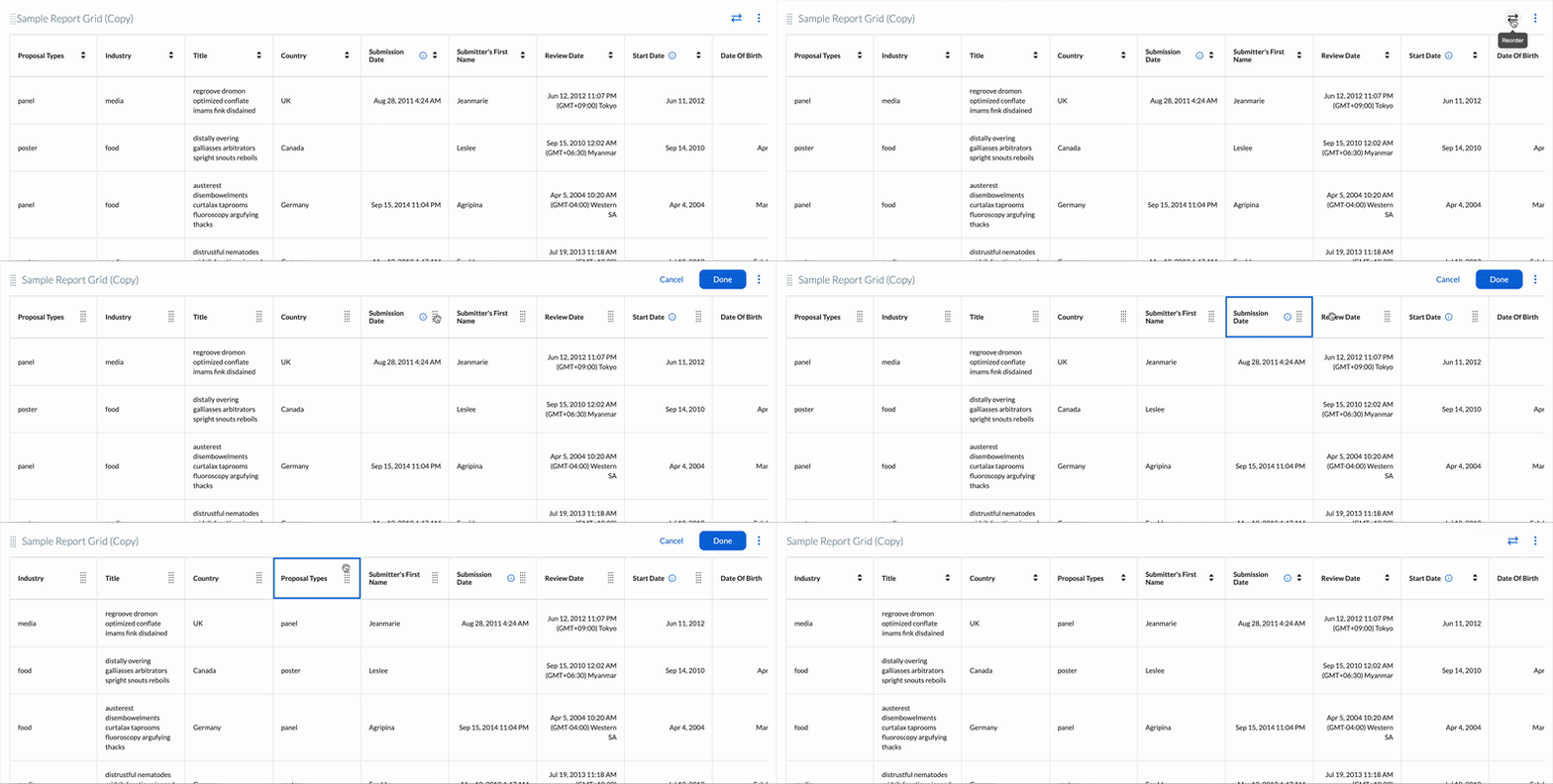
Resize columns: Adjust column widths directly in the grid to give more space to important fields (like titles or names) and compress less critical columns.
Key Considerations
The new grid layout will be available for all reports.
This layout works alongside existing reporting capabilities; it doesn’t change any existing functionality within reports.
Expanded Chart Options in Reports
We’re expanding how you can visualize performance in reports with new chart types and display controls. These updates make it easier to highlight goals, simplify dense views, and fine-tune how charts appear in presentations and stakeholder summaries.
What’s new
Gauge charts for tracking against goals
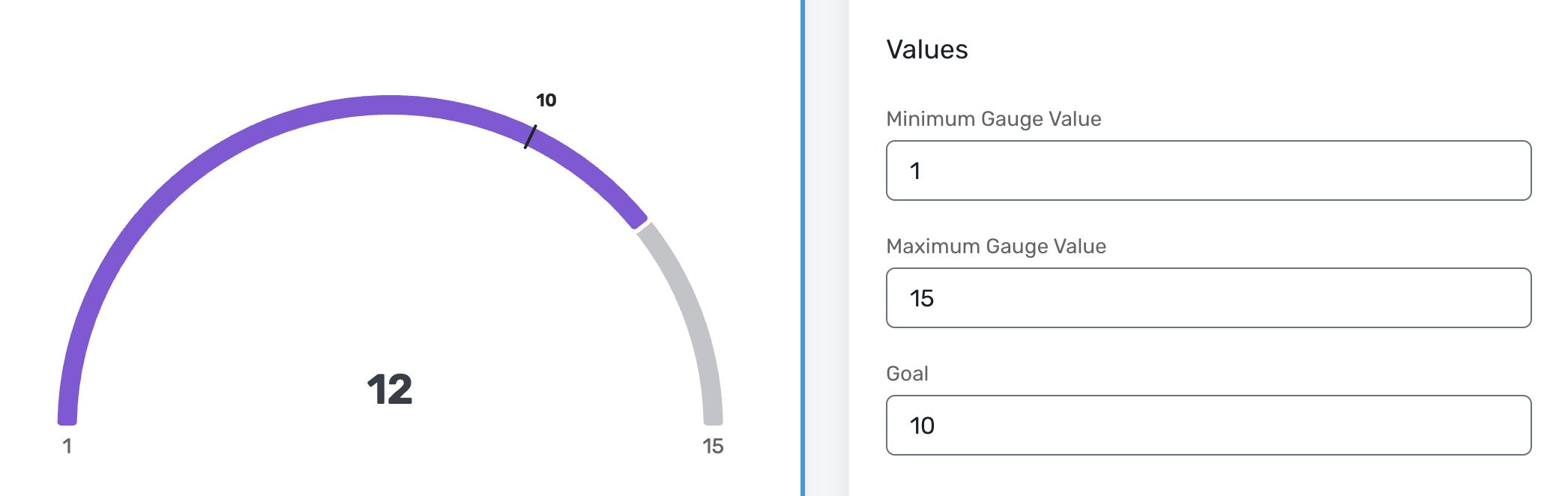
You can now use gauge charts to show how a single KPI is performing against a target (for example, registrations vs. goal or revenue vs. target).
Gauge charts support thin, medium, and thick styles so you can choose how prominent the gauge appears, depending on the space available and the emphasis you want.
Configure minimum, maximum, and goal values to turn the gauge into a clear tracker that shows at a glance whether you’re behind, on track, or ahead of plan.
Donut charts for clearer category breakdowns
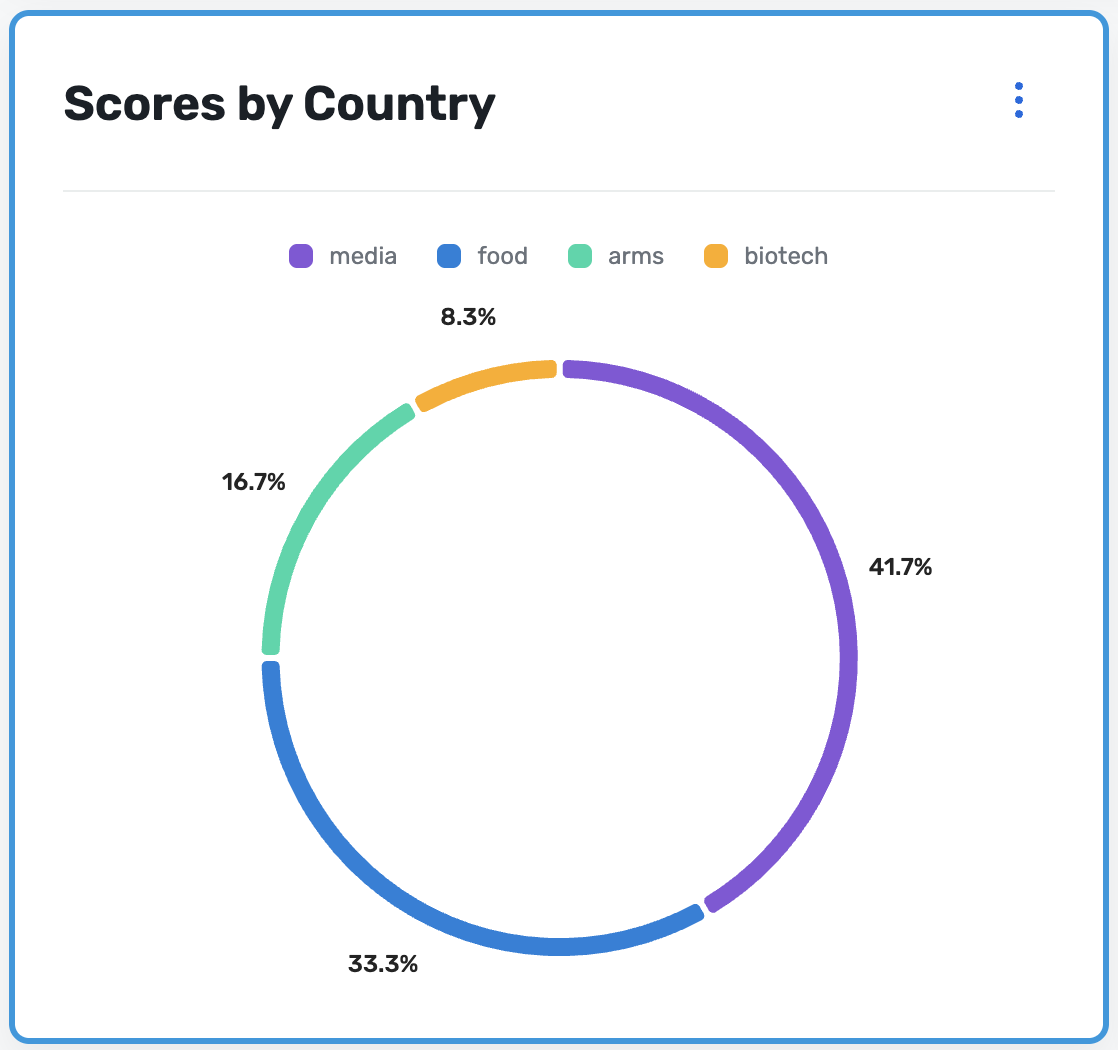
In addition to existing chart types, you can now visualize breakdowns as donut charts for a cleaner, more modern look compared to standard pies.
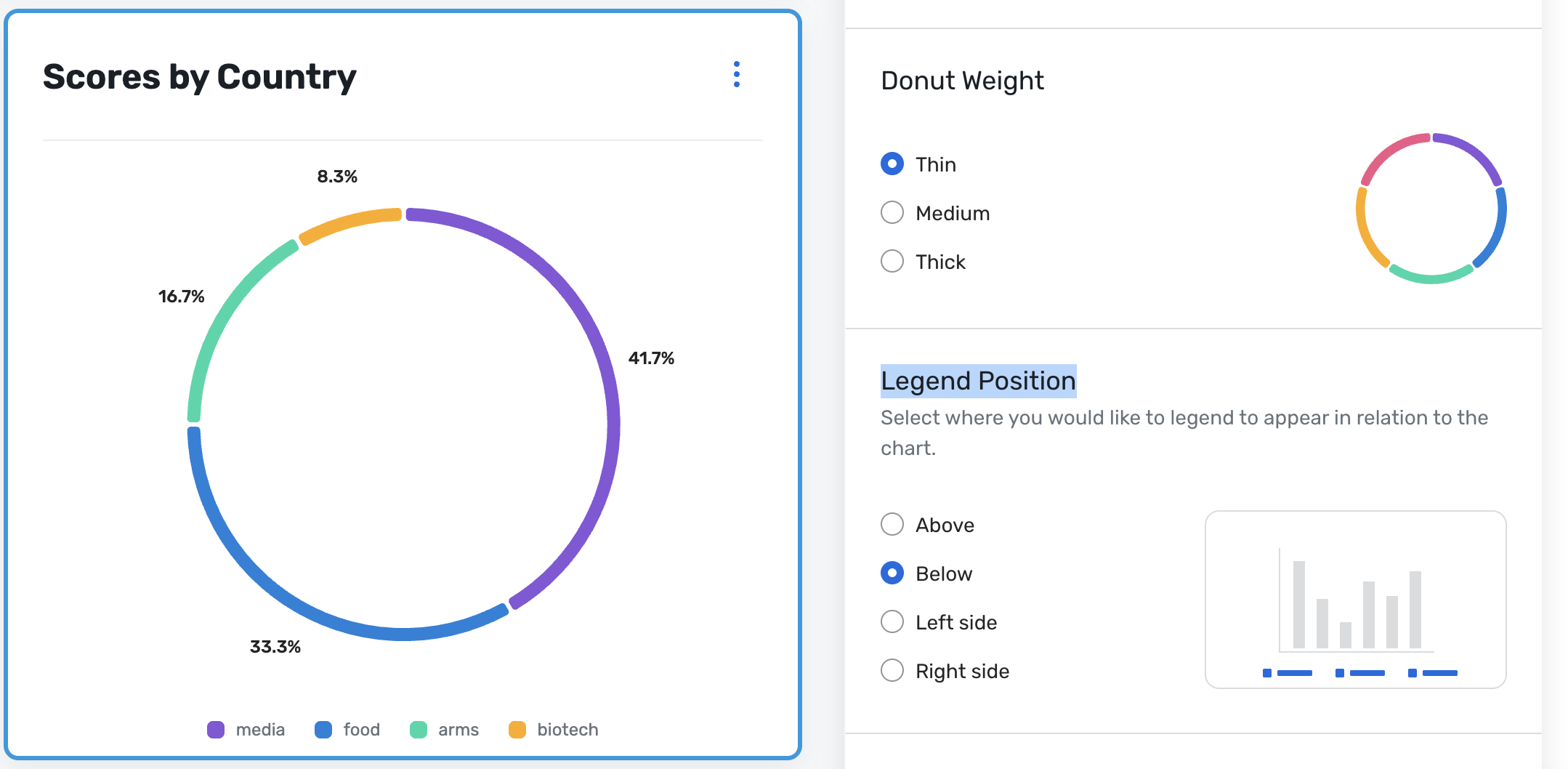
Donut charts also support thin, medium, and thick ring styles, letting you balance readability with the amount of data and labels you need to display.
Flexible legend positioning across key chart types
For donut, pie, gauge, stacked bar, and stacked column charts, you can now choose where the legend appears to better fit your layout or slide design. Legends can be placed above, below, to the left, or to the right of the chart, helping you reduce clutter, avoid overlaps, and match your preferred visual style.
Key Considerations
Gauge charts are best for tracking a single KPI against a goal, not for detailed breakdowns or comparisons across many categories. You’ll need meaningful min, max, and goal values; if these aren’t well-defined, the gauge can be misleading.
All existing reporting behavior (data, filters, access, and exports) remains the same—these updates give you more flexible and expressive ways to visualize the insights you already have in your reports.
This change affects all reports.
Consolidated Hubspot Solutions
Cvent is consolidating its two existing HubSpot integration options into one streamlined, out-of-the-box (OOTB) solution. Previously, customers who wanted to integrate Cvent with HubSpot faced two separate offerings, leading to significant confusion about which to choose, mismatched expectations, and, in some cases, the wrong solution being purchased or configured. This release eliminates that confusion by delivering a single, unified HubSpot integration.
Who Is This For?
This update is intended for teams who use Cvent alongside HubSpot to manage event data, contacts, and marketing engagement. It is also highly relevant to teams that have fielded ongoing questions about which HubSpot integration to recommend.
What's Changing
Prior to this release, customers could choose from two separate HubSpot integrations, each with distinct capabilities:
The OOTB HubSpot Connector wrote data to HubSpot's Marketing Events object, supported real-time push syncing triggered by registration and attendance activity, and offered a self-service setup experience. However, it did not support session-level syncing, writing to HubSpot Segments (Lists), or configurable trigger points.
The Integration Hub (Tray) HubSpot solution wrote data to HubSpot Segments (Lists) and supported session-level data syncing, but required Sales Engineering involvement to set up, operated on a polling-based sync rather than real-time push, and only supported a single admin-level configuration.
Neither solution covered all customer needs on its own, and having two options created confusion for customers and internal teams alike.
What the Integration Hub Solution Brings to the New Connector
The consolidated OOTB connector now incorporates the key capabilities that previously only existed in the Integration Hub (Tray) version:
Sync Cvent Events to HubSpot Segments (Lists) — Attendees are automatically added to or moved between event-level Segments (Lists) based on their registration status.
Sync Cvent Sessions to HubSpot Segments (Lists) — Session-level Segments (Lists) are created and updated per registration status (Registered, Canceled, Attended), giving marketers granular session engagement data in HubSpot.
What's Brand New — Not Supported by Either Previous Solution
New Home for the HubSpot Integration — The consolidated integration now lives under Admin > Integrations > Integration Apps. Customers who previously configured the OOTB Connector under Push API Integrations will find their existing configuration in the new unified integration location.
Declined Status for Segments (Lists) — Attendees who decline an event invitation are now attributed to a "Declined" Segment (List), a status that neither the OOTB Connector nor the Integration Hub solution supported previously.
Configurable Trigger Bundles — Admins can now choose which triggers and trigger actions to enable or disable across Event and Session bundles. Previously, the OOTB Connector had no configurable trigger points, and the Integration Hub solution operated on a fixed polling schedule rather than event-driven triggers.
Multi-Configuration Support — Admins can create and manage multiple named HubSpot configurations, each with its own Details, Field Mapping, and Trigger Points settings. The appropriate configuration can then be selected at the event level. Neither previous solution supported multiple configurations per account.
Session Sync History in the Sync History Report — The Sync History Report now includes session-level sync data alongside event-level data, providing a complete view of all sync activity in one place.
Additional Resources
Cvent Community: Do you have questions about the updates we've rolled out this window? As always, get questions answered in the Community via the Open Forum.
Beta Opportunities Page: Help us make Cvent Products better by being the first to test products before they're widely available. Join Beta Programs.
UX Research Panel: Be part of a select group of users who will help guide the future of Cvent's products. Join the UX Panel.